

Google Chrome can generate secure passwords, but you need to know where to look. Below we’ll show you how to enable the experimental feature in Google’s browser.
The feature generates strong passwords and saves them to your Google account via Google Smart Lock.
Let’s see how you can add it to Chrome:
Make sure that the Chrome you’re using is signed in to your account. Then type chrome://flags in the address bar and press Enter. The internal URL will show you a bunch of hidden options. In the search box, type “password” and you’ll see Password generation first in the list.
Select “Enabled” and restart the browser. 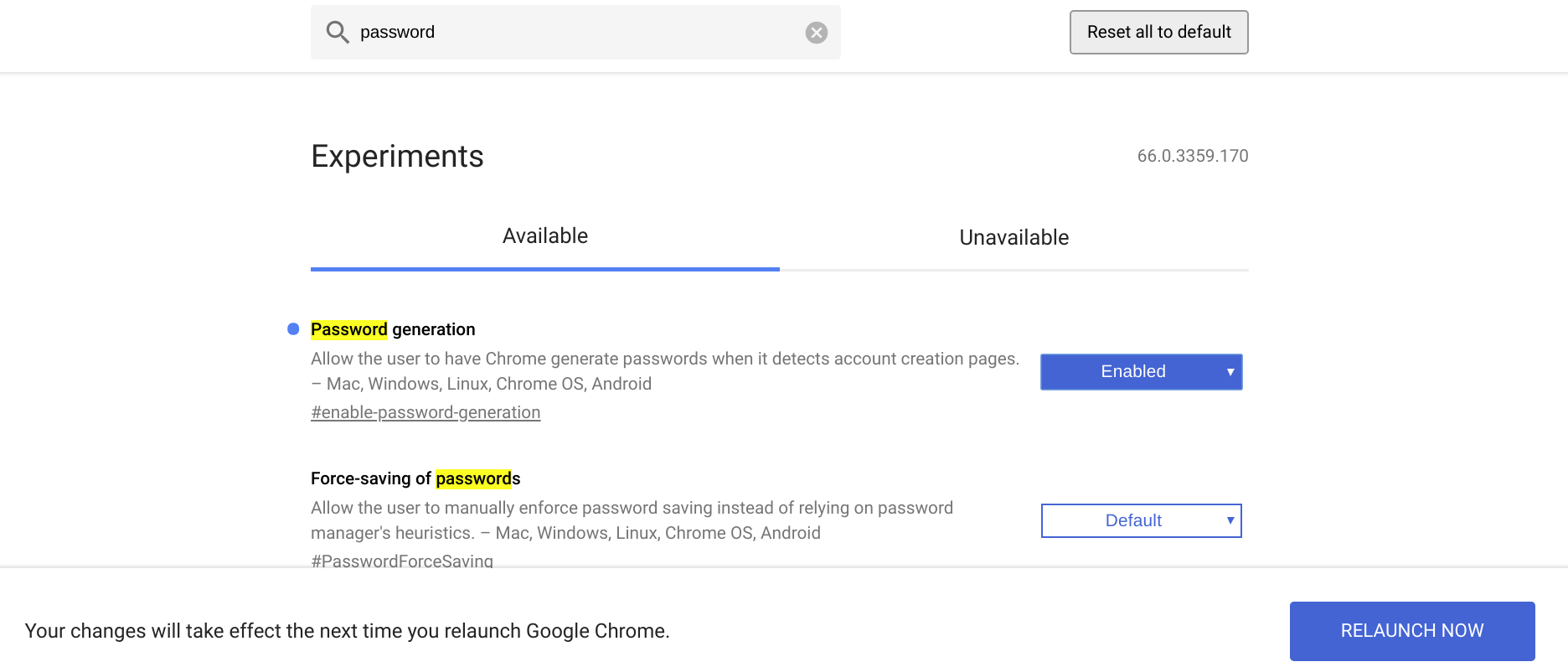
Now try to create an account, right-click on the password field and click on the “Generate Password” button.
You’ll see a pop-up window showing you a strong password. The window gives you the option to save the password to Google Smart Lock.
Please note that this is an experimental feature, so it is possible that it may have a bug, or Google may withdraw it at some point.
_____________________
- Facebook two-factor authentication without a phone number
- FlightGear 2018.2.1 free flight simulator
- Chrome: unlock the malware scanner
