Gmail is part of our daily routine. And why not, there are so many reasons to love (or hate) Gmail.
It's completely free. There's plenty of storage, and it gives you free POP3 access to your emails as well as free offline access via the IMAP route. 
Then there are attachments, which you can send up to a maximum size of 25MB. Anything over one byte will automatically be transferred to Google Drive, so you can send a link instead of an attachment.
But how do you manage your attachments that get lost in the multitude of your messages? Today we will deal with this, and of course we will use the power of search available in Gmail.
Attachments add bulk to your inbox. Let's say someone sent you high-resolution photos or videos. You may need to find them, organize them, or delete them to save more space.
Below we will see how you can perform a quick and efficient search for email attachments (even if you can't remember the file name, the sender's name, or the date the message was received, etc.).
Search for emails with attachments
There are several ways to search for your attachments in Gmail. Let's see how to do a general search:
- has:attachment – Filters those that have attachments
- has:attachment doc – Filters emails that contain .doc file attachments
- filename:.doc – Works more precisely than the above (but generally searches for file types)
Note: in filename: The period is not required before the file extension: ilename:.doc but also filename:doc
- filename:iguru*.doc – Filters emails that contain doc files and the word [iguru] at the beginning of the name. (A search
filename:*iguru*.doclooks for messages that contain the word “iguru” anywhere, not just at the beginning of the name). - filename:.doc or filename:.php – Filters emails that contain .doc or .php files (or both).
- filename:.doc and filename:.php – Filters emails that contain both .doc and .html files
You can also search for emails based on the size of the message. Below we will use the size as “m” or “mb” to indicate it to the Gmail search engine.
You can also focus your search on old messages with older_than:1y which will show messages you received or sent more than a year ago.
This method does not prevent you from using other search parameters. So you can use parameters like older_than or “larger” and “smaller”
Let's look at some examples:
- larger:10mb
- smaller:5mb
- and to find something in between: larger:5mb smaller:10mb
See the file type attached from search results
Now that you know how to identify your attachments, let's see how we can instantly see the file type without opening the email.
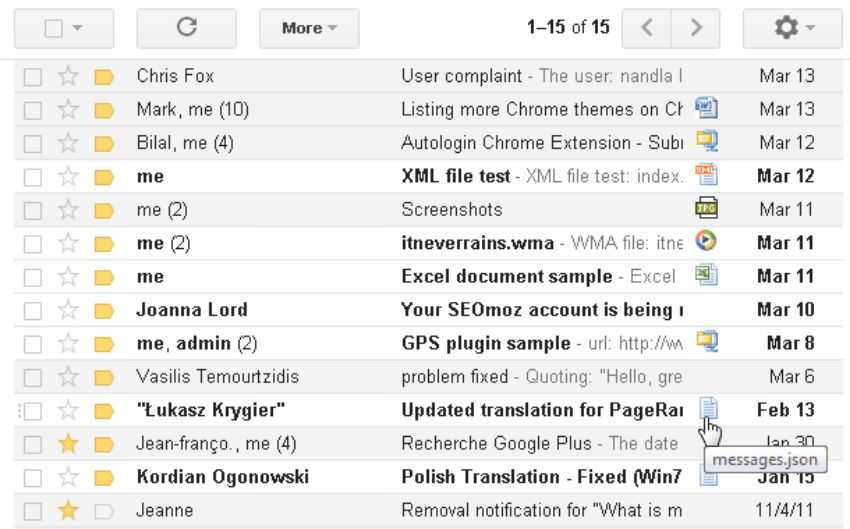
Chrome users can install the Attachment Icons for Gmail extension. This Chrome extension will display the attachment icon at the end of the subject line. This can be a great addition to your workflow if you receive a lot of attachments every day.