

If you share a Linux computer with other people and want to be sure that no prying eyes will see your files and folders, then you can hide them within an image.
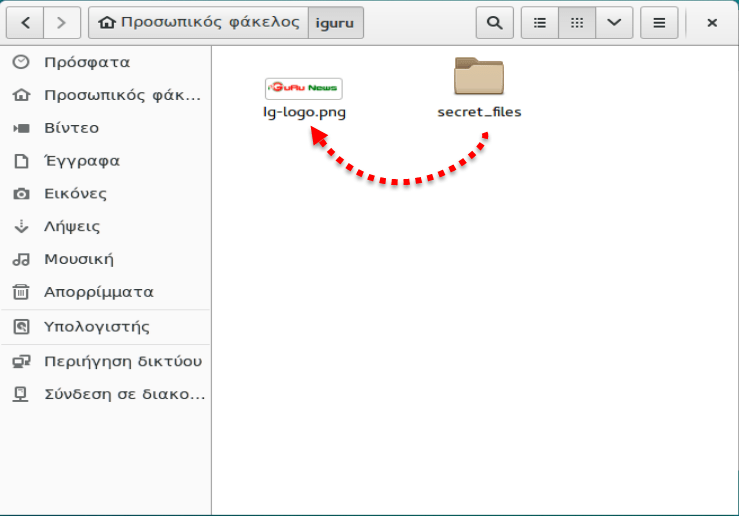
And the image should not be fake but should appear normally in a preview. The trick is very simple and is based on the logic that you are not trying to hide your files but to camouflage them. Let's see how:
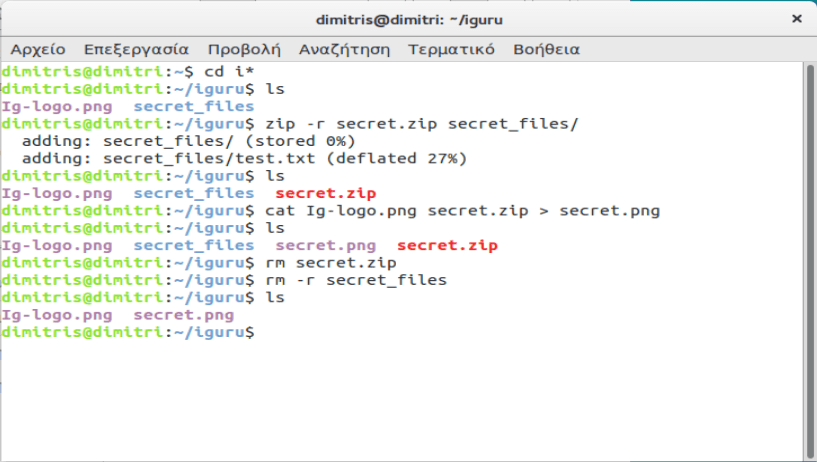
Before we begin, we created a directory containing an image file (.png or .jpg) and the file or directory we want to hide. For our example, we are going to hide a directory of files, called secret_files. Our original image file is Ig-logo.png. With the cd command (command to jump to another physical folder in linux, from change directory) we go to the directory containing the image and the file or directory we want to hide.
cd i* (go to the directory whose name starts with i)
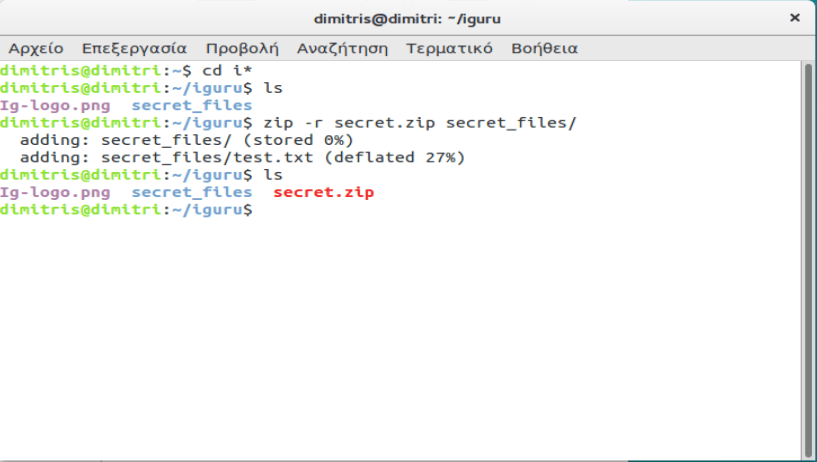
There we have created a directory named secret_files which we want to hide inside the image named Ig-logo.png, which is located in the same physical location. As a first step we will create a compressed file that will contain the directory we want to hide. To do this, type the following command in the linux command line and press Enter.
zip -r secret.zip secret_files/
In the above command, the -r switch indicates that any subdirectories within the specified directory will be included. The name of the compressed file is secret.zip and the name of the directory to be compressed is secret_files .
After the command is executed, type the ls command and press Enter to see the secret.zip file.
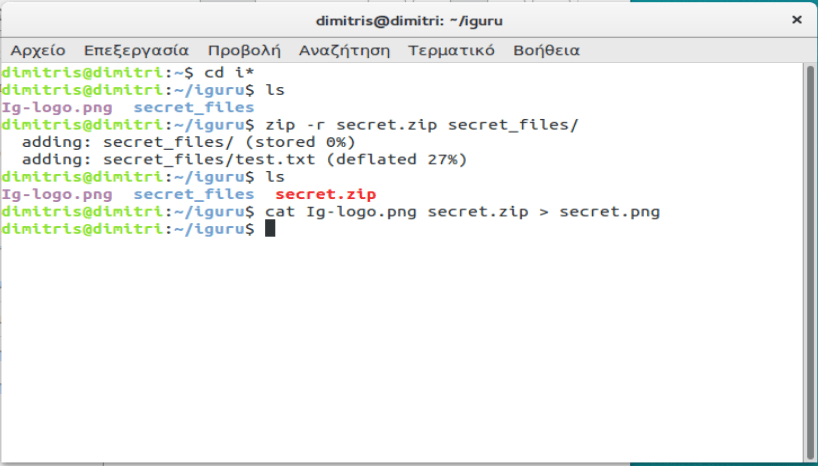
Now, we are going to merge the compressed file with the image and save the result as a new image file using the linux “cat” command. In our example, we type the following command in the linux command line and press Enter.
cat Ig-logo.png secret.zip > secret.png
The original image file (Ig-logo.png) must be listed first, before the name of the compressed file we want to insert into the image file. Then the > symbol redirects the original image file and the compressed file to a new image called secret.png .
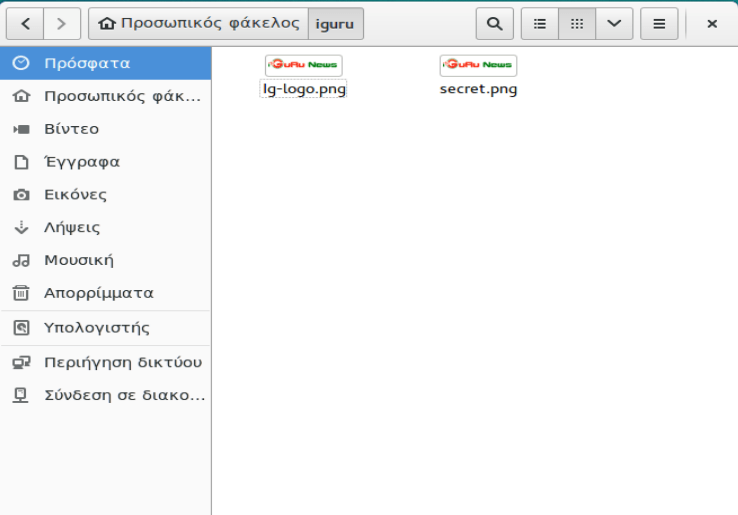
When we use the ls command in the Linux taskbar we see the new image file, secret.png , which hides the compressed file. You can display this new image using any image viewer. It is identical to the original image (Ig-logo.png) Only its size changes now because…. what else? it contains our hidden compressed folder of course.
Now that we have our new image hiding the file or folder, we can now delete the compressed file and the original file or folder, using the rm (remove) command. In our example, we have typed the following two commands to delete our compressed file and the original folder.
rm secret.zip rm -r secret_files
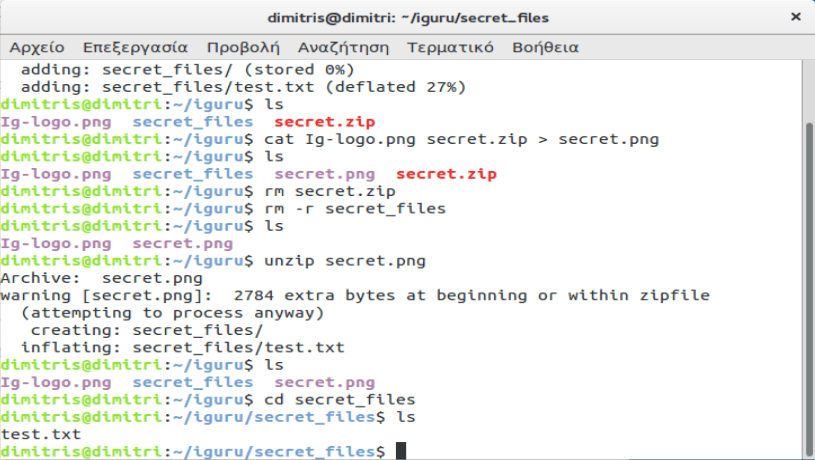
To access the hidden file or folder again, we make sure we are in the directory containing the new image, which contains our file or folder. Then, we extract the file or folder from the image, by typing the following command and pressing Enter.
unzip secret.png
Our secret_files folder is available again and when we look inside it ( cd secret_files/ and ls ) we see the files contained within it.
Of course, this isn't necessarily the most secure way to protect your files. It just disguises them, making them less visible to someone who's eager to see your system. Of course, if you want, you can encrypt your zip files before hiding them inside the image, to make them more secure.
