

Google Drive offers plenty of space for storing files online and syncing them across all your devices. The basic storage is a not-insignificant 15 GB of space completely free with paid upgrades if you need more. However, you should take some actions now and then to optimize your storage space.

If you find that your Google Drive storage space is running low, there are a number of ways to deal with this problem. Below we are going to give you some of the best tips for getting extra storage space, using what you already have more efficiently.
Empty the trash can periodically
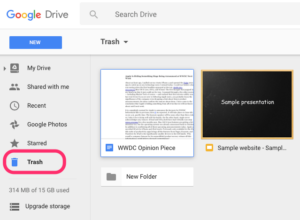
When you delete files in Google Drive, they aren't deleted forever. They're sent to the trash, where they can accumulate over time. So over time, they add up and use up your storage space unnecessarily. Make sure you've permanently gotten rid of deleted files that you no longer need.
Simply click Trash in the side menu of your desktop Google Drive, select the files you want to delete, and click the recycle bin icon to get rid of them once and for all. Hold down the Shift key to select multiple items to delete.
Sort by size and delete large files
The best way to quickly free up a lot of space is to delete the largest files that are eating up your space. Google Drive lets you sort by file size, so you can see the large files first and delete them if you no longer need them.
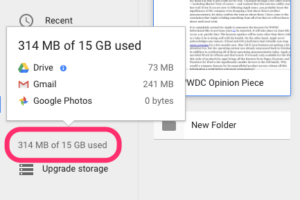
In the sidebar, under Trash, you can hover over the amount of storage you're using to see a breakdown across services: Drive, Gmail , and Google Photos. Click Drive to see all your files on the drive, starting with the largest. If you can delete any large files, don't even think about it! Just don't forget to click Trash and delete them from there permanently.
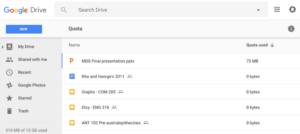
Additionally, you may have noticed when you hover your mouse over storage that Gmail attachments and Google Photos are taking up space. Consider opening those services separately to see if there's any files there that you need to delete.
Add Dropbox or OneDrive to the game
There are plenty of other cloud services besides Google Drive that can give you free storage. Dropbox offers 2 GB (with free options for small upgrades) and OneDrive offers 5 GB for free. If you’ve done everything you can to free up space—but to no avail—and you don’t want to pay for more storage, add one of these cloud services to your life. Sure, that means you’ll have to remember multiple login credentials and use multiple services, but you won’t have to pay for additional storage.
To make your life easier, assign specific file types to specific services. For example, if you sign up for Dropbox for extra storage, upload all your videos there and put all your other files in Drive. That way, you'll know exactly where to look for a specific file.
Upgrade your storage space
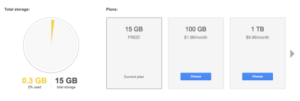
If all else fails, it might be time to face reality: You have to pay for more storage! Luckily, Google Drive storage is cheap. Click Upgrade Storage in the side menu to see your options (subscription plans):
- 15 GB is free (or 30 GB for Google Apps for work)
- 100 GB is $1.99 per month
- 1 TB is $9.99 per month
- 10 TB is $99.99 per month
- 20 TB is $199.99 per month
- 30 TB is $299.99 per month
Unless you're a business or corporation, it's hard to need more than 1 TB, let alone 30 TB. Enter your payment details and you're ready to get your extra storage, without having to delete anything.
