

Push web notifications can really free your hands, but have you ever regretted agreeing to receive such notifications from a particular website? I know I have. Today, we're going to look at how you can cancel web notifications from websites or services that you no longer want to appear in browser .

Let's see how you can disable specific web notifications in Chrome, Edge , and Firefox.
Chrome
The easiest thing you can do in Chrome is to type the following string in the address bar and then press Enter: chrome://settings/contentExceptions#notifications.
A small pop-up window will open, listing all the websites that are able to show you notifications. Click on the entry you want to change and a drop-down menu will appear under the Behavior column. Select Block from the menu and click Done at the bottom of the pop-up window.
Firefox
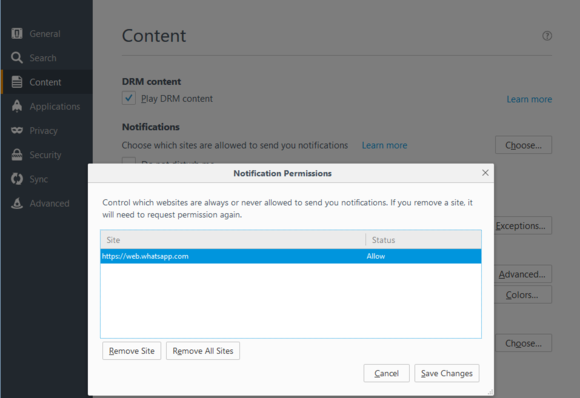
Start by clicking the “hamburger” menu icon in the upper-right corner of the browser and select Options from the drop-down menu. In the tab that opens, click Content in the navigation pane on the left, and then under the Notifications click the Choose… button.
In the pop-up window that opens, select the website you want to stop receiving notifications from. Then, click Remove Site , and then Save Changes.
Edge
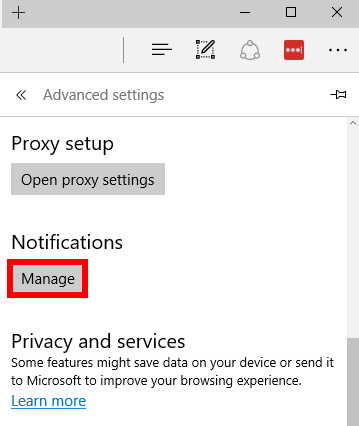
Depending on your browser, once you disable these sites, you may be prompted to re-enable notifications the next time you visit them. Just remember to not allow these notifications when prompted again, and you'll be good to go. When the Windows 10 Anniversary Update is released on August 2, 2016, Edge will start showing web notifications. Once you start receiving them, you can disable them based on which sites you want to keep and which ones you don't by clicking the menu icon (three horizontal dots) in the upper-right corner, where you'll follow the path Settings –> View advanced settings.
Under the Notifications, click Manage and a panel will appear where you can edit the various sites for which you have agreed to receive notifications.
