

Google Drive is a useful cloud storage solution and one of our and our users' favorites for several important reasons. It provides us with seamless access across various operating systems and the web app is full of features.
See also: Google Drive: Easier file search with the collaborator feature
Additionally, any document created using Workspace tools like Sheets, Slides, and Docs automatically syncs to Drive. It also allows users to take photos and upload them as documents via the Google Drive app for Android. A recent update has given the document scanner a fresh design.
Google regularly updates the UI of its appsto keep them in line with the latest material design guidelines and to make them look like part of the same family. Drive has received its fair share of updates, with recent improvements focused on making the web UI easier to navigate if you love organizing your files.
However, Google hasn't updated the document scanner UI in a while. An update seems to be in order, especially considering that the Pixel Camera app recently received some UI changes, introducing a toggle to switch between photo and video modes.
Now, similar changes are arriving to the Drive app's document scanner UI with version 2.23.457.1 (via 9to5Google).
The scanning tool in Google Drive has an Auto Scan and Download feature
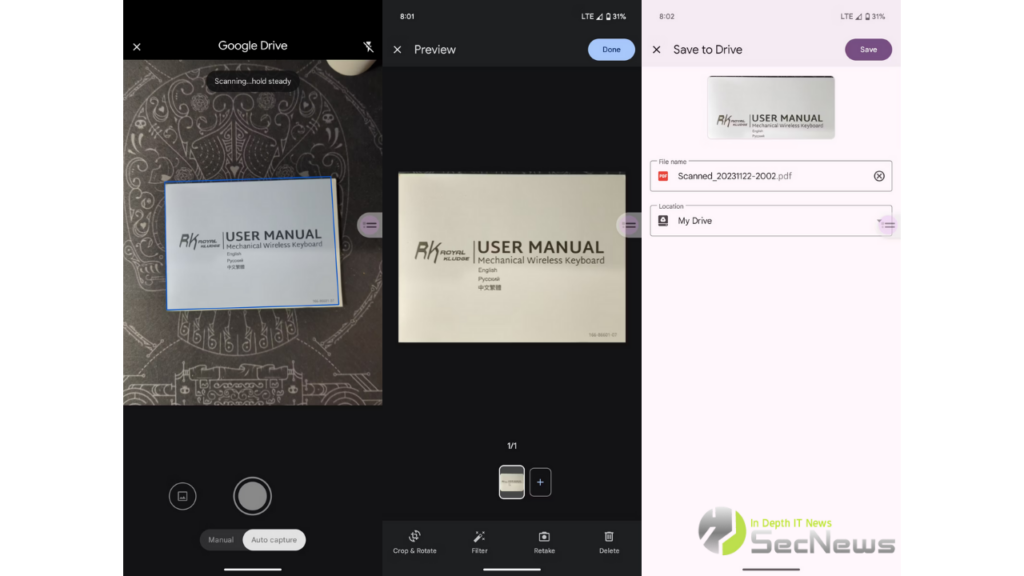
Once you open the document scanner UI using the capture button just above the + , you'll notice a number of changes, including the Google Drive highlight at the top of the screen and the new Auto Capture feature that's enabled by default at the bottom. In the latest Drive update, it automatically takes a photo when the page boundaries are in focus and fit within the frame. You can also switch to the older Manual mode if you prefer to use the shutter button to scan.
See also: Google Maps: Users dislike the latest change to the app
Drive's document scanner has several tools for easily editing your scanned images.
After the first capture, you will see a new Preview window where the bottom bar has options like Crop & Rotate, Filter, Repeat and Delete. Just above that, you can tap the + button on the thumbnail to scan the next page. Once you have scanned all the pages of the document satisfactorily, simply tap the Done button in the top right corner of the preview screen. In the last step, you have the option to set the document name.
The new changes free up more screen space for document previews and also make the scanning process simpler. In our brief test, the auto-scan feature took a few seconds but correctly detected page boundaries every time. We're seeing this new update's refreshed interface on most of our devices, so it appears to be widely distributed. If you don't see it yet, try updating the Drive app from the Play Store or checking for Google Play.
Source: androidpolice.com
