

Do you want to create educational videos and are looking for the best service? Use RecordCast!
One of the most interesting media that you can apply to learning/education is video. The use of video in learning/education has penetrated more in approaching children who tend to have a visual and auditory learning style, since some of the children learn/are educated in this way. Videos will help them to be more interested and focused in learning with media.
See Also: DesignCap, a “Digital Graphic Design Tool”
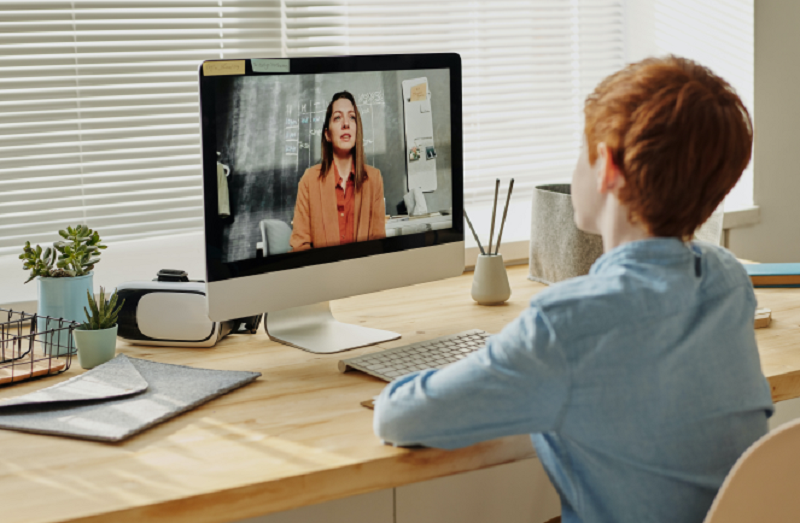
Teachers can create engaging educational videos, such as video presentations, tutorials, or training sessions. By creating engaging and interactive videos, students will more easily understand the material the teacher is presenting. One method of creating videos that is engaging and interactive is to create a screencast video. What does this mean? You can create videos by making a digital video recording of what is happening on the screen, accompanied by audio commentary or subtitles explaining what is happening on the screen. The results of this video will be more understandable by studentsbecause the way in which the information is conveyed to them will be clear.
To create something like this, you don't actually need any special skills, because currently there are widely available screencast software or applications that can help us. One of them is RecordCast.
See also: How to make a free logo with DesignEvo?
What is RecordCast?
RecordCast is a tool for recording screen video or audio. RecordCast can record all the activity performed in browser tabs or the entire desktop. In addition, we can add audio from the microphone and then record our voice to the video recording.
Advantages of RecordCast
1. Free
RecordCast can be used for free, with high-quality video recordings without watermark.
2. No download
With a simple click you can start screen recording and you don't need to download software and extensions.
3. Flexible registration
You can record your entire screen, application window, or browser tab. You can also add audio at the same time if needed.
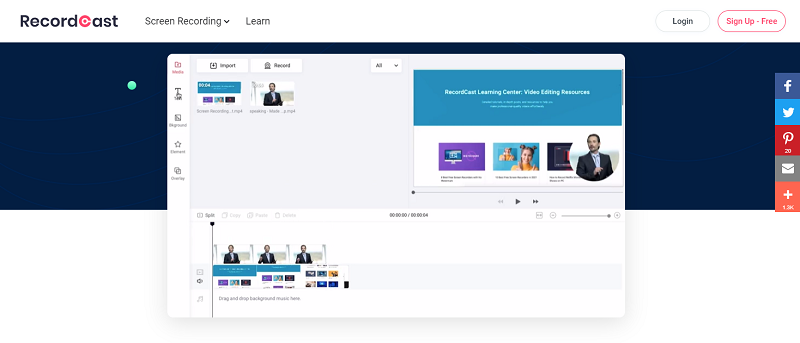
4. Built-in video editor
Add impressive titles, annotations, effects and more to your screencast with the built-in video editor. The RecordCast video editor will enhance the appearance of your screencast, making it look highly professional.
How to record screen with RecordCast
There are three easy steps to record screen with RecordCast, namely adjust settings, edit the recording, and download it.
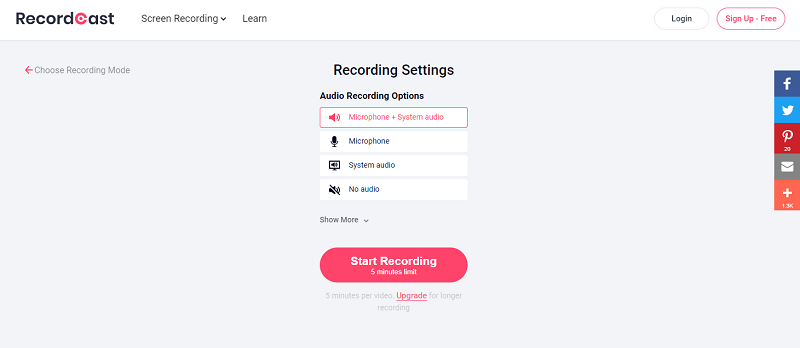
On the main page, click the “Record Free Now” button. After that, you may need to select a recording mode. Then, select the audio recording method when recording your screen (microphone, system audio, both, or no audio). If you select the microphone, in this step, you can connect the microphone to the laptop. For the System Audio option, you don’t need to install it. After you click Start Recording, a pop-up window will appear showing the content from your screen. Select one by clicking the preview view, and then clicking the “Share” button.
On the next page, your screen recording will appear. The maximum time limit in the free version is 5 minutes. RecordCast will automatically start recording your screen or tutorials. When you are done, click the stop button icon. You can also click Download and Edit to edit the recording if you want.
RecordCast is very useful for explaining a procedure or creating a training video and then sharing the video with your students in distance learning (PJJ). With RecordCast, you can record what is happening on your computer screen and easily add audio from your microphone.
If you are interested? Visit www.recordcast.com for more details.
