

They're familiar and easy to use, but sometimes Roku remotes don't work as they should. If you're having trouble with your remote, we've put together some helpful tips that might help.
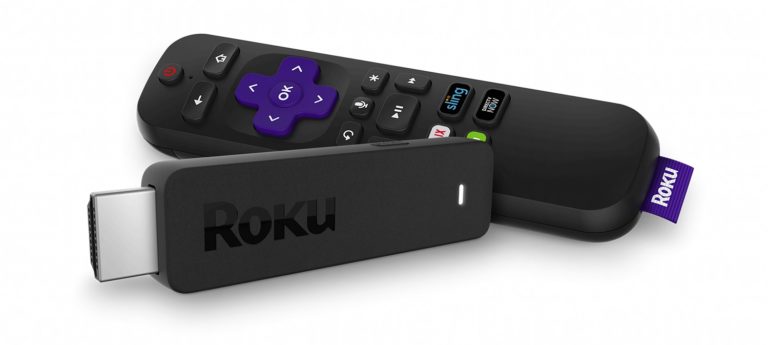
Have you tried restarting?
The first suggestion is pretty straightforward: Restart both your remote and your Roku streaming device. For the remote, it’s as simple as removing the batteries. For the Roku itself, you can unplug the power cord, count to 5, and reconnect the cord. Roku’s support website notes that all streaming devices, except for Streaming Sticks, can be controlled via an IR remote, which you can use to restart instead of powering on. Just go to Settings, then System. Select System Restart, then Restart. For Roku TVs, it’s slightly different: Settings, System, Power, System restart, Restart.
Reinstall the batteries in your remote when you see the home screen and see if restarting has resolved any issues. If not, try new batteries.
Repair with a Re-Pair
No luck? Try this: Remove the batteries from your remote and restart it as before. This time, press and hold the pairing button located in the battery compartment (5 seconds should be enough). You will see a light . If so, wait a few seconds to see if the remote establishes a connection with your streaming device. You should see a remote pairing screen on your TV.
Adjust WiFi settings
If you're cool with tweaking your WiFi network settings, try changing wireless channels to find a better connection. Roku recommends channels 1, 6, and 11 for 2.4GHz networks in North America. If router and Roku device both support them, try switching to a 5GHz network to see if that removes the connection interference.
Maybe it's time for a new remote control
If you're still having problems, it might be time for a new remote. The company offers a few options with different features and prices range from $15 to $30 depending on the model. Keep in mind that not all remotes work with all streaming devices, so check out the company to see which one works best for your needs.
An HDMI extension cable can help Streaming Stick users
This is a bit more specific, but Roku’s support page suggests trying an HDMI extender if you’re using one of the Streaming Stick models. The idea here is that there may be interference with the wireless connection between the remote and your device. So an extension cable could be a good way to put some distance between the Streaming Stick and your TV.
Bonus: Give the mobile app a try
This may not be a long-term solution, but you can also give the mobile app a try while, say, you wait for your replacement remote to arrive. The app simulates many of the standard remote functions, including the handy Private Listening feature. It’s also much easier to enter text via your phone’s keyboard, so you might prefer the app for searches.
We hope that some of the tips above will help you get back to using the streaming service.
