

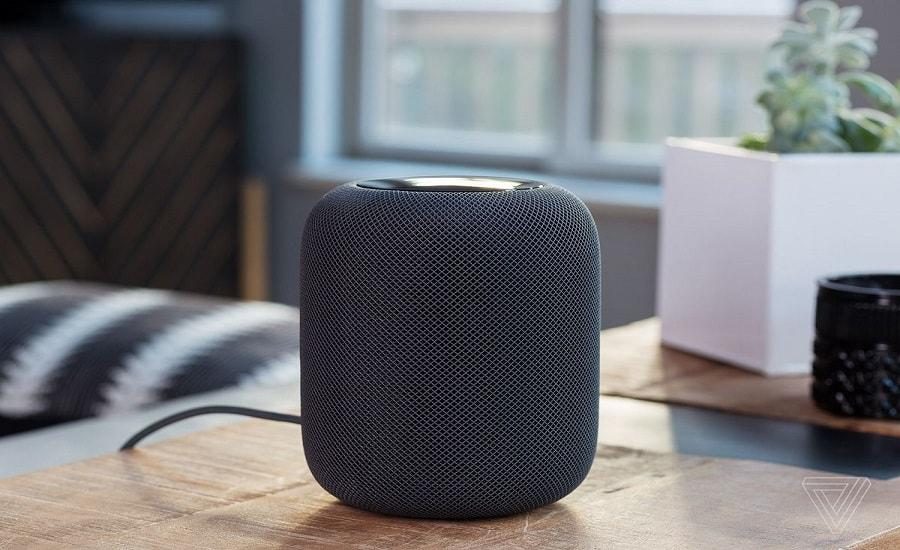
People who own digital assistants like Siri, Google Home, and Alexahave become increasingly cautious about the information they share with them, following revelations that the companies behind these devices admitted that employees around the world secretly listen to their conversations with the digital assistants to “improve” their services. However, Apple, Google, and Amazon say they have stopped this practice and are now giving users to choose whether or not to have their recordings recorded.
However, there are still many users who are concerned about whether their interactions with their digital assistant are still being captured by third parties. For all of these users, there is a way to completely eliminate their activity from their devices.
More specifically:
For Amazon: In the Alexa app, go to Settings> Alexa Privacy> Manage Alexa Data. From here, turn off the toggle that says “Use voice recordings to improve Amazon services to develop new features.”
For Google: Go to myaccount.google.com> Web & App Activity. Then uncheck the box that says Voice and audio recordings.
For Apple: In August, Apple announced that it would no longer listen to recordings without users' permission. The company can only receive audio data if the user chooses to do so. If you don't want to participate in this, however, go to Settings> Privacy> Analytics & Improvements on your iPhone and turn off Siri Improvement & Dictation.
Delete your voice recordings
Amazon: The company announced two new Alexa commands that will allow users to delete their voice transcripts by asking Alexa to do so. Just say “Alexa, delete everything I said today” or “Alexa, delete what I just said.”
If you'd rather delete your entire history, open the Alexa app and go to Settings> Alexa Privacy> Voice History Review> Delete All Recordings for All History.
Google: To delete your voice history, go to myaccount.google.com> Data & personalization> Web & app activity> Manage activity, tap the three-dot menu at the top of the screen and select Delete activity from, and you'll see options for all time, last hour, last day , etc. Tap Delete to confirm.
You can also tell Google to delete your voice command history. Just say, “Hey Google, delete everything I said.”
Apple: A new feature coming with the iOS 13.2 lets you delete all of your voice recordings. Open Settings> Siri & Search> Siri & Dictation Historyand select Delete Siri & Dictation History.
