

iPhones and iPads are designed to be fairly easy to use and secure products, but with a few tweaks, you can increase the security of iOS 13.2 without putting too much strain on your device in everyday use.
- The most important thing in security is the password
Proper iOS 13.2 security starts with a very strong passcode. If that's something that someone can easily guess, then nothing else you do matters. Regardless of whether you use Face ID or Touch ID to access your iPhone, you still need a passcode, and the stronger the passcode you use, the better.
- Block apps for Bluetooth access
After installing iOS 13.2, you'll find many apps like Facebook asking for permission to transmit data over Bluetooth. You can either allow or deny this, but you can also go to Settings > Privacy > Bluetooth and make the changes there.
- Set up brute- force protection
iOS has built-in brute-force to prevent an unauthorized user from discovering your passwords.
Go to Settings > Face ID & Passcode (or Touch ID & Passcode on older iPhones), enter your existing passcode, and scroll down to the Erase Data option.
After 10 attempts, the encryption key will be deleted and your data will be erased.

- Make sure automatic iOS updates are enabled
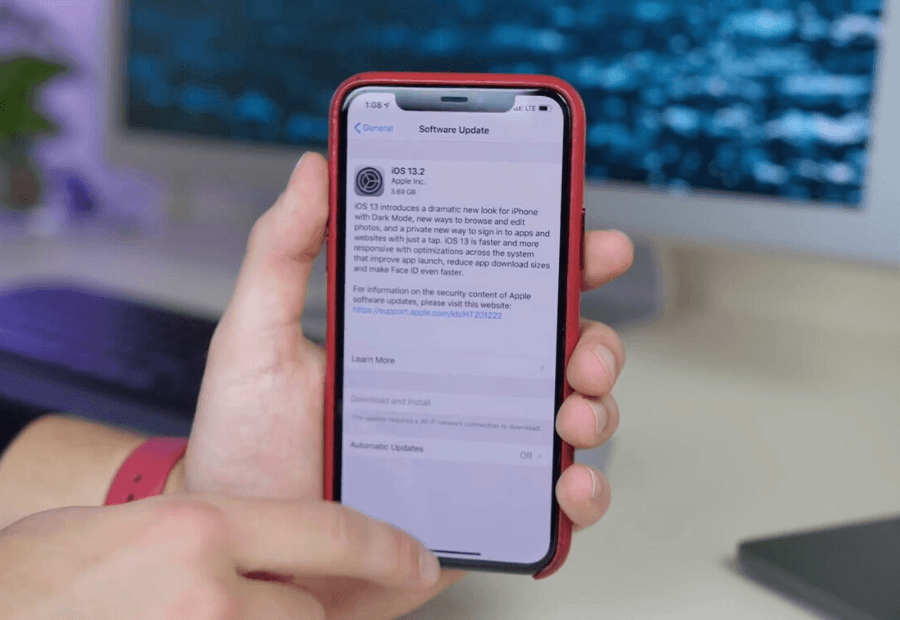
iOS 13.2 has the ability to perform its updates automatically, which is a great way to make sure your iPhone is fully up to date.
This should be set up automatically, but you can check in Settings > General > Software Update and make sure Automatic Updates is turned on.
- Reduce the lock screen timeout
The shorter you set the lock screen timeout , the faster the password will appear on the screen.
You can change the auto-lock time by going to Settings > Display & Brightness > Auto-lock.
- Autofill codes and third-party managers
iOS 13.2 now comes with an autofill feature for passwords stored in iCloud Keychain along with the ability to sign in to third-party apps that require a password like LastPass, Dashlane , and 1Password.
You can find this feature in Settings > Passwords & Accounts > AutoFill Passwords.
- Check for password reuse
If you use iCloud Keychain to store online passwords, you can now use it to control password reuse.
Go to Settings > Passwords & Accounts > Website & App Passwords and verify your identity with either Face ID/Touch ID or your password.
You'll see a gray triangle with an exclamation mark next to each entry that's being reused. To change your password, click Change Password on the website.
- Wifi Tracking has been blocked
Until iOS 12, it was possible to track iPhone and iPad users via public Wi-Fi hotspots, as the device would automatically connect to any spot they were in. This feature has now been blocked in iOS 13.2, so you can roam around without fear of being tracked.
- Check location sharing
Another thing you may have noticed after installing iOS 13.2 is that you're getting notifications letting you know that apps are using your location data and giving you the option to allow or block it. You can change this by going to Settings > Privacy > Location Services and changing the permissions for your apps.
10. Find your devices
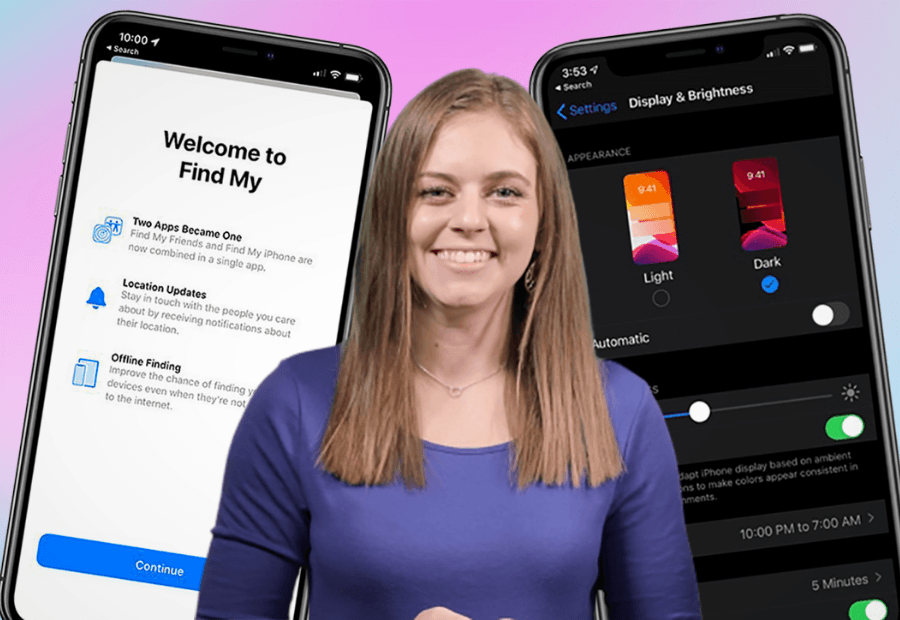
Finally, it has a new app called “Find My” through which you can see where your friends and family are, share your location, or find a stolen device.
This app has two amazing features, one is “Enable Offline Finding” which helps you find lost devices that are not connected to Wi-Fi or Bluetooth. The other is “Send Last Location”, which sends the device’s location to Apple when the battery is low.
