

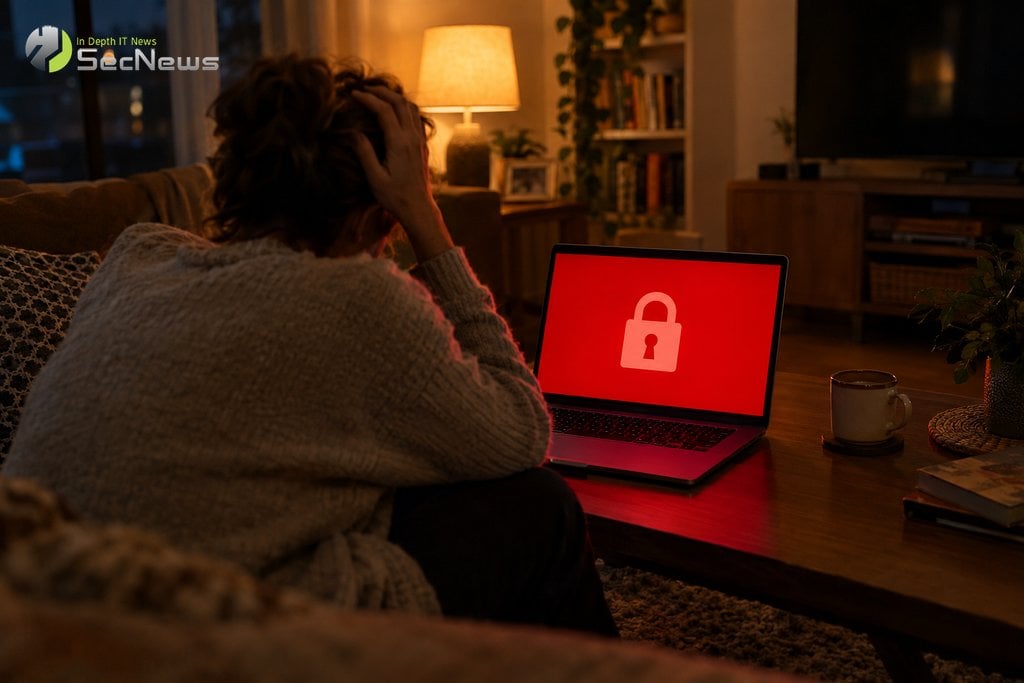
Ransomware isn’t just a threat to hospitals and large corporations. One wrong click on an attachment or a “free” app from a dubious source is enough to lock down an entire family’s photos, documents, and files. The attacker encrypts the files so they can’t be opened, and demands a ransom, usually in cryptocurrency, to “unlock” them. The good news is that protecting yourself from ransomware at home doesn’t require expensive equipment or specialized knowledge, but it does require a few good habits.
How ransomware gets into the home
For home users, ransomware rarely comes with a spectacular “break-in.” It usually enters through the door that the user opens for it. According to Microsoft, the most common routes are fake or suspicious websites, unexpected email attachments, and malicious links in messages, SMS, and social media. The No More Ransom, in which Europol participates, paints a similar picture: ransomware spreads through insecure or fraudulent websites, software downloads, and malicious attachments, and anyone can be a target.
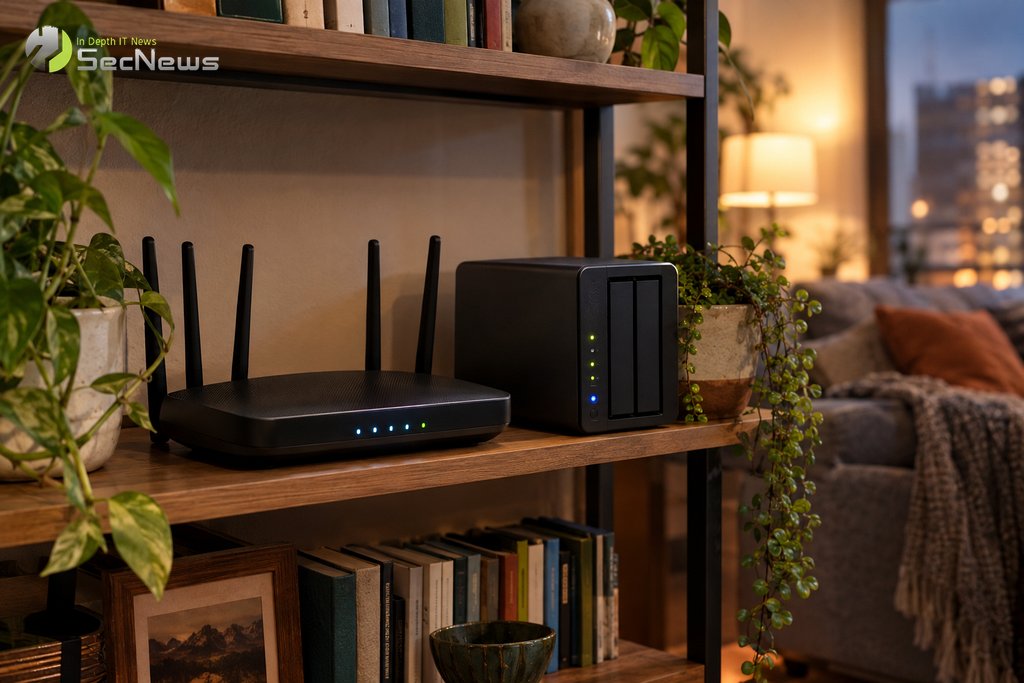
A second, less well-known route is through devices in the home that “see” the internet: your router, a home network attached storage (NAS) for family photos, or a computer with Remote Desktop enabled. If these devices are not updated, attackers can track them down and compromise them without anyone in the home making a mistake.
Backups are the best security
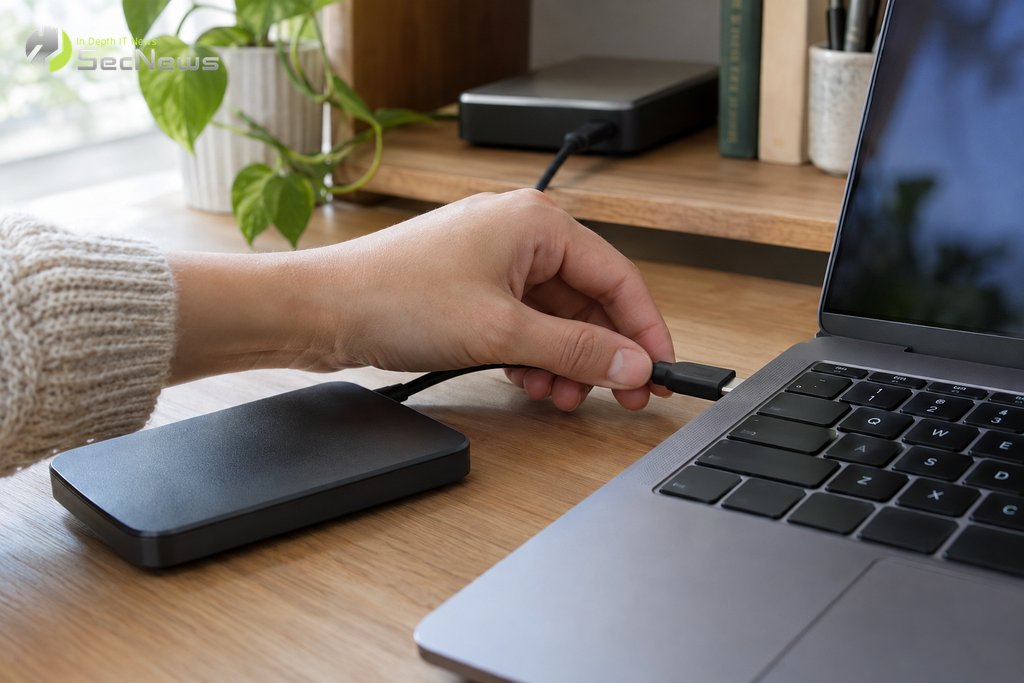
If there's one thing that makes ransomware almost harmless, it's proper backups. When your files exist elsewhere, ransoms lose their meaning: wipe your computer and restore your files. The UK's National Cyber Security Centre (NCSC) gives three basic guidelines: keep more than one copy, on different media, and have one of them not permanently attached to your computer.
In practice, for a home, this means an external drive, where you regularly copy important files and unplug it immediately afterwards, as well as a cloud service that keeps previous versions of files. An external drive that stays permanently in the USB port is no protection: ransomware will encrypt that too. OneDrive, for example, has built-in ransomware detection and version history, so you can restore files to the way they were before the attack. Version history is also offered, to varying degrees, by other cloud services, while on Macs the built-in Time Machine feature automatically makes copies to an external drive. Test every few months that the restore actually works, because a copy that doesn't open isn't a copy.
See also: Was your information leaked? How to check after the new massive ShinyHunters leak
Updates and built-in protection
Many attacks exploit security vulnerabilities that have already been patched. Enable automatic updates for your operating system, browser, apps, and mobile device, and restart your computer at least once a week, as Microsoft recommends, to ensure they are applied. The same goes for your router and NAS: go into their settings and check that they have the latest software version.
In Windows 10 and 11, built-in Windows Security is sufficient for most home users, as long as it's enabled. It's also worth turning on Controlled folder access, under Virus & threat protection > Ransomware protection. This feature allows only approved programs to change files in important folders, such as Documents and Pictures, and thus blocks an unknown program that tries to encrypt them.
Be careful with emails, attachments and downloads
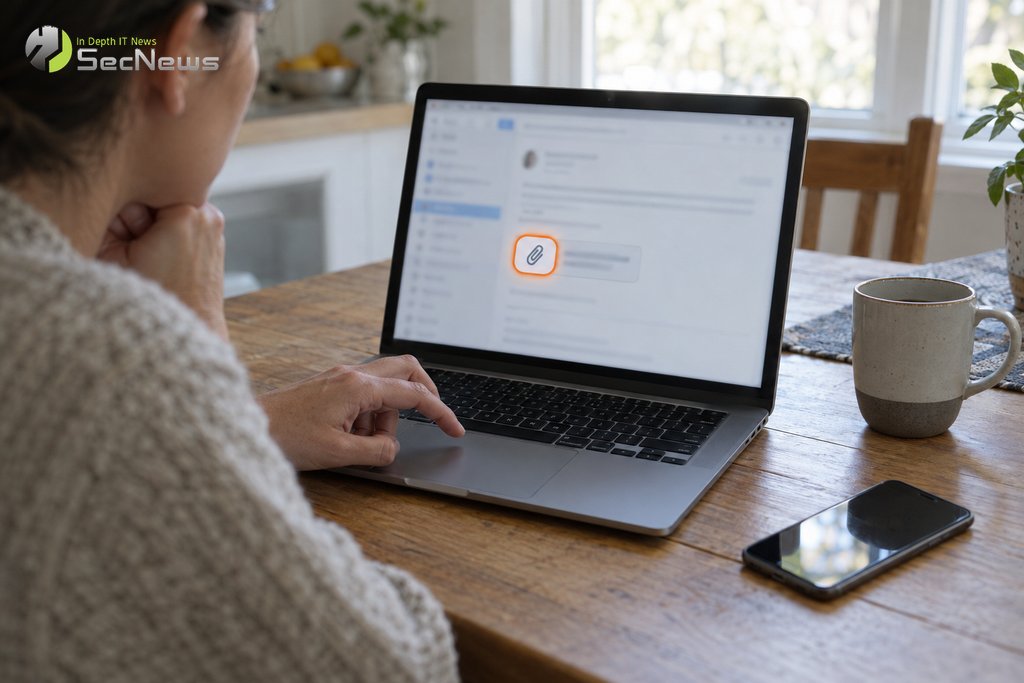
Phishing remains the most common way ransomware gets to a computer. Don't open unexpected attachments, even if they appear to come from a familiar company or a friend. If an Office document asks you to "enable content" or macros to view it, close it: this is a classic trick for executing malicious code. Also watch out for spelling mistakes, strange sender addresses, and messages that pressure you to do something immediately.
Only download programs and games from the company's official websites or from official app stores. If your children use the same computer, create their own account without administrator rights so that a suspicious file cannot be installed freely. Finally, enable two-step authentication on your email and cloud accounts so that someone can't get into them even if they steal your password.
If you fall victim to ransomware at home: what to do
If you suddenly see that your files have changed their extension and will not open, or a message appears demanding a ransom, do not panic. The SecNews technical team recommends the following steps:
- Disconnect the device from Wi-Fi and the network cable, as well as any external drives, so that the infection does not spread to other devices or your copies.
- Do not pay the ransom. Authorities and Europol recommend that you do not pay, as there is no guarantee that you will get your files back and the money funds the criminals.
- Search for a free decryption tool at nomoreransom.org, where you will find free tools for many known ransomware families.
- Report the incident to the Cybercrime Prosecution Directorate, by calling 11188 or electronically via gov.gr.
Then, clean the device with a protection program or, even better, completely reinstall the operating system, and only then restore the files from the backup. If you already paid by card, contact your bank immediately, as they may be able to block the transaction. Also, change the passwords of the accounts you used on the infected device from another, clean device.
Home ransomware protection relies on three simple things: offline backups, updated devices, and a little bit of suspicion towards any unexpected messages. If you implement them, even the worst attack will cost you a few hours instead of a lifetime of memories.
See also: AI scams: Fake bank calls and deepfakes – how to avoid falling victim
☁️ Keep safe copies with Proton Drive
Encrypted cloud storage from Proton — protect your files from ransomware, corruption, and data loss with end-to-end encryption.
- ✔ End-to-end encrypted files & backups
- ✔ Version history — recover files after ransomware
- ✔ Free space — sync across all devices
The link is an affiliate link — SecNews may receive a commission at no additional cost to you. It does not affect the independence of our article writing.
See also: ASOS hacked: message from hackers to app users, what to do now
