

Starting today, you can install Windows 10 October 2018 Update (ver 1809). Here's how to do it and what you'll find.
The much-anticipated Windows 10 October 2018 update is already available for anyone who wants to download and install it, without waiting for Microsoft to do it automatically on October 9. The process is very simple: Go to Settings > Update & Security and simply press the “Check for Updates” button.

From there, you sit back and wait for Windows to do its thing. It will automatically find the October 2018 Update, also known as version 1809, and start downloading it. It may also find another program update, depending on your settings, and download them together. We don't mind that.

You will need to be patient with this update as it is considered a large version, with several changes, and things take time. Once it is downloaded, the installation will automatically begin. And while you can work on something else at the same time, you will be notified of the start of the installation with a relevant update window.

During the installation, Windows will check your installed programs and if it finds any that are not compatible with the new version, you will receive an update window, as shown below.
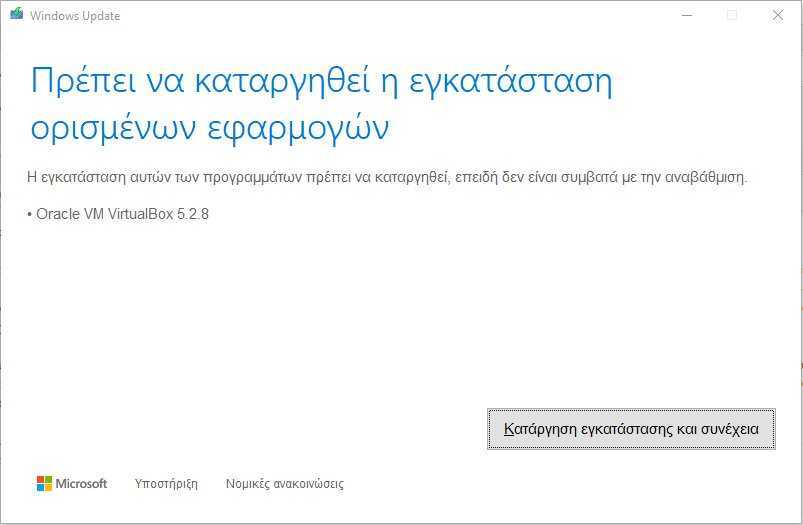
In our case, we proceeded to remove Oracle VirtualBox 5.2.8 since it is a free program and Oracle will surely release a new compatible version (if it hasn't already).
Windows then proceeds to complete the check of your computer with a new relevant update and does not bother you again until it finishes this check.

If you're wondering what percentage of the installation they are at, all you have to do is open Settings > Update & Security again and see where they are.

When they finish the installation, they will notify you with the following window. You will have to click one of the three options, either restart immediately, request a postponement, or set the time for the final installation. The process so far will take about 10 minutes and the rest will take another 10, depending on your internet speed.

If you press the restart button now, your computer will start the final installation of the Widows 10 October Update and will automatically do several restarts, in our case it did three more in addition to the initial one. At this point, keep in mind that if something goes wrong with the computer's power supply then things will be difficult. Updates always keep a backup copy before starting anything but it is not always easy to restore the previous state if we have interrupted the update process in the middle. So make sure not to cut off the power supply before the entire process is complete, even if you see your screen black without any movement. As we told you above, patience is needed.
Once the update is complete, Windows will open Edge and welcome you to the October Update.

The tab will inform you about the very basic features of the new 1809 and if you want to learn more, press the GET STARTER button under “See what else in new in this update”.
The Windows “Tips” utility will open, informing you of what you will see in this new update.

Click on “What's new” to find out.


In addition to the tips, you will also see other topics with tips and tricks. A browse through all of them will enlighten you in this regard.

As for VirtualBox? We installed the latest version 5.2.18 and it worked fine.
