

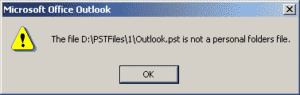
Microsoft Outlook is a very good email that serves a lot of people around the world on a daily basis. And if you are a user of Outlook for a long time, then you must have come across or might have come across the error “the file xxx.pst is not a personal file folder”. Basically this error means that the PST file is corrupted and becomes inaccessible and all the data stored in the Outlook PST file also becomes inaccessible.

Reasons for this error in PST file
There are many reasons that can infect the PST file. Here are the following reasons:
- Virus or malware attack
- Incorrect system file
- Power outage
- Outlook application abnormal termination
- Poor network connection
How to recover data from corrupted PST file?
If the corruption is minor then it is easy to recover PST file with the help of inbox repair tool but if the corruption is severe or PST file is very damaged then it becomes almost impossible to do without the help of a third party outlook PST repair tool. It is better to start the recovery with manual steps.
To repair PST file by inbox repair tool, follow the below steps carefully:
- Go to the Outlook installation folder
- Search for the scanpst application
- Run the scanpst utility
- Browse the corrupted PST file
- Click on repair
- Restart the system
Check the PST file to see if the error is still there , if so then it is recommended to use an Outlook PST repair tool. With the help of PST repair tool, it becomes easy to recover a corrupted Outlook PST data file. It allows the user to transfer the PST file data to different file formats including PST in order to get access to the PST file data again. This tool supports all the version of Microsoft Outlook and is available for Windows operating system only .
Steps to repair PST file by PST Repair Tool
- Download PST Repair Tool from the official DataRecovo website
- Install and run the tool
- Click on select and browse to the corrupted Outlook data file
- Click on the save option and then you will be asked to select the path and format you want to save in
- Select the desired location and file format in which you want to save the file
- Click Save to save the data
