

YouTube recently announced a new design that includes new features for both desktop and mobile. For example, a new desktop website was unveiled that features a dark theme and video previews, and a mobile website that features: Double tap to seek, Variable Speed, and more.
On this occasion, it would be a great opportunity to learn some great but unknown YouTube tips and tricks.
Find below a list of YouTube tips and tricks, new and old.
1) Related videos for the YouTube mobile app: A feature was recently added that allows you to see a series of related videos by tapping somewhere on the screen while watching another video in full screen on your mobile.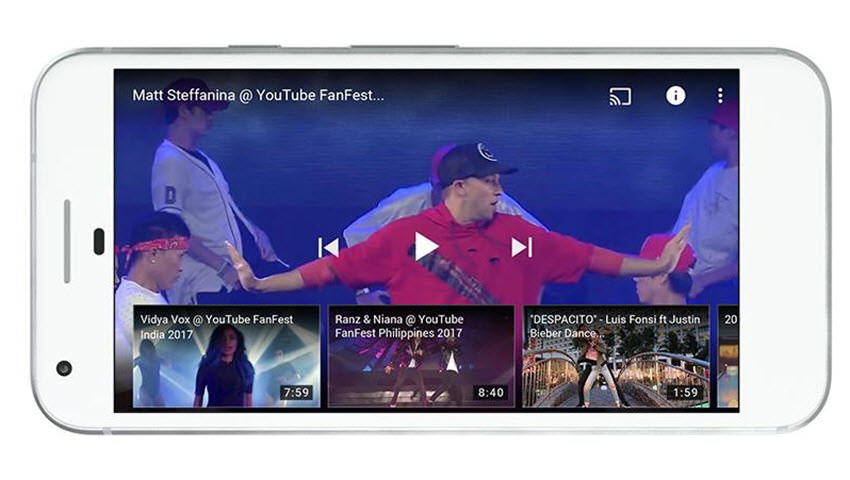
2) The Double tap to seek feature for mobile was recently introduced. When you double tap right or left on a video on your mobile, you activate fast forward or rewind respectively for 10 seconds of the video.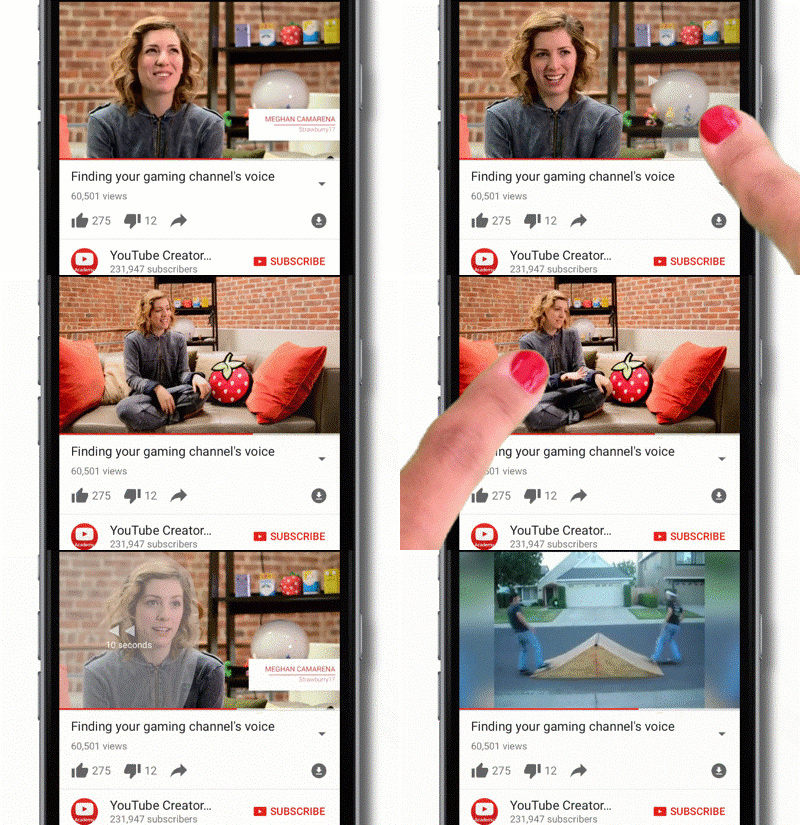
3) Variable speed feature for mobile: Users are crazy about increasing or decreasing the video playback speed for computers, and now this feature is also available for mobile, so you can enjoy videos at whatever speed you prefer.
4) Dark Theme for PC: The new desktop version of YouTube has a new feature called Dark Theme. It was created to reduce the brightness and allow you to focus on the true colors of the videos you are watching. Dark Theme turns YouTube's background to black for the entire platform experience.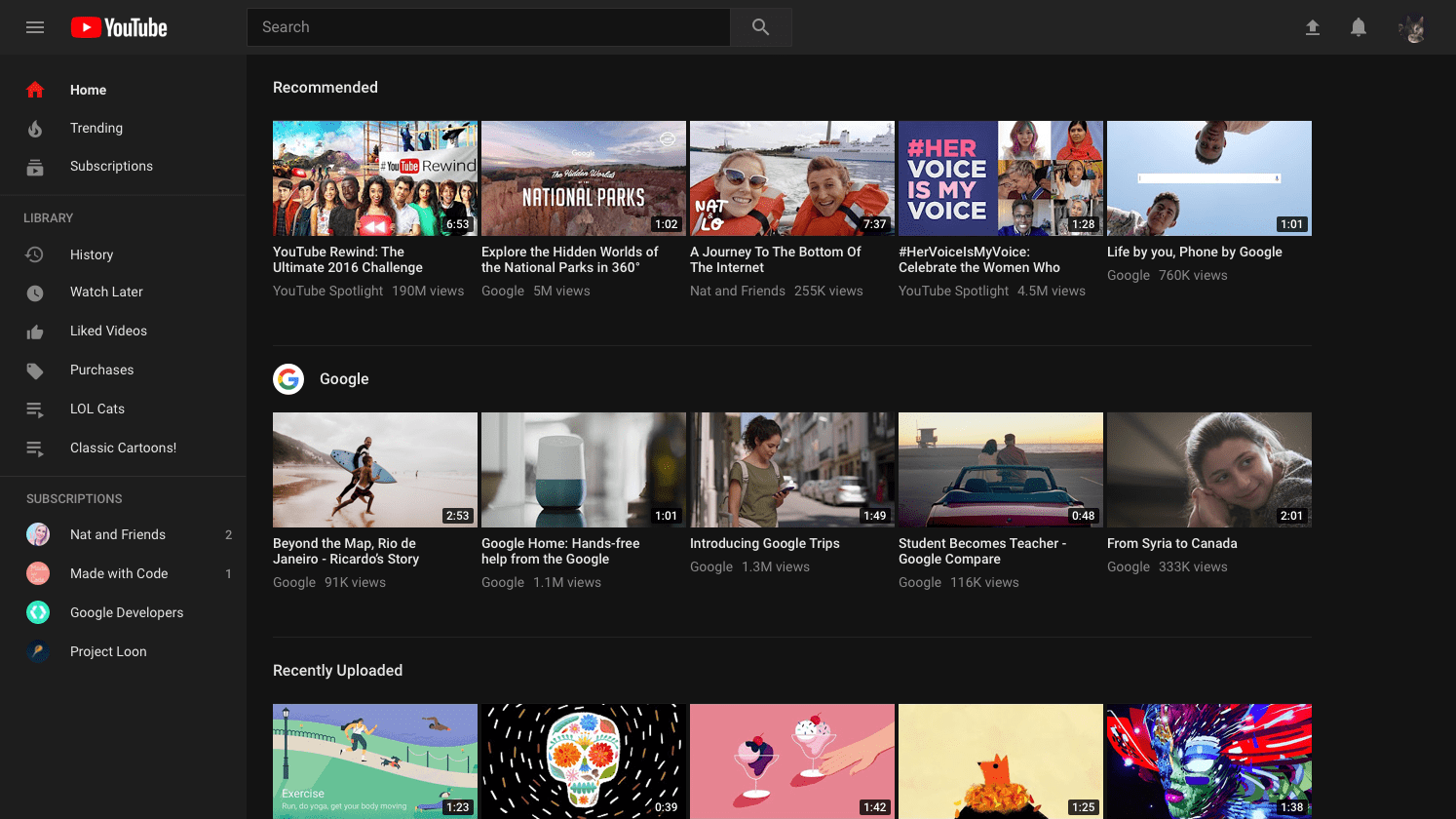
5) Video preview on the desktop website: when you hover over a thumbnail on the desktop, a preview of the video will appear, giving you a better sense of what each video is about and making it easier to find the next great video to watch.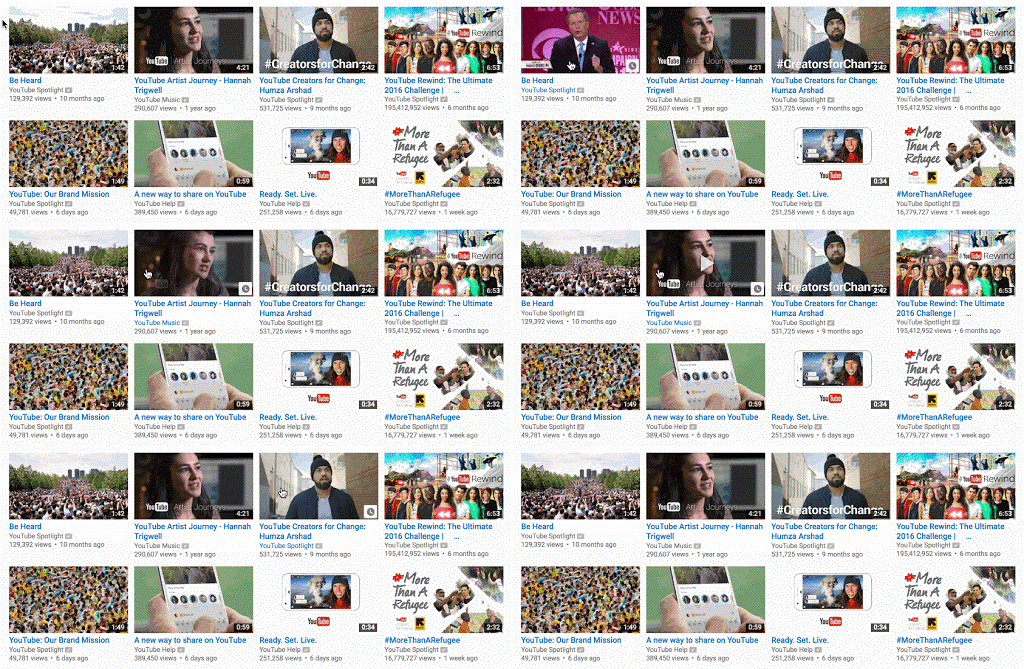
6) Save videos to your “Watch Later” library: No more worrying about watching videos on YouTube during work hours. Add a video to watch later by tapping the clock icon on the video thumbnail or via the “Add to” icon below the video on the watch page.
7) Share a video at a specific timestamp: Did you watch something that you want to share with your friends? You can share the link from a specific part of the YouTube video. You can pause the video, right-click, and select “Copy video link at current time.”.
8) Watch a 360-degree video: Ever wanted to go somewhere you couldn't? Now you can experience 360-degree videos on YouTube. Just move your phone around while swimming with sharks, see a live dinosaur up close at the Natural History Museum in London, or watch Tritonal in concert wherever you are.
9) Watch a VR video with a headset: Ready for a more immersive viewing experience? On your mobile device, click the Cardboard icon on a 360-degree video and place your phone in the viewer to enter VR mode. Try it on your Google Cardboard or Daydream View headset!
10) Keyboard Shortcuts on Your Computer! While Watching Videos on YouTube:
● The numbered keys navigate you through the video progress! E.g. Pressing “2” will take you to the video at 20%, “6” will take you to the video at 60%, “0” will restart the video (0%)
● K will pause or play the video
● J will rewind 10 seconds
● L will fast forward 10 seconds
● M will mute or unmute
11) Keywords that help you find exactly what you are looking for:
● Add quotes to search for a specific term. The plus or minus symbols to include or exclude results.
● Add the phrase “allintitle” to the search box before your keywords to ensure that the results include all the keywords you searched for in the title.
● Add the word HD to your search to get high-definition results. You can also add the word 3D for 3D content.
● Add the words channel or playlist to your search query.
12) Change the size and resolution of videos: YouTube offers a variety of quality and size formats. You can choose to watch the video in 144p all the way up to 8K by selecting from the video quality menu.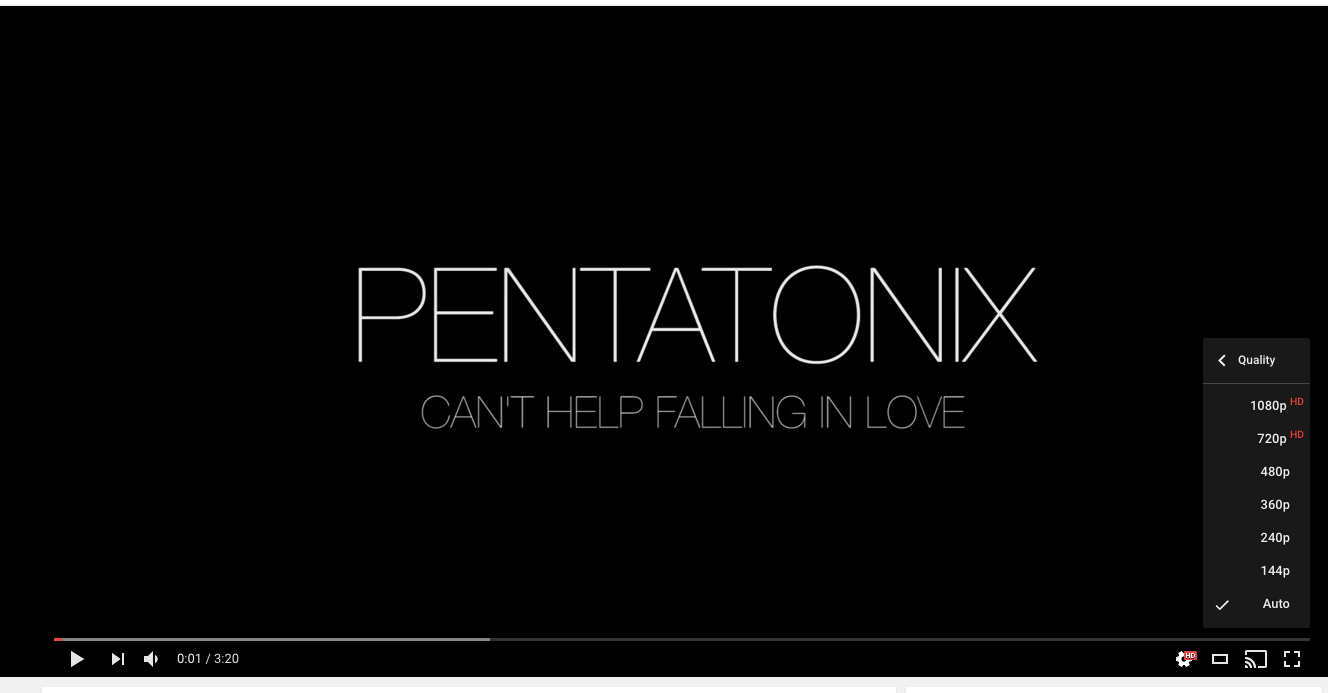
13) Use voice commands to cast YouTube videos to your TV with Google Home. Try saying, “Play yoga videos on TV.”.
14) Control YouTube on TV from your mobile phone: You can use your phone, tablet, computer, or Google Home to control the YouTube experience on your TV. Make sure your phone, tablet, or computer is connected to the same Wi-Fi network as your TV. Try telling Google Home: “Ok Google, play yoga videos on TV.”
15) Watch videos with subtitles, including automatic translation: There are 1 billion videos with automatic captions on YouTube. So, if you don’t want to disturb others around you, this might be the one for you. Just click the settings button and choose to enable subtitles in your language or automatic translation when available!
16) Buy or rent movies on YouTube. Choose from new releases, award-winning films, and even movies still playing in theaters here.
17) YouTube Music, YouTube Gaming, and YouTube Kids: If you're a music lover, you can enjoy an experience built specifically for the content you love with YouTube Music. For gamers, YouTube launched YouTube Gaming. And for families looking for the best way to watch YouTube, there's the YouTube Kids.
