

If you've just bought a new iPhone and want to sell your old one or simply want to give it to a friend, it makes sense that you'd want to delete all your personal information from it!
Apple has created a tutorial on what to do before giving away or selling an iOS device, however this guide isn't really complete, as it skips a few steps.
To completely erase all your data from an iPhone you will need to follow these steps:
Step 1 – Create a backup
Before you start completely erasing all personal files and data from your iPhone, you should first create a backup so you can restore it to your new device later.
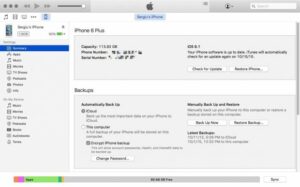
To do this, you can use iCloud or iTunes, but we recommend using iTunes since it doesn't have a capacity limit like iCloud.
To create a backup for iPhone , you will first need to launch iTunes and connect your device to your Mac computer.
Then, save your Store content by clicking File > Devices > Transfer Purchases from the iTunes menu.
To save your Activity and Health data, you must choose to encrypt the backup, otherwise simply click the “Back Up Now” button on the corresponding tab in iTunes.
Once the backup process is finished (you can monitor its status at the top of the iTunes window), you're ready to move on to the next step.
Step 2 – Log out
In this step, you will need to sign out of all the services you are signed into to separate your iPhone from your Apple ID.
First of all, it's a good idea to turn off iMessage and Facetime by going to Settings > Messages > iMessage and Settings > FaceTime, respectively.
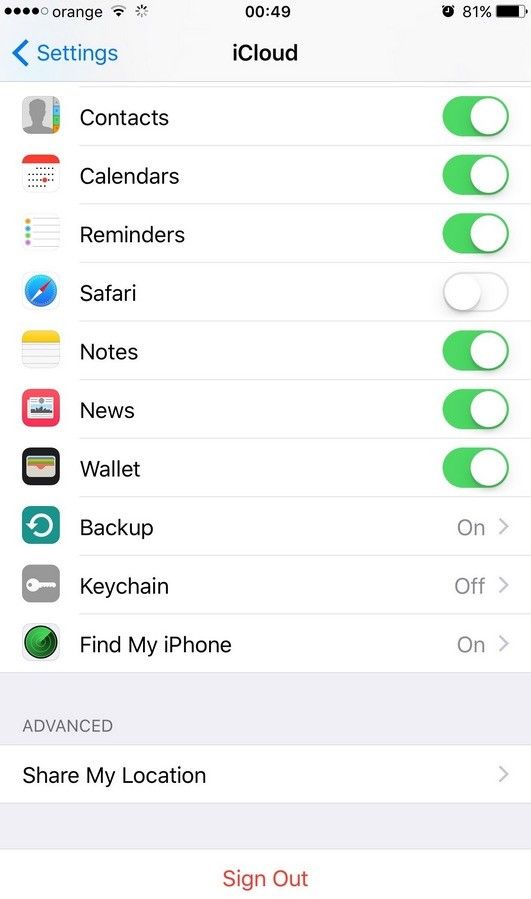
Next, you'll need to sign out of your iCloud account by going to Settings > iCloud and tapping "Sign Out" at the bottom, then tapping the "Delete from My iPhone" button after you've confirmed that you really want to sign out.
Step 3 – Delete
To delete all traces of your personal information, you can do so using your iPhone or using Apple's iCloud website.
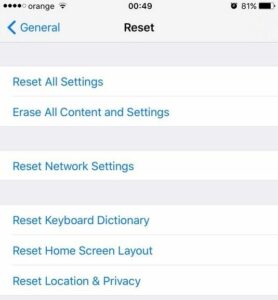
If you have iPhone , go to General > Reset and tap “Erase All Content and Settings.” Here you may need to enter your password and Apple ID with password (if Find My iPhone is enabled for your iPhone).
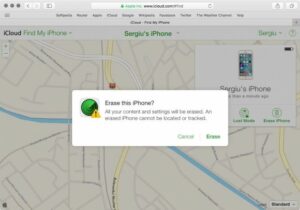
Otherwise, if you lost it and need to erase all of its data remotely or you simply prefer to do it from your Mac, you'll need to go to the "iCloud Find iPhone " website, select the iPhone from the "All Devices" menu at the top, and then click "Erase iPhone."
Once the iPhone has been erased, all that's left is to completely remove it from your iCloud account by clicking on "Remove from Account".
It's also important to know that remotely erasing your iPhone through the icloud.com website will allow you to completely wipe it, even if it's not online at the time, because the remote erase process will start automatically once it's connected to the internet.
If you have followed the steps outlined above, you should now have an iPhone that no longer carries any of your personal information and can be safely transferred to another person!
