

Mozilla Firefox doesn't have an official option to copy the web addresses (URLs) of all your open tabs to your clipboard. But there's an easy trick to get a list of addresses on Windows, Mac, and Linux. Here's how.

See also: Mozilla: Testing Site Isolation security feature in Firefox
First, open Firefox and visit the websites whose addresses you want to copy in multiple tabs. If you've already browsed with multiple tabs open, you're already set.
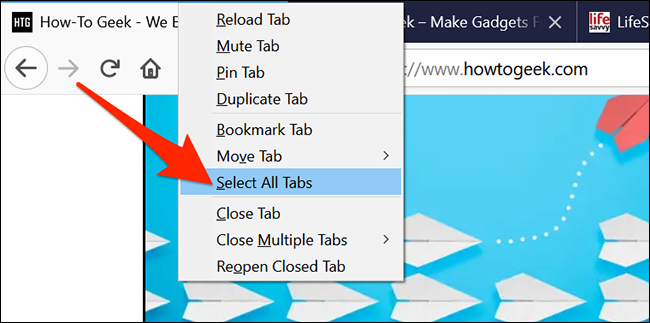
At the top of the Firefox window, right-click on any tab and choose “Select All Tabs” from the menu that appears.
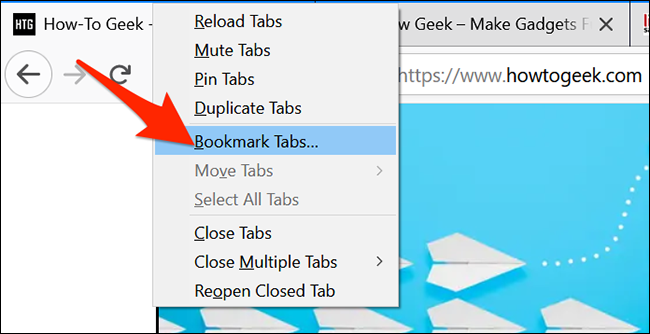
Once all tabs are selected, right-click on a tab again and select “Bookmark Tabs”.
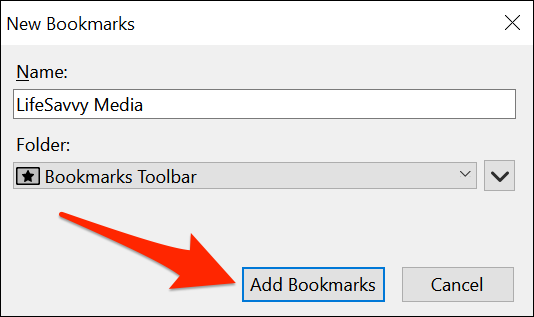
In the “New Bookmarks” window that opens, click the “Name” field and type in any name you want. Click the “Folder” drop-down menu and select “Bookmarks Toolbar.” Then click “Add Bookmarks” at the bottom.
See also: Firefox: How to view saved credit card numbers
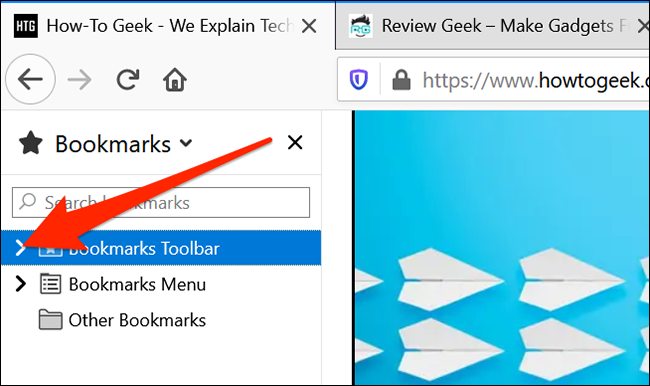
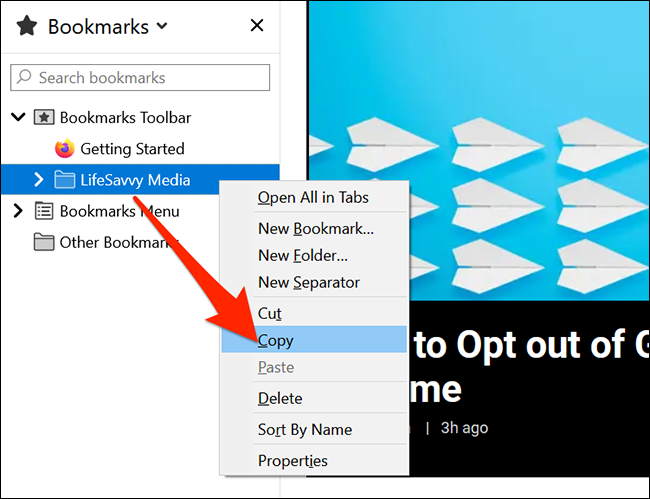
Open the bookmarks list in Firefox by pressing Ctrl+B on Windows or Command+B on Mac. In the bookmarks list on the left side of the Firefox window, find “Bookmark Toolbar” and click the arrow next to it.
In the expanded Bookmarks Toolbar folder, right-click on the folder you created earlier and select “Copy”.
Open a text editor (like Notepad on Windows or TextEdit on Mac), right-click anywhere in a blank text document, and select “Paste.” Alternatively, press Ctrl+V on Windows or Command + V on Mac.
See also: How to open Firefox tabs at the end of the tab list
The addresses of all your open tabs are now available in your document. When you're done, return to Firefox, right-click on the temporary bookmarks folder you just created, and select “Delete.”.
Information source: howtogeek.com
