

In the past, when you opened a new Mozilla Firefox tab, it always opened at the end (right side) of the tab bar. If you want to restore this behavior, you can make a quick change in Firefox's advanced preferences configuration page on Windows, Linux, and Mac. Here's how.

See also: Mozilla disables FTP support in Firefox 88
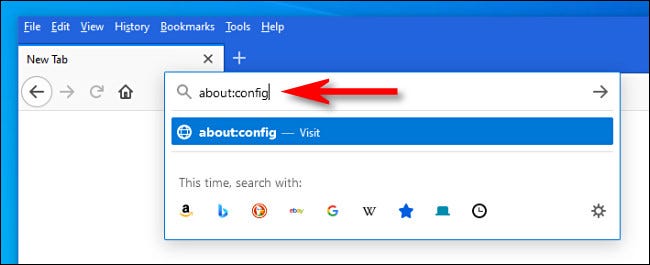
First, open Firefox. In the address bar of any window, type about:config and press Enter.
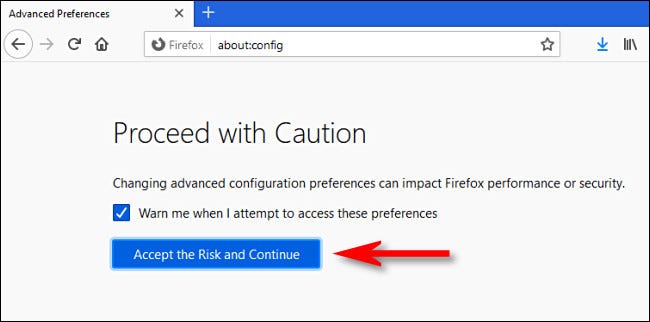
You’ll see a “Proceed with Caution” message. This warns you that if you change any of the settings you’re about to see without knowing what you’re doing, you could potentially damage browser . But don’t worry: If you follow our instructions, you won’t have any problems.
See also: Chrome vs. Firefox: Which web browser is better?
Click “Accept the Risk and Continue”.
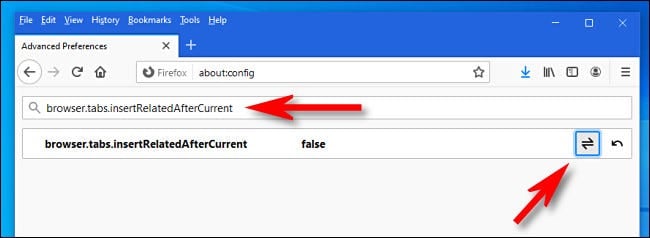
In the “Search preference name” search box, type or copy and paste the following text:

In the results shown below, click the toggle button (which looks like two half-arrows pointing in opposite directions) to change “true” to “false.” To be clear, we’re setting the value to “false.”.
See also: Mozilla disables Firefox's backspace key
After that, close the “Advanced Preferences” tab and try opening some new tabs. You’ll notice that if you right-click on a link and select “Open in New Tab,” it will open on the far right of the tab toolbar instead of right next to the current tab. Happy browsing!
Information source: howtogeek.com
