

Starting with the October 2020 Update, Windows 10 defaults to a theme that removes the bold colors from the taskbar and Start menu. If you want to choose a custom color for the Start menu, there's an easy way to do it through Settings. Here's how.
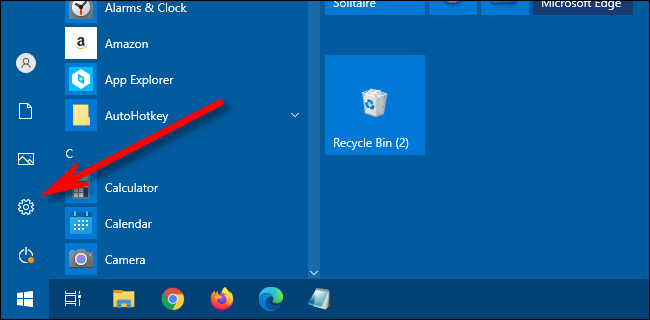
First, go to “Settings” by opening the “Start” menu and clicking the icon on the left. (You can also press Windows + i on your keyboard.)
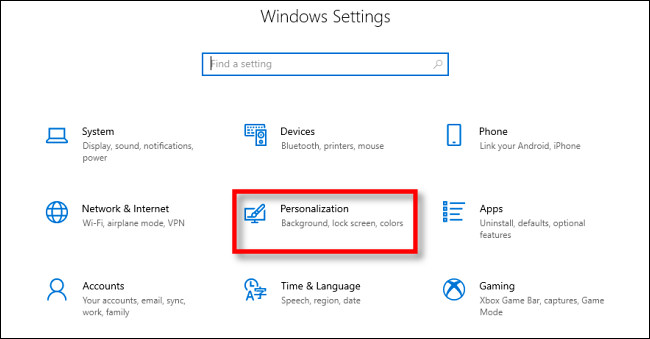
When the “Settings” option launches, click on the “Personalization” option.
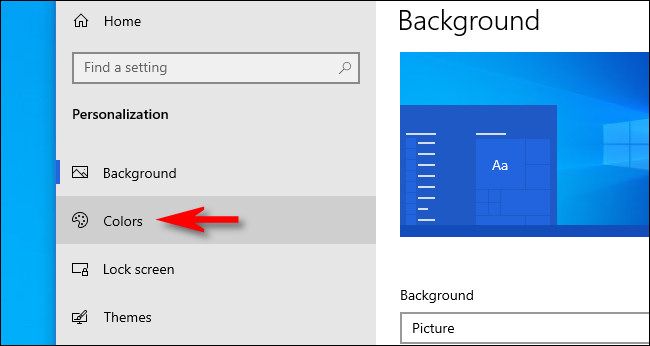
In the “Personalization” settings, click on “Colors” from the sidebar.
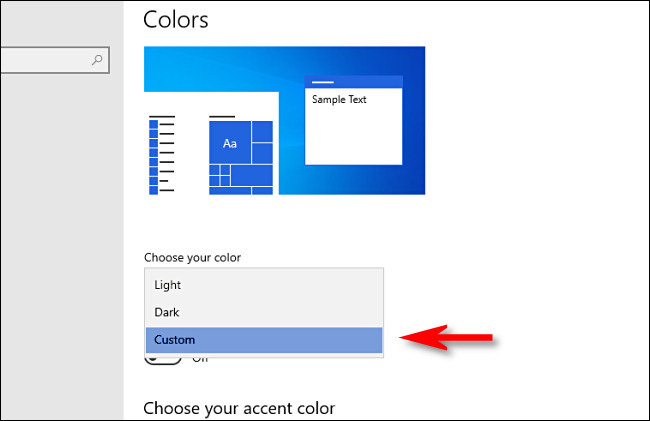
In the “Colors” settings, locate the “Choose your color” drop-down menu. In the menu, select “Custom.”.
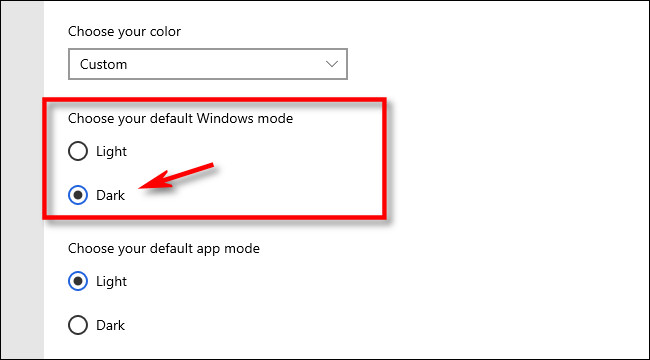
After selecting “Custom” from the color menu, two new options will appear below. Under “Choose your default Windows mode,” select “Dark.”.
This dark mode is required for the Start menu color scheme, but since you already have the “Custom” color scheme selected, you can also use Light mode apps if you want. So, in the “Choose your default app mode” section, select whichever option (“Light” or “Dark”) you like.
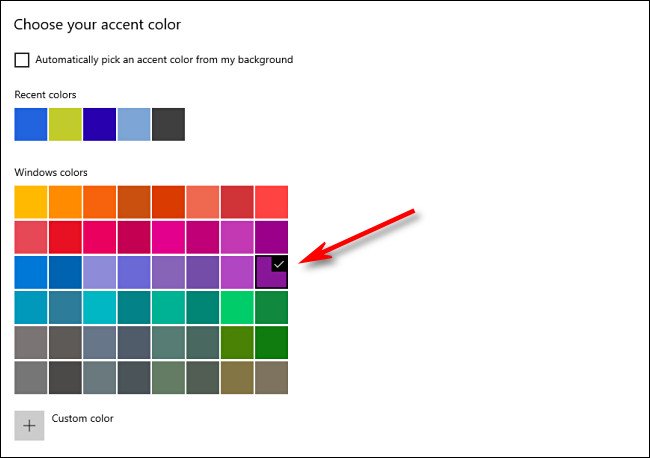
Then, scroll down to the “Colors” page and locate the “Choose your accent color” section.
If you want the color to automatically match your desktop background image , select a check box next to “Automatically pick an accent color from my background.” Otherwise, click a color in the grid that you want to use for the Start menu and taskbar . You can also choose a custom color by clicking the “Custom color” button below the grid.
After that, locate the “Show accent color on the following surfaces” section and check the box next to “Start, taskbar, and action center”.

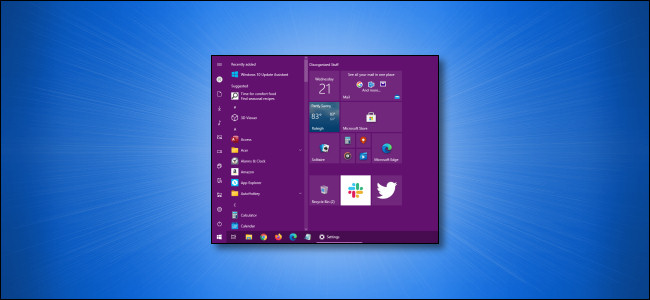
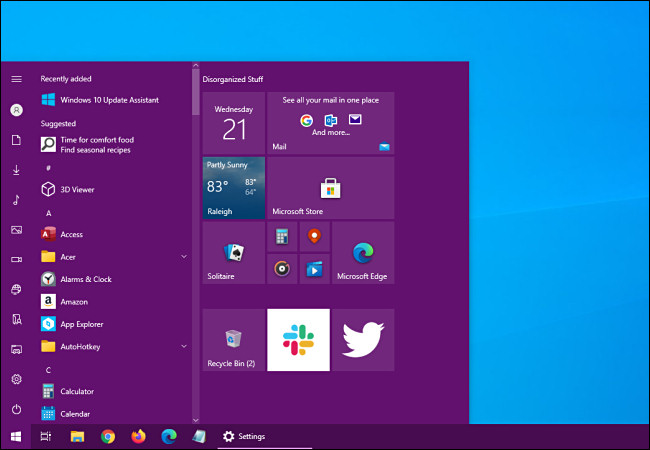
The next time you open the Start menu, you will see that it has changed to the color you selected.
If you ever want to go back to the classic Windows 10 theme, open Settings > Personalization > Colors and select “Light” in the “Choose your color” drop-down menu.
Information source: howtogeek.com
