

If you are a web developer or want to become one, Notepad++ is an essential tool for your work. In addition to editing files, the application offers a very fast way to modify code directly on your server using an FTP client program.
https://notepad-plus-plus.org/downloads/
Below we will see how you can create an FTP connection with Notepad++ and gain remote access to your server.
Getting to know Notepad++
Notepad++ is an open source text editor for Windows users. It is the top choice for many developers due to its countless features.
However, the use of the application can be extended by adding various plugins that are available to improve the functionality of the software. One of them is NppFTP. The tool allows you to use Notepad++ to connect to your server via an FTP connection, so you can directly edit your files to make changes to your website.
Creating an FTP connection with Notepad++
Download and install Notepad++ on your computer if you don't already have it.
Run the application and follow the path Plugins – Plugins Admin.
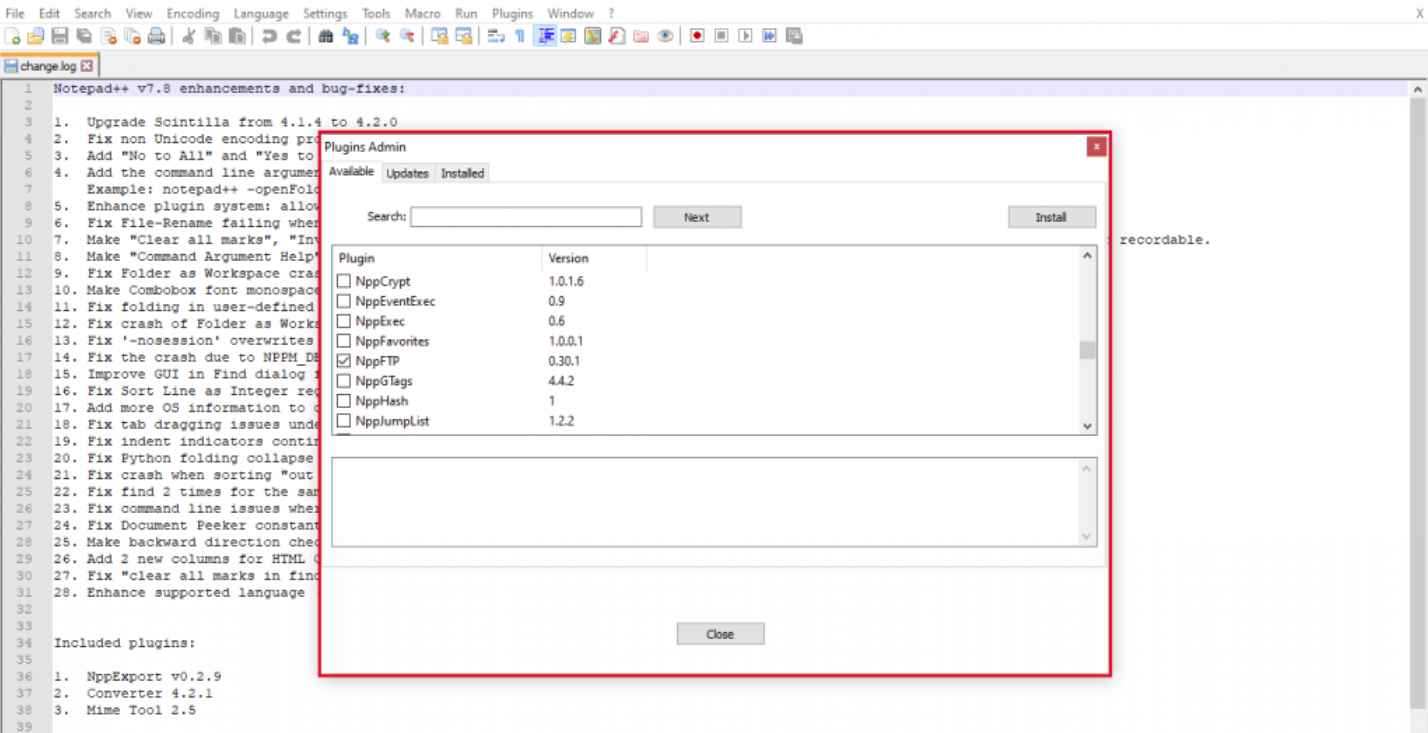
Once the above window appears, select NppFTP, click Install and the application will restart.
Then follow the path Plugins – NppFTP – Show NppFTP Window. A settings window will appear on the right side of the application.
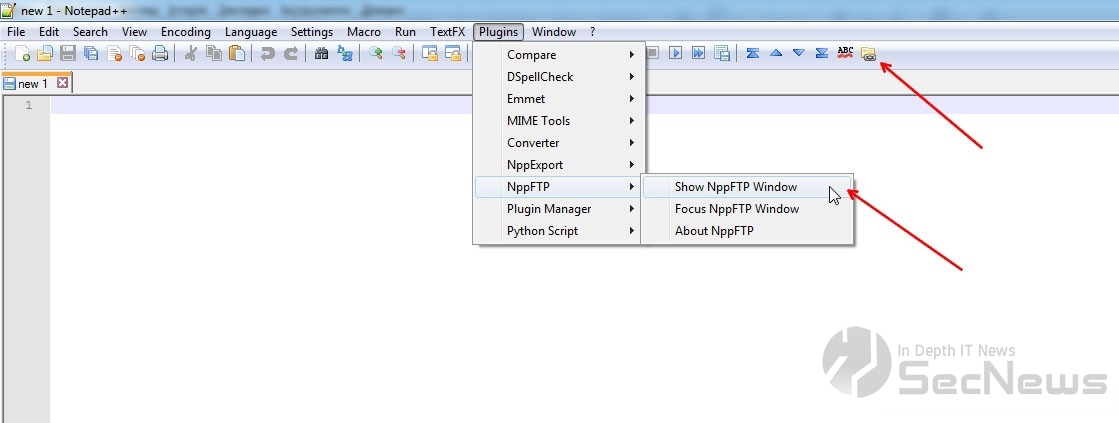
Create a new profile to start using the plugin. To do this, click the gear icon in the NppFTP menu bar and select Profile Settings.

Select Add new, enter the profile name, and press OK.
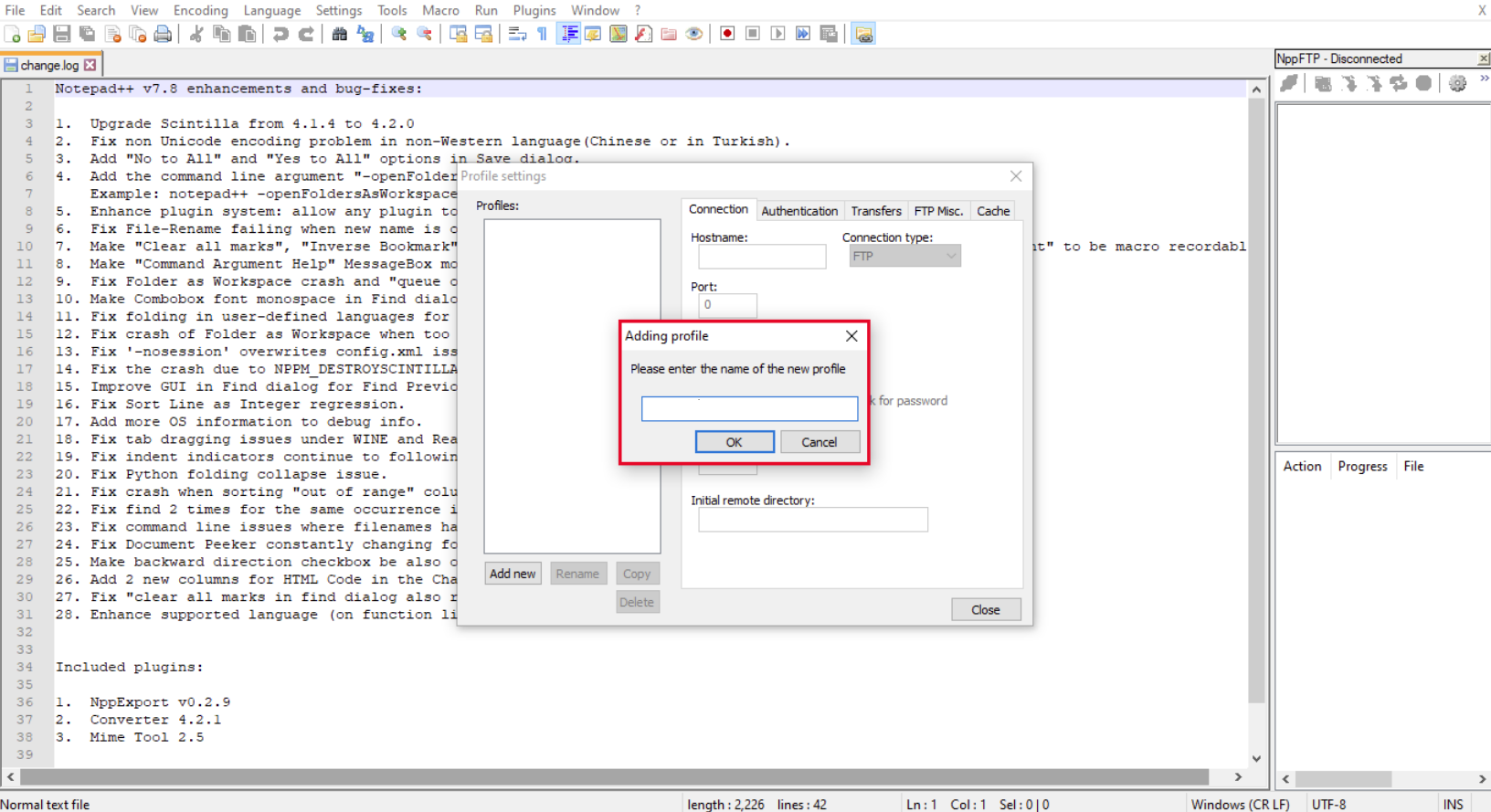
Then, provide the FTP server connection details on the Connection tab (hostname, port, username, password).
On the Transfers tab, set the connection mode to active and the transfer mode to ASCII.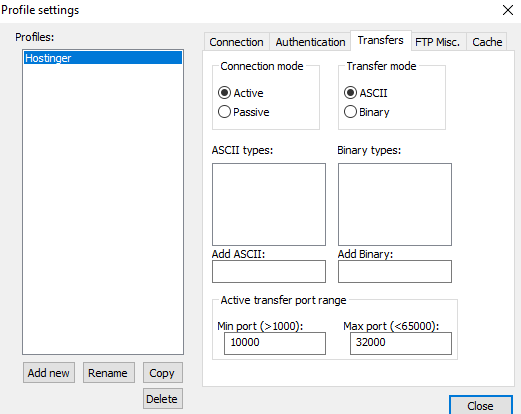
Click Close to save the settings.
To create a connection, click the first one in the NppFTP menu bar and select the profile you created.
Finally, next to the connect button you will see a folder icon. Click to view the server contents in the right panel of the application. To open a folder that interests you, type its name and click OK. In the example below, we will open the public_html folder.
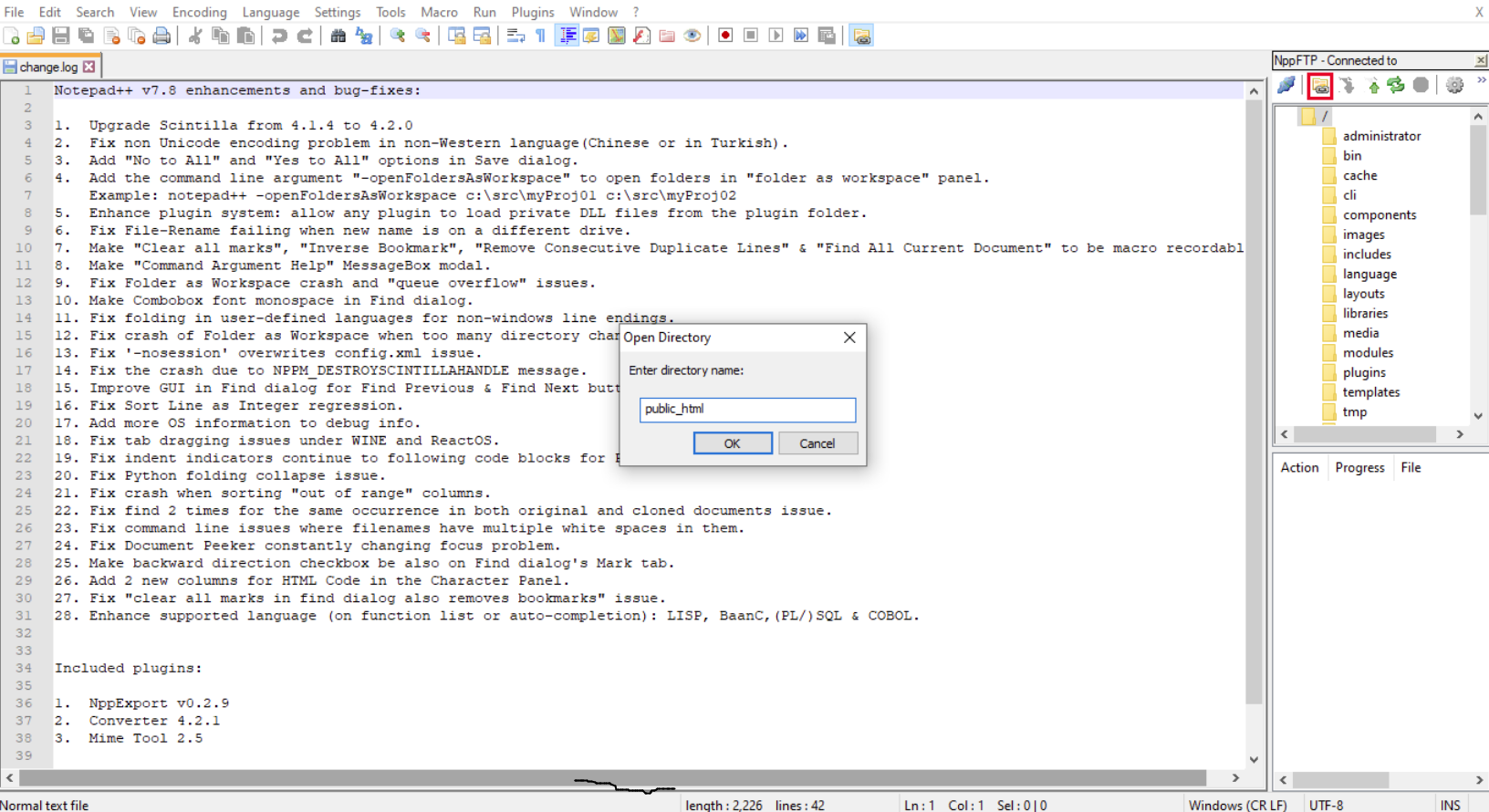
Editing files on the server using Notepad++
It's time to edit the files on your server. All you need to do is:
Double-click on the files you want to edit.
Once you are done, press the Save button to apply the changes.
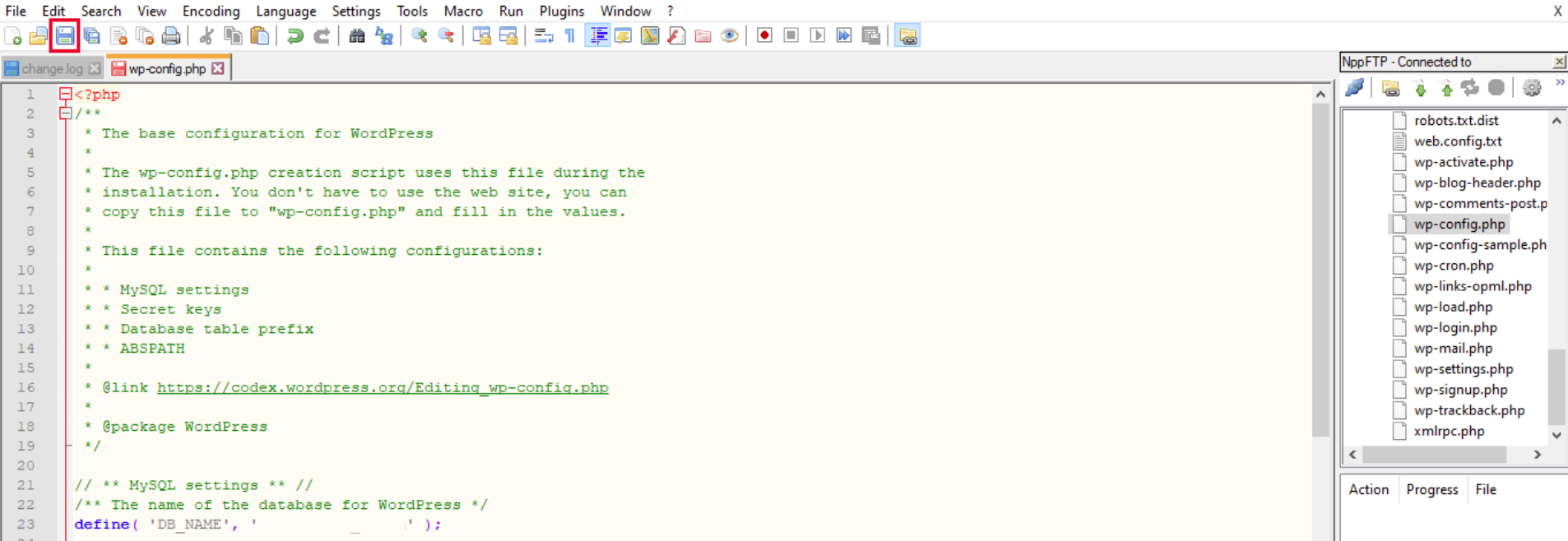
Of course, before making any changes, it is recommended to create a backup to avoid unpleasant surprises.
_______________________
- Notepad++ has just released version 7.8
- Windows 10 build 18855: improvements to Notepad and Sandbox
- Notepad++ replacement for the classic Notepad
