

If you installed Windows 10 version 1709 (Fall Creators Update) over a previous version of Windows, you may have noticed that your free disk space has decreased significantly. Below we will see how you can gain up to 40 Gigabytes.
If you upgraded from a previous version of Windows, Windows 10 Fall Creators Update saved many files from the previous installed operating system during the upgrade. These files, of course, fill your hard drive with data that you won't need again if your upgrade was successful.
The reason Windows saves all these files is in case something goes wrong during installation. With the saved files, you can safely go back to the previous version of Windows.
However, if your upgrade was successful and everything is working perfectly, then you don't need to keep these files. You can reclaim the space they take up on your disk by following these simple instructions below.
Before you continue: You should be aware that deleting these files will remove your ability to uninstall the Windows 10 Fall Creators Update, and you won't be able to restore your previous version of Windows.
Let's see how it can be done:
Press Win+R keys together to open a RUN window.
Type the following command and press ENTER
cleanmgr
Select the disk containing your system: Usually Windows 10 runs on C.
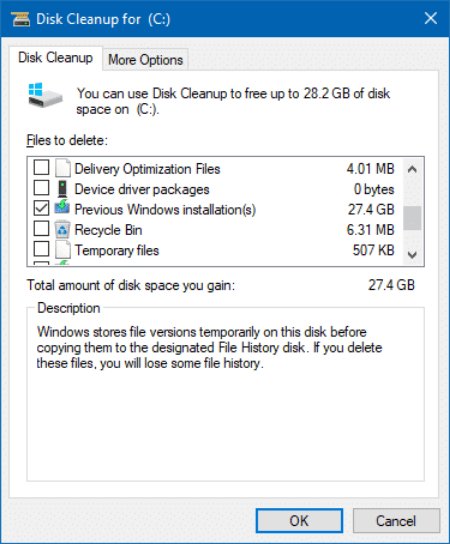
Click the Clean up system files button to go to the built-in Disk Cleanup tool in advanced mode.
Find “previous Windows installations.” Then simply click the OK button and you’re done.
