

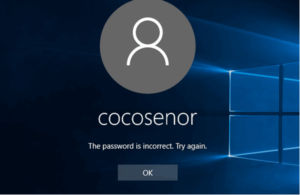
Did you forget your Windows 10 password?
Most of us know what a hassle this can lead to. Don't worry though. There are a few tried and tested methods to reset your Windows 10 password:
Method 1– Using the Windows 10 installation disc
In this way, you will need to use some simple DOS command lines and the Windows installation disk. Insert the installation disk into your computer and boot it.
- Click the “Repair your computer” link at the bottom left of the screen.
- Select the “Command Prompt” option to open the command prompt window.
First of all, you should back up the previous sticky key file by typing the following command – copy c:\windows\system32\sethc.exe c:
When the message “a file(s) was copied” appears, type the following command to copy the executable (cmd.exe) to the top of the sticky key – copy c:\Windows\System32\cmd.exe c:\windows\system32\sethc.exe
- When the same message appears again, restart the system.
- At the login screen, press the “Shift” key five times to launch the Command Prompt in administrator mode.
Simply type this command to reset the password and replace the password and username with any combination you want.
net user ____ MyNewPassword
Once the message “The command completed successfully” appears, you can now log in.
Method 2– Using the Windows iSeePassword tool
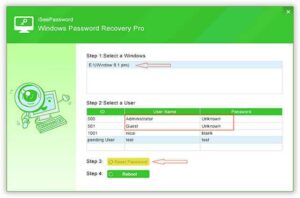
iSeePassword is the best and effective tool to reset your Windows password without installing it. You can remove or reset administrator or local user password without having to reinstall Windows. The software works on all Windows systems, including Windows 2003, Vista, XP, 8.1 and 10.
What do you need:
- A USB Driver with at least 512 MB capacity or a blank CD or DVD.
- A Windows computer or laptop.
- Password recovery software.
Steps
- Download and install Windows Password Recovery on another system to create Recovery Disk in two ways – DVD/CD and USB Flash. To reset the password, register for the program and purchase the full version.
- Burn a recovery DVD or USB on another computer Insert the USB drive into another computer where you have installed the program. From the list, select the USB drive. Click the “Burn USB” button. It will write ISO image to your USB drive. After successful burning, the message “The process was successful” will appear. Caution! Important backup data on your USB drive, as well as all your valuable data will be lost.
Now you can remove the USB drive and insert it into your locked Windows PC. Restart your computer from the USB, via the boot menu. This will change the BIOS boot sequence so that it will boot from the USB. Now you should be able to boot your computer.
Depending on your computer, the process may vary.
- First of all, restart the locked computer and press the F1, F2, F10, F8, or Del key continuously during the initial boot process.
- In the boot menu, use the arrow keys to select the USB drive and go to the top of the hard drive.
- Save the changes and exit by pressing F10. Restart your system and it will boot from the USB drive.
- Select Account and Password Reset
When the locked PC starts using CD/DVD or USB drive, it will load the program automatically.
- Choose a Windows, such as Windows 10
- Select the user to reset the password
- Click the “Reset Password” button.
- Restart your computer.
Password reset methods are not difficult to implement and do not require specialized knowledge to get your computer up and running again.
