Microsoft's Windows 10 operating system differs in many ways from its previous version. It is the latest version of Windows according to Microsoft, and is still offered as a free upgrade to license holders of the company's older operating systems.
As for advertising, it's not something completely unknown in Windows, but it seems that Windows 10 is promoting it like never before.
The ads appear on the lockscreen, start menu, share menu, and taskbar. They don't appear all the time, as Microsoft is probably still trying to keep up appearances. So some users see them and others don't.
Of course Microsoft calls these ads, “suggestions.”
These ads, or suggestions as Microsoft calls them, serve several purposes. First, they promote Microsoft software to users, such as Edge, instead of Firefox or Chrome, and second, they encourage users to use the Windows Store instead of third-party apps from the Start menu.
Of course, there have also been prompts to sign up for other Microsoft services, such as OneDrive.
Windows 10 has recently started showing ads in File Explorer. Yes, it's the renamed Windows Explorer app used to browse system folders.
A Reddit user noticed the ad when he opened Explorer on a Windows 10 Home computer that had recently upgraded from Windows 8.1.
The funny thing about this is that the user already has an Office 365 subscription.
The ad as you see appears at the top of File Explorer.
Let's see how you can disable these ads.
To disable ads in File Explorer, you need to do the following:
Open File Explorer in Windows 10 or simply open a folder.
From File at the top go to Options.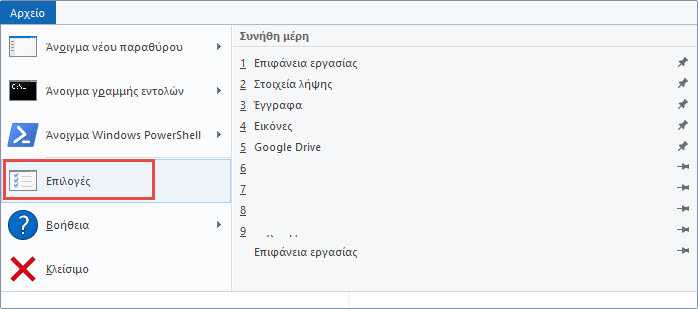
From the View menu, open the Folder Options window.
Scroll down until you find “Show sync provider notifications”.
Uncheck this box.
Click Apply and OK.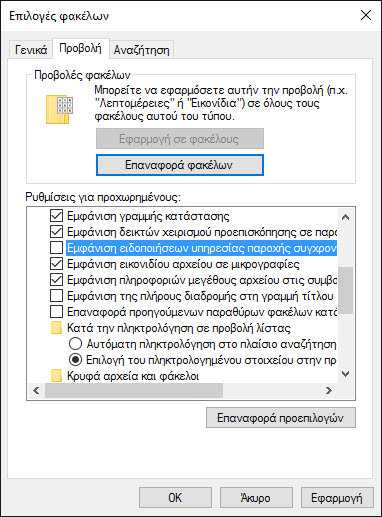
Second way from the Registry
You can change the setting using the Windows registry.
In the search box, type regedit.exe and press Enter.
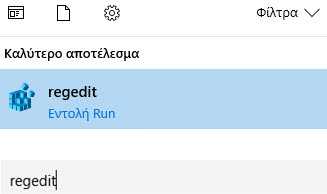
Confirm UAC.
Follow the address:
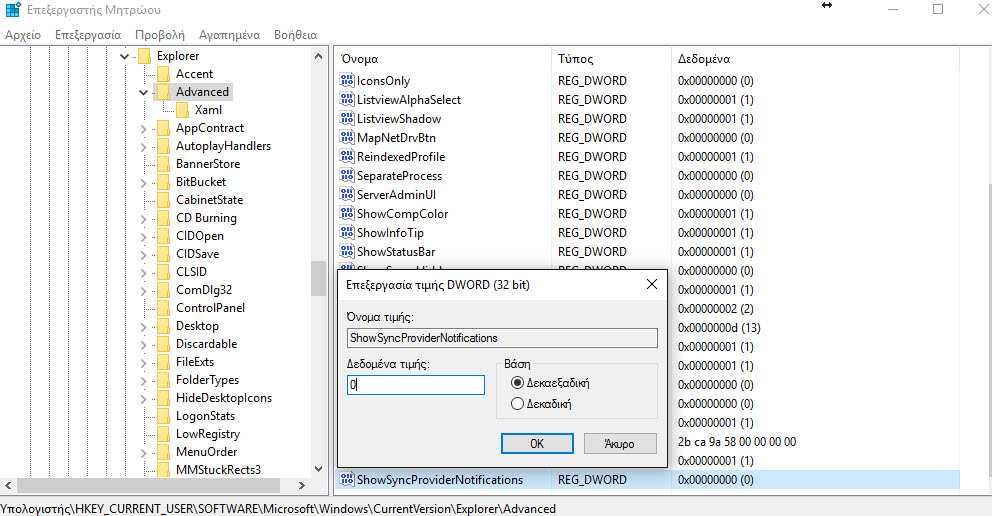
HKEY_CURRENT_USER\Software\Microsoft\Windows\CurrentVersion\Explorer\Advanced
On the right you will see “ShowSyncProviderNotifications”
Double click on the name to change its value.
If you set its value to 0, the feature will be disabled, to 1, the feature is enabled.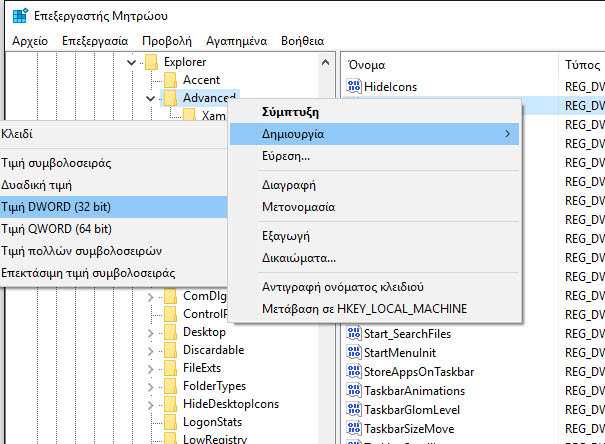
If you don't find ShowSyncProviderNotifications at the above address, you can create it yourself by right-clicking on Advanced on the left-hand side, selecting New – Dword (32-bit) Value. Name it ShowSyncProviderNotifications, and set its value to 0 (off) or 1 (on).