

Learn how to embed any image from your Google Photos directly into your website.

Google Photos is one of the most popular services for backing up your digital photos to the cloud. It has no storage limits, you can upload as many images and videos as you want, and it has a visual search that helps you easily find the photo you are looking for. However, there is one feature that most users still ignore in Google Photos.
You can easily share your photos with anyone using a simple link, although Google Photos doesn't offer an option to embed an existing image into a web page. That is, if you've already uploaded an image to Google Photos, you can't embed it directly into your web page through Google Photos.
Embed Google Photos is a new web application that, as the name suggests, makes it super easy for you to select any image hosted on Google Photos and place it on a web page, using simple HTML code. See below for how you can do it.
- Go to photos.google.com and open the image you want to embed on your website.
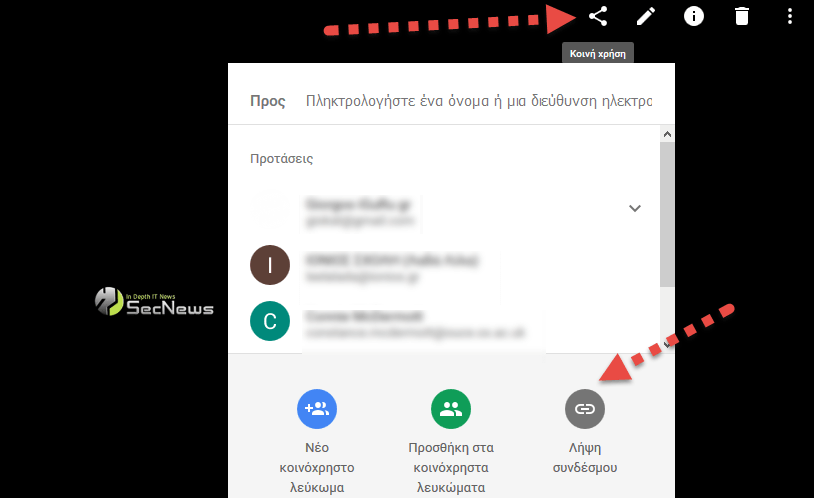
- Click the “Share” icon, and then in the window that appears, select “Get Link” to create a shareable link for this image.
- Go to CTRLQ, paste this link and it will immediately create an embed code for this image at the bottom of the webpage. Copy it to your clipboard.
Open your website's html code and paste the code you just saved. The image will appear on your website and be shared directly from your Google account.
With the above trick, you can share photos via Google Photos links as long as they are set to be shared, including those not connected to your account. The web application downloads the page behind that link and extracts the Open Graph tags to find the direct link to that image from the entire photo album.
The app only works for images, not albums. There is no research or information about any bandwidth limitations for images shared through Google Photos. So if you have a very popular site with high traffic, Google may at some point cut off your connection. If this happens, please let us know so we can add it as a note to this article.
