

The usual choice for repairing corrupted Windows files is to run the sfc /scannow command. However it is not your only solution because the SFCFix application also comes into play.
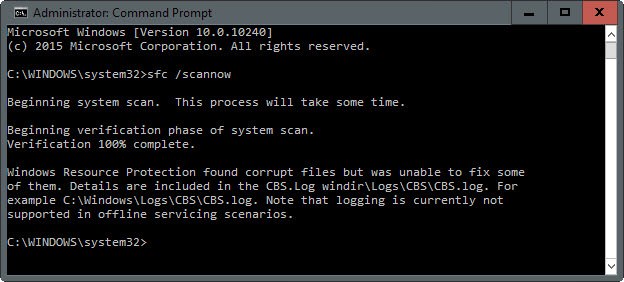
But let's start from the beginning. SFC, which stands for System File Checker, scans all protected system files looking for corrupted files and if it finds any it tries to replace it by copying a temporarily stored copy (cached) from the system32\\dllcache folder into the place of the corrupted file.
This method sometimes works and sometimes doesn't. For example, if the stored copy is already corrupted, then the repair will not succeed.
And so you will find yourself in the unpleasant position of receiving the message “Windows Resource Protection found corrupt files but was unable to fix some of them”.
As a first step, it makes sense to use the solution suggested by Microsoft, but if that doesn't work, then you should also look into SFCFix. This program is open source, free, portable, and compatible with all recent versions of Windows.
The program's website doesn't reveal much about how the program works and how it accomplishes what the sfc command couldn't. It only states that it "uses advanced algorithmic search to find and replace corrupted or missing system files." Another website revealsthat it does so by using fragmented file keys. However, it certainly uses the CBS.log file created by the Windows sfc /scannow command.
The program is easy to use, but it would be good to be relatively careful. First of all, you should be sure that there is no malicious software on your system, that is, the source of the damage was not a malware attack.
Second, you may want to create a backup of your system in case you need to restore Windows to its current state (even with corrupted files) if something goes wrong while executing the following commands.
Before running SFCFix, run sfc /scannow as SFCFix uses the log file information generated by sfc.
1.> Press the Windows key and in the “Search programs and files” field type cmd.exe, right-click on the result and select “Run as administrator” to open a command prompt with administrator privileges.
2.> Type sfc /scannow and press enter.
3.> The process checks all protected system files and attempts to repair files that are damaged.
4.> Once the process is complete, go to the folder where you saved SFCFix, type SFCFix and press enter.
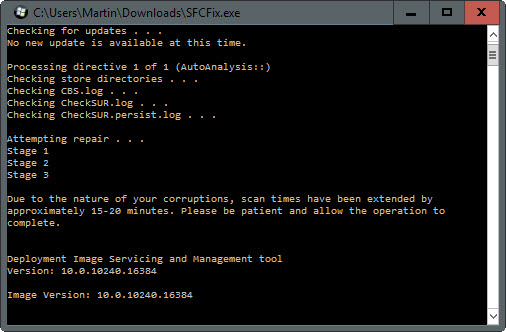
A full scan can take from 15 minutes to 30 minutes, depending on various factors. The program notifies you if the scan will take longer than the expected 15 minutes, so you know how long you should wait.
The program opens a txt document after the scan with the scan results. It gives you the full path of each corrupted file and whether it was successfully repaired by SFCFix.
Taking into account that it is not clear how the program repairs corrupted files, it is recommended to take preventive measures before executing it on a Windows machine.
