

If you use an iPhone or iPad, you may want to know how to move multiple icons at once on screen your device's
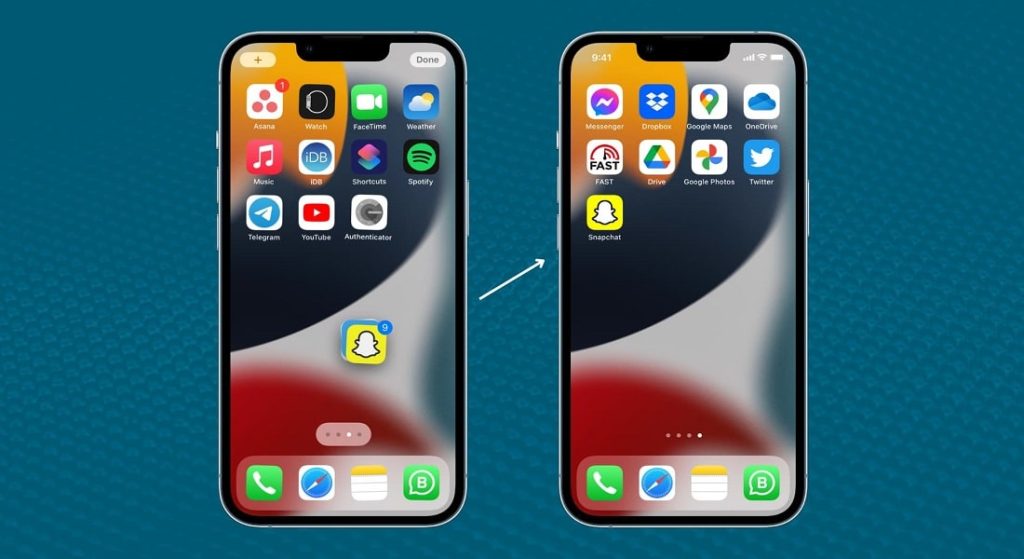
It's important to have an organized home screen on your iPhone or iPad. It's especially annoying when you're trying to squeeze app icons onto fewer pages. Moving one icon at a time is a tedious process.
See also: Apple App Store: Blocked over 1.7 million dangerous apps in 2022
You can, however, if you want to move multiple apps together. Follow the steps below:
- Touch and hold an app icon on your iPhone or iPad home screen and select “Edit Home Screen” from the menu.
- Στη συνέχεια, πατήστε ένα εικονίδιο εφαρμογής και σύρετέ το αρκετά για να εξαφανιστεί το σύμβολο μείον στη γωνία. Συνεχίστε να κρατάτε το δάχτυλό σας στο εικονίδιο.
- With one finger on the first app icon, select other apps with a second finger to add them to the app you want to move. You can switch between screens while doing this.
- When you've selected all the apps you want to move, drag the app stack to a different screen on your iPhone and release your finger to drop the app icons at the same time.
See also: How to lock specific iPhone apps
With this simple trick, you can quickly and easily organize your home screen on your iPhone or iPad by moving icons to different places at once. It's a bit awkward to use multiple fingers on the screen at once, but it works well!
See also: How to stop apps from asking you to review and rate them on iPhone
Organizing your apps will help you save time and is essential to making using your iPhone a stress-free experience.
Source: www.howtogeek.com
