

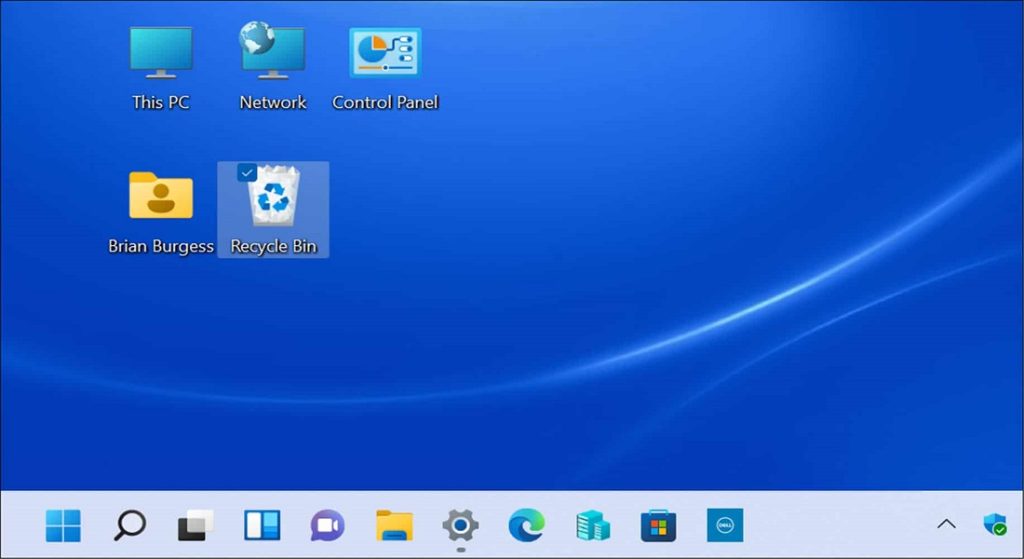
After a fresh install of Windows 10 or 11, several essential icons appear on desktop for quick and easy access. You can also add your own icons for various files . Desktop icons are a convenient way to access applications and files .

Generally, Windows uses a “medium” size for the icons on desktop . But if you want to have more time, you can make them smaller very easily. There is also a hidden “extra small” option, which you can unlock to make the icons really, really small. In this guide, we will see how you can make the icons on your desktop smaller in Windows 10 or Windows 11.
See also: How to speed up Windows 10 boot process
How to make desktop icons smaller?
You can use the desktop context menu to make the icons smaller. To change the icon size, right-click on your desktop, point to “View” and select “Small Icons.”
These simple steps work in both Windows 10 and Windows 11, as well as in older versions of Windows, like Windows 7.In Windows 11, you can also press Ctrl+Shift+4.
Additionally, there is the ability to use the same context menu to completely hide all desktop icons.
See also: Windows Registry: What is it and how to edit it?
Extra small: How to make icons even smaller
As we mentioned above, in Windows 10 and 11, there is a hidden option to make the icons on your desktop extremely small. This option is considered hidden because it does not appear in the context menu. To make your desktop icons even smaller, place your mouse cursor over the desktop ,hold down the Ctrl key, and scroll down your mouse wheel. Continue scrolling down to make the desktop icons even smaller (relative to the “Small icon” size in the context menu).
See also: Microsoft Error Lookup Tool: How is it used in Windows 11?
Correspondingly, by scrolling the mouse wheel up, you will make the desktop icons larger than the “Large icons” size in the menu.
Therefore, scroll up and down on the mouse wheel, while holding down Ctrl, to adjust the icon size on your desktop.
This way, you can set the right size for you and increase the capacity of your desktop by making the icons smaller. If you want them to be more visible, you can make them larger.
Source: www.howtogeek.com
