

Google's search engine is a deeply ingrained part of the Android experience. That means you probably accumulate a lot of Google Search history just by using your device. We'll show you a few ways to delete Google Search history on Android.

Delete the last 15 minutes of Google Search History
You may not want to delete your entire Google search history. Fortunately, you can delete specific parts of your search history—for example, your search history from today on the web, from the last week, or even from the last 15 minutes. We'll use the Google Android app for this method.
First, open the Google app and tap your profile icon in the top right corner

Now simply tap “Delete Last 15 Minutes” from the menu.

A message will appear at the bottom of the screen that says “Deleting history.” You can tap “Cancel” to stop it.

The process is complete!
How to clear Google Search History
If you want to delete more than the last 15 minutes, you have even more time duration options to choose from in the Google app. First, tap your profile icon in the top right corner.

Now select “Search History” from the menu.

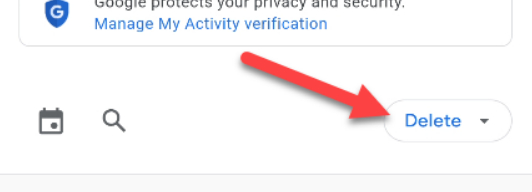
Look for a drop-down menu towards the top half of the screen labeled “Delete” and tap it.
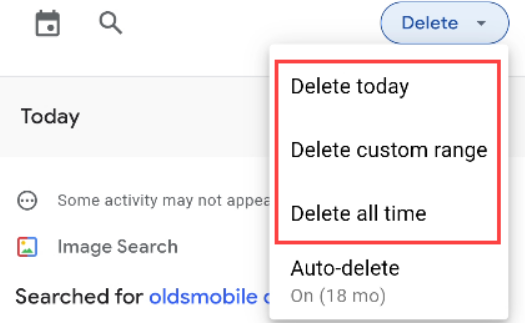
The menu gives you a few shortcuts for “Delete Today,” “Delete Custom Range,” or “Delete All Time.” The “Auto-Delete” option can be used to automatically delete your activity on a schedule.
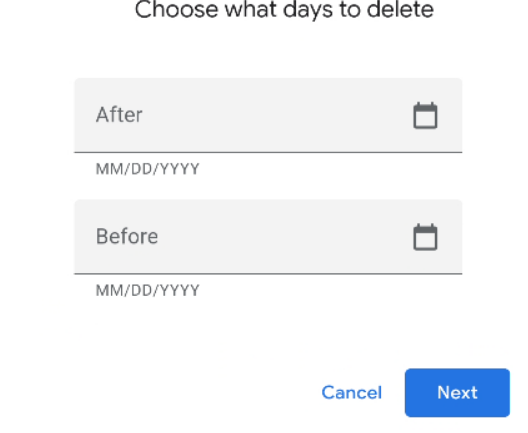
If you select “Delete Custom Range,” you will be able to select a start and end date for the portion of history you want to remove.
It's that simple! You can use it whenever you want to clear things up, but it's also a good idea to set up the Auto-Delete feature.
How to delete search history in Chrome
Although it's not specifically related to Google, you might also want to delete your browsing history in Chrome. This includes Google Search along with every other website you've visited. You can do the same thing in Mozilla Firefox and Microsoft Edge as well.
First, open Chrome and tap the three-dot menu icon in the top right, then select “History” from the menu.

Tap “Clear Browsing Data” at the top of the History list.

Decide how far back you want to delete data with the “Time Range” option. Check the box for “Browsing History,” then tap “Clear Data.”
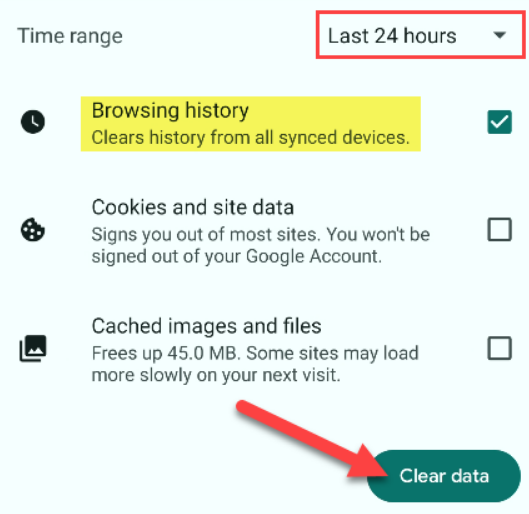
That's it! All of your browsing history—including any Google Search results—will be deleted from Chrome.
Information source: howtogeek.com
