

Do you want to organize your inbox and don't know how? Gmail itself provides the solution with its filter creation feature!
How many times have you opened your inbox and been overwhelmed by the sheer number of emails, newsletters, and notifications? If you're like most people, you want an easy way to keep your inbox clutter-free and organized. The good news is that Gmail offers a solution!

Gmail filters provide numerous benefits, such as reducing inbox clutter and prioritizing essential emails . You can even set up automated activities with filters to automatically delete messages that you don’t care about or don’t need in the long run. Additionally, users can create filters to distinguish emails from specific senders or those with specific keywords in the subject line—helping them find and respond to critical communications quickly.
Create filters to automatically organize emails by following the steps below.
- Open the gear icon in the top right corner of your inbox.
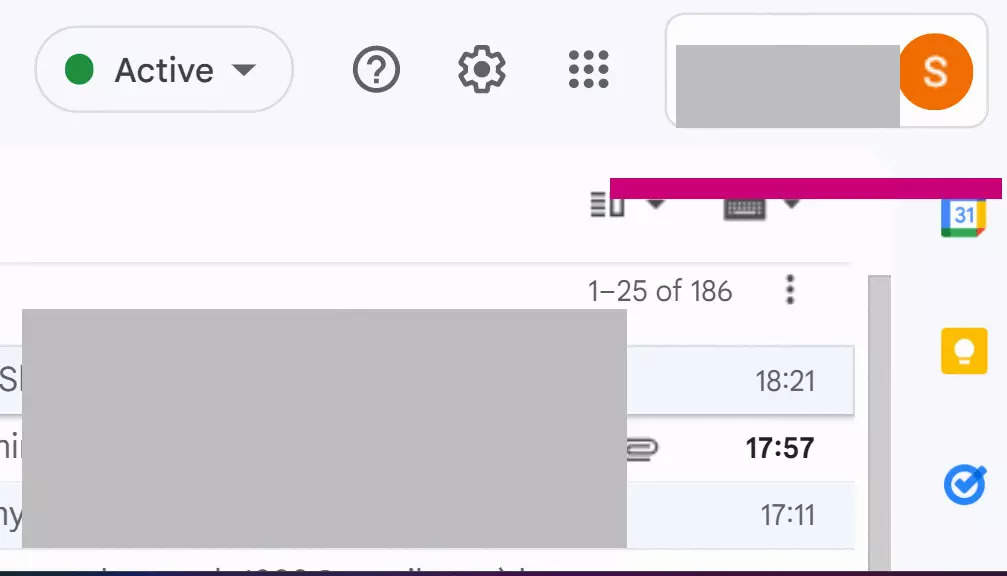
- Select “Settings” from the drop-down list that appears.
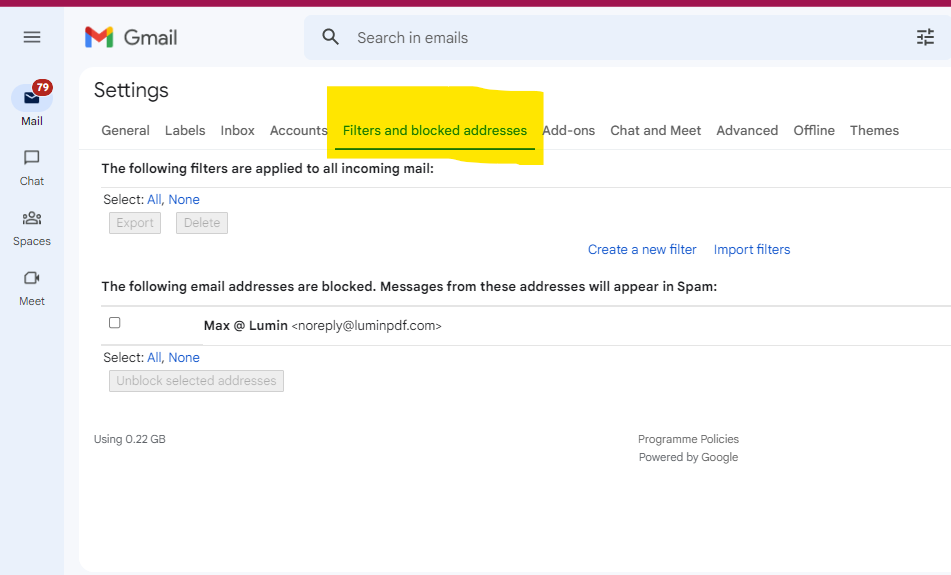
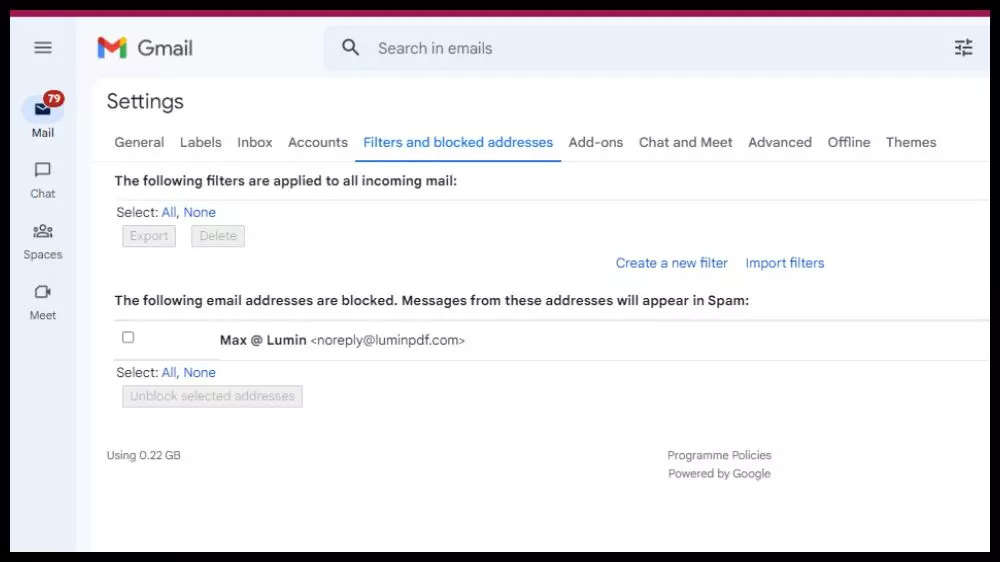
- On this page, select “Filters and Blocked Addresses”.
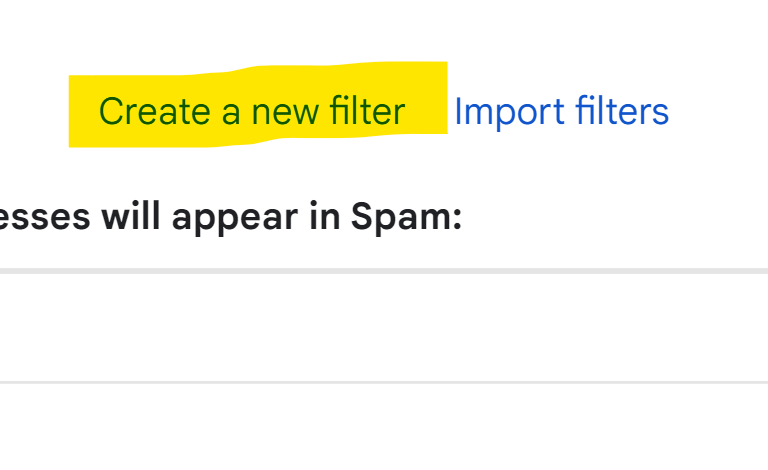
- Click the “Create a new filter” below it.
See also: Update your availability status in Gmail
- Include criteria such as the email address or domain name of the sender you want to filter, the content of the subject line, or specific words within the message body in the “From” provided there to customize the search parameters.
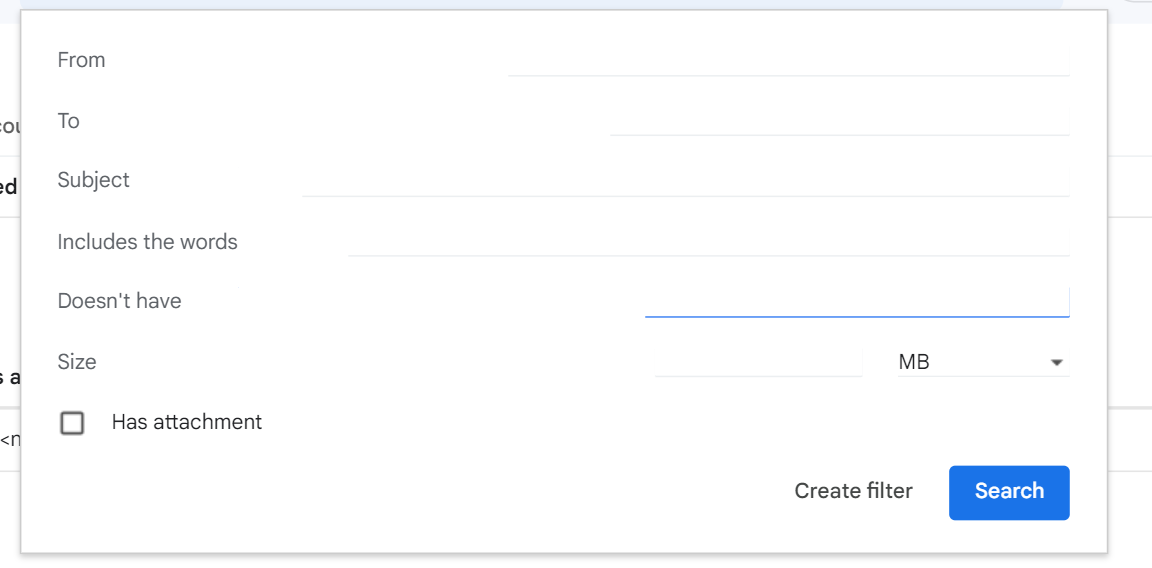
- Click the “Create filter with this search” option at the bottom
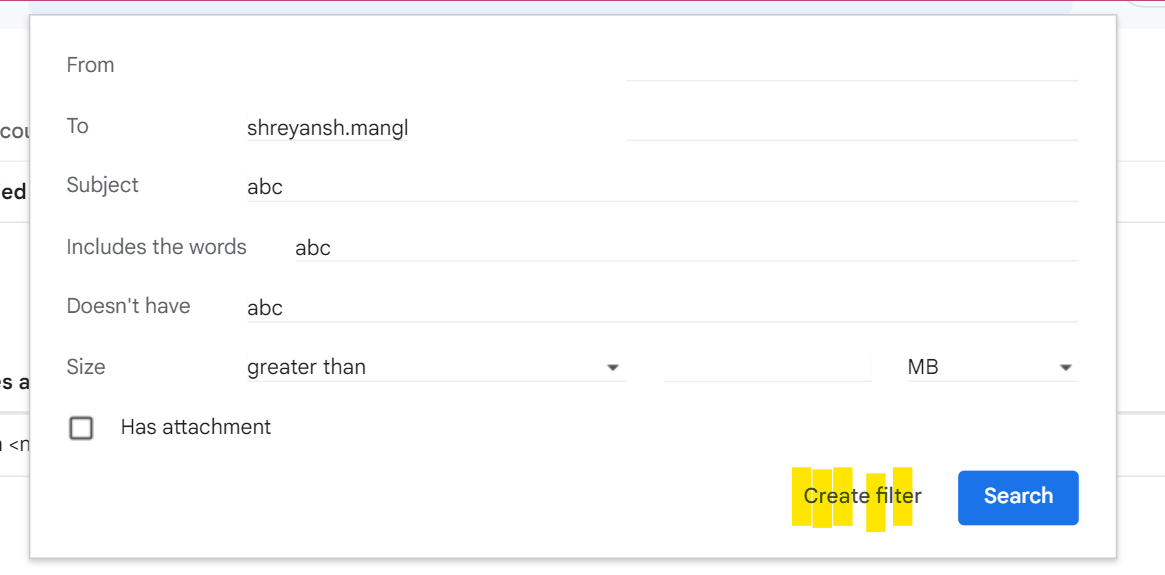
On the next page, select the actions you want to associate with this filter. For example, you can set all emails from a specific sender to be marked as read, deleted, or automatically sorted under a specific label.
- To apply the filter to all of your current messages that match the criteria, make sure to select the “Also apply filter to x matching conversations” checkbox .
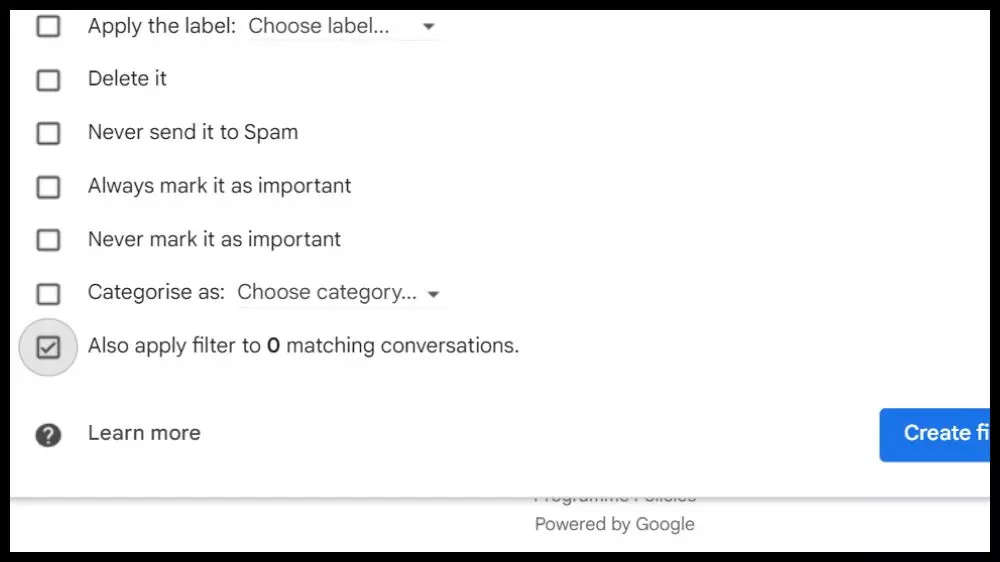
- If you are satisfied with this new development and want to save the filter, simply click “Create filter”.
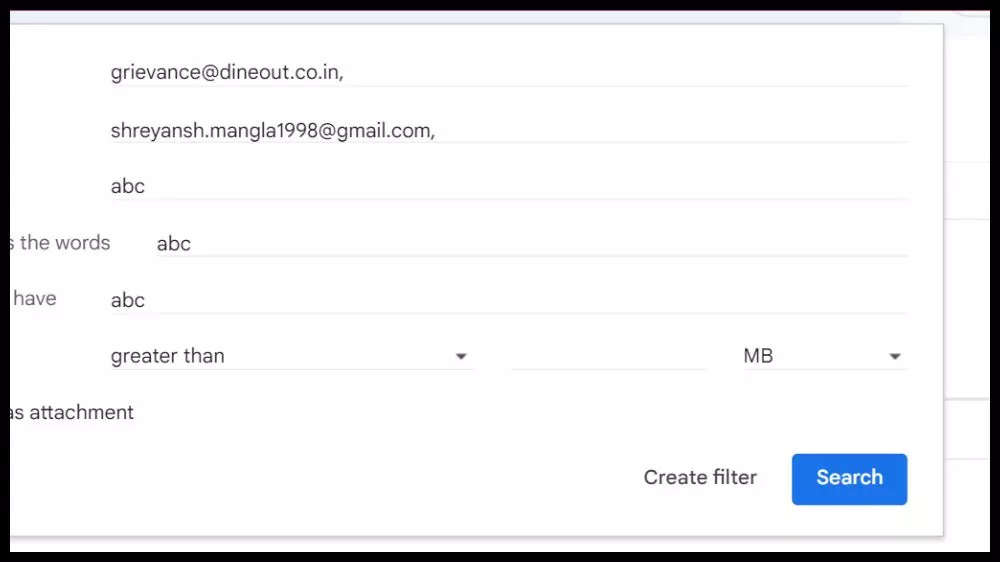
- To modify or remove an existing filter later, simply go to the Filters and Blocked Addresses, where you can both edit and delete a specific filter.
See also: Gmail: How to change the background in your email?
With the help of filters, Gmail users have complete control over their incoming messages and can organize them effortlessly. With these filters in place, every email that comes into your account will be immediately sorted based on predefined criteria. Maintaining a sorted Gmail inbox not only provides convenience, but also saves you time and energy. Take advantage of this convenient feature to gain complete control over your mailbox today!
Source: gadgetsnow.com
