

If you want to allow a blocked user to call and message you again on Facebook Messenger, you'll need to unblock . Here's how to do it on both your computer and mobile device.
See also: How do I recover my Facebook account without email or password?

First, you need to keep in mind that unblocking someone on Facebook and unblocking them on Facebook Messenger are two different things. If you have completely blocked someone on Facebook, you will need to unblock them there first to allow them to connect with you on Messenger as well.
Here we will only see how you can unblock a user on Facebook Messenger.
See also: Instagram: How to hide posts from specific people?
Facebook Messenger: Desktop
To remove someone from your block list on the Messenger web version on your Windows, Mac, Linux, or Chromebook, follow these steps:
- On your computer, open a browser and go to the Facebook. Log in to your account.
- In the top right corner, click the arrow icon.
- A menu will open. There, select “Settings & Privacy”.
- In the “Settings & Privacy” menu, click on “Settings”.
- Facebook will take you to a “General Account Settings” page. Here, in the column on the left, click on “Block.”
- A page will open called “Manage Blocking.” Scroll down to the “Blocking Messages” section. Find the user you want to unblock and click “Unblock” next to their name.
After that, Facebook will unblock the selected users on Messenger. These users will now be able to message and call you on Messenger.
See also: How to share your location with Facebook Messenger
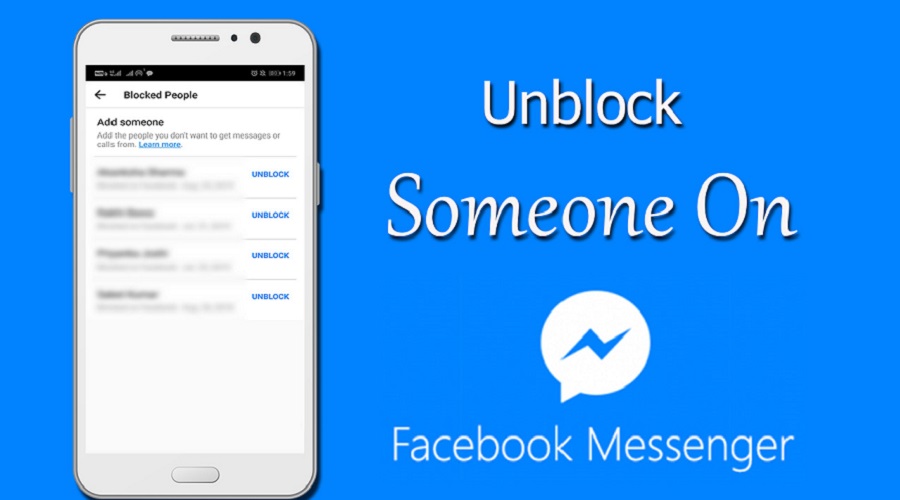
Mobile device
On an iPhone, iPad, or Android device, open the official Facebook Messenger app to unblock someone and allow them to contact you.
- First, open the app. In the top left corner, tap profile icon .
- A “ Me ” screen will open . Here, scroll down and tap “ Privacy .”
- On the “Privacy” screen, tap “Blocked accounts.”
- You will see a list of people you have blocked. This list also contains users you have completely blocked on your Facebook account.
- To unblock someone from this list, tap on their name. Then, on the “Blocking” screen that opens, tap “Unblock messages and calls.”
- In the “Unblock messages and calls” that opens, tap “Unblock.”
See also: Facebook Messenger: End-to-end encryption on voice and video calls
By following the steps above, you can unblock users on Facebook Messenger so they can communicate with you. The process is simple on both desktop and mobile.
