

Vimeo has a huge repository of great videos, and the good thing is that you can download these videos to your devices for offline use. We'll show you exactly how to save Vimeo videos to your desktop and mobile devices.

See also: Instagram Video: Creating and finding videos easily and quickly
How to download Vimeo videos to desktop
On a Windows, Mac, Linux, or Chromebook computer, use the Vimeo website to download videos.
Start by opening a browser on your computer and opening the Vimeo website, then find the video you want to download. Click on that video to start playing.
Scroll down the page and, below the video title, click the small “Download” button.

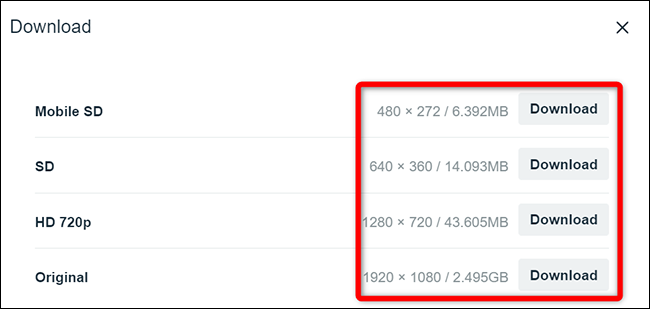
You will see a “Download” window. Here, select the quality you want to download your video in. Then, next to that quality option, click “Download.”.
Tip: The higher the quality, the larger the video file size will be.
Your desktop's usual "save" window will open. In this window, select a folder to save your video and save the video.
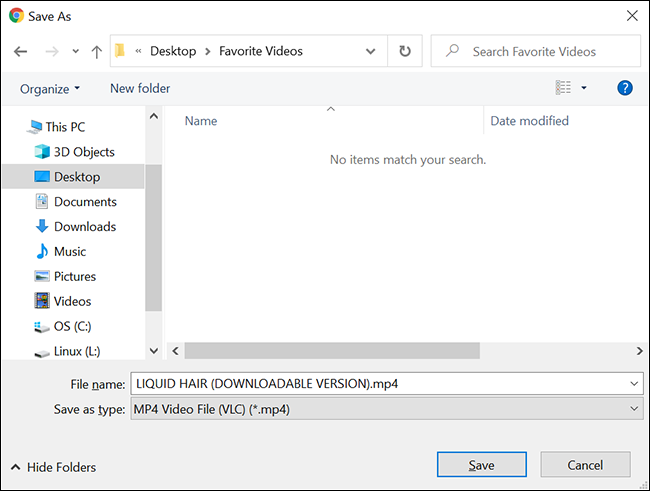
And you have successfully saved a Vimeo video for offline use on your desktop. Now you can play this downloaded file, edit it, move it to your other devices, and do what you would normally do with a video file.
See also: Canon created a dual fisheye lens for VR video system
How to download Vimeo videos on mobile
To save Vimeo videos for offline use on your iPhone, iPad, or Android phone, use the official Vimeo app.
Launch the Vimeo app on your phone and tap “Watch” at the bottom. Find the video you want to download and tap it to start playing.
On the video page, in the top right corner, tap the three dots.

From the three-dots menu, select “Make Available Offline”.

Vimeo will start downloading the selected video to your phone. Once downloaded, you'll find it in the Watch > Offline section of the Vimeo app.
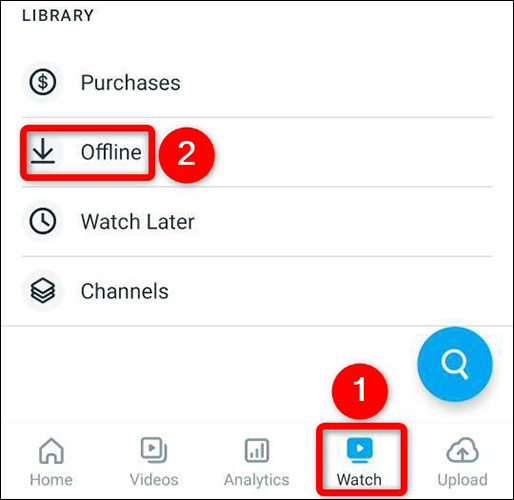
The “Offline” section displays all the videos you have downloaded.

And that's how you use the official option to save videos from Vimeo to your desktop and mobile. Happy watching!
Information source: howtogeek.com
