


iOS 13 14 and have removed the “ Create PDF ” feature that was previously available in Notes. However, there’s no need to worry. If you want, you can still convert your Notes on your iPhoneto PDF files .
See also: How to open and read a PDF on Android
Δείτε παρακάτω πώς μπορείτε να το κάνετε, χρησιμοποιώντας δύο απλές μεθόδους.
See also: How can you merge PDF files across devices?
Μέθοδος 1: Χρήση Markup
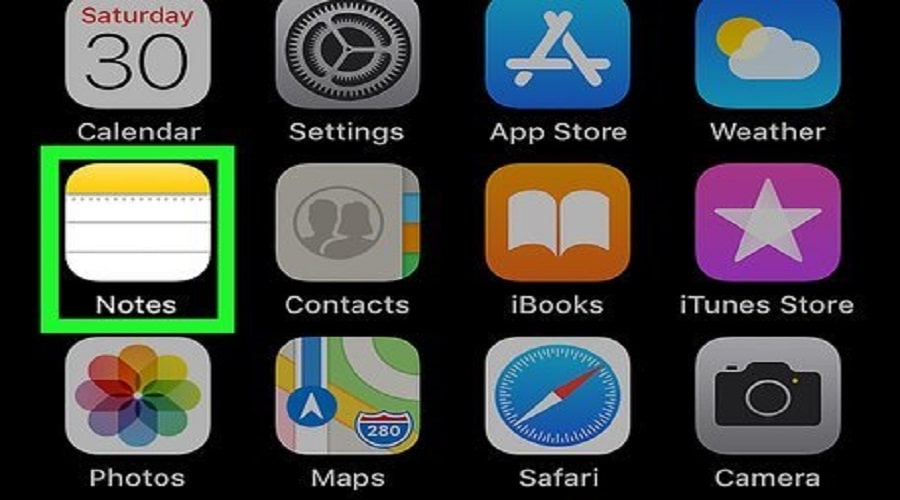
- To start the process, open Notes.
- After opening Notes, select the note you want to export to PDF by tapping on it. The note will open so you can make changes before converting it to PDF.

- Tap the share icon, located in the upper right corner of your screen.
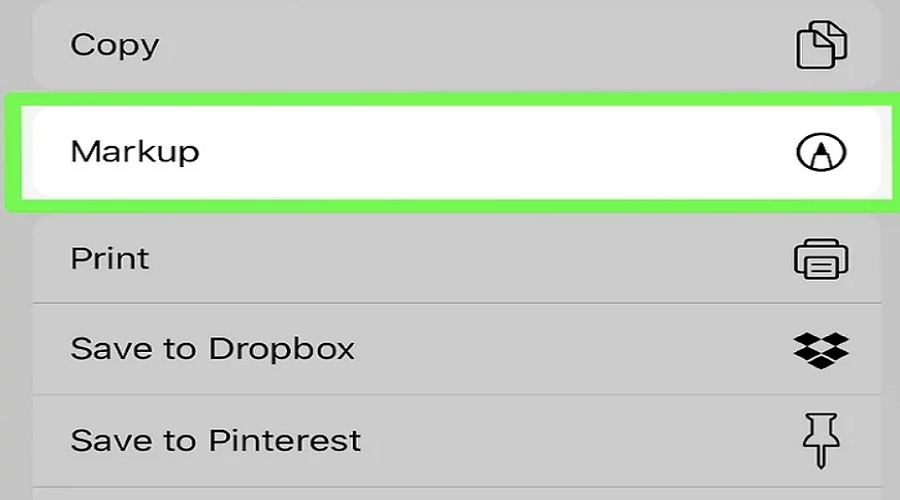
- Then select Markup, which is usually located towards the bottom of the menu next to an icon depicting the tip of a pencil inside a circle.

- Tap Done to ask Notes to save a copy.
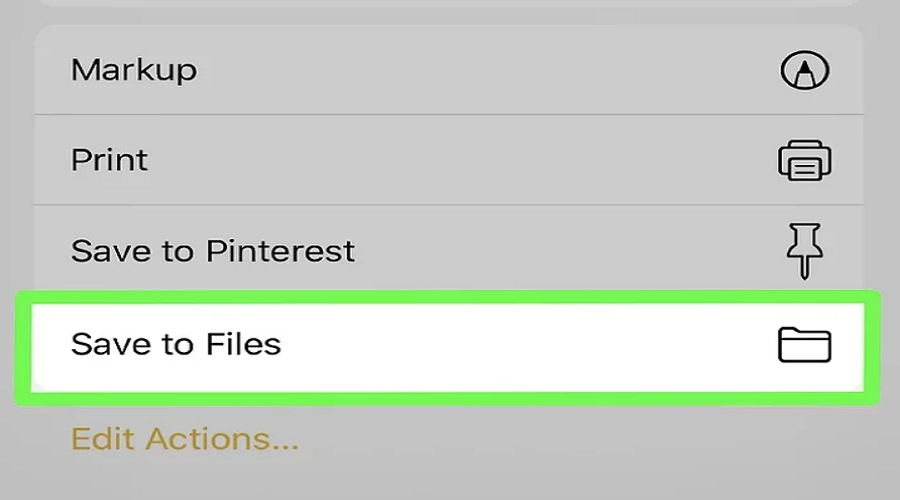
- Click Save to Files…. and after choosing a location and name for the file, it will be converted to PDF.
See also: How to import a PDF into Microsoft Word?
Method 2: Using Print
- Open Notes.
- Select the Note you want to export to PDF. Once it opens, you can make any changes before converting to PDF.

- Tap the share icon, located in the upper right corner of your screen.
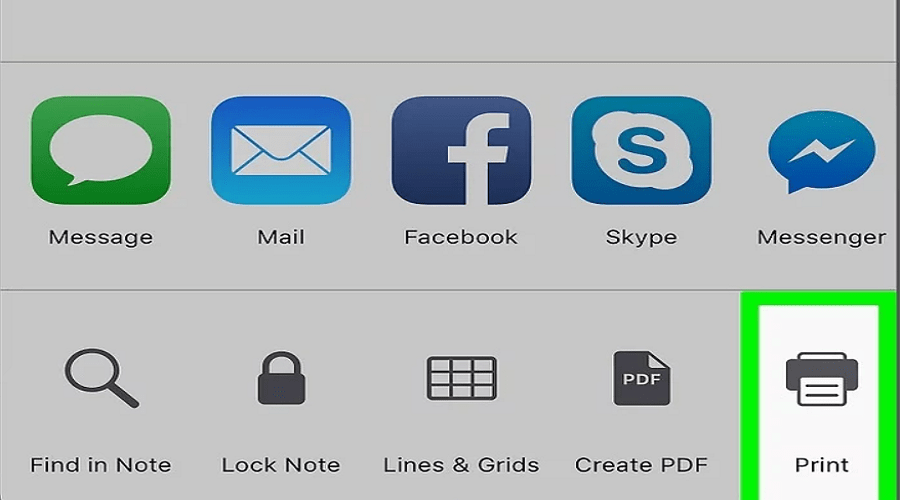
- Click Print . It's usually at the bottom of the menu, next to a printer icon.

- Un -pinch the screen. Use two fingers and slide them apart from each other in an outward motion.
- A new window will open as a Note in PDF format.
- Tap the share icon again, located in the upper right corner of your screen.
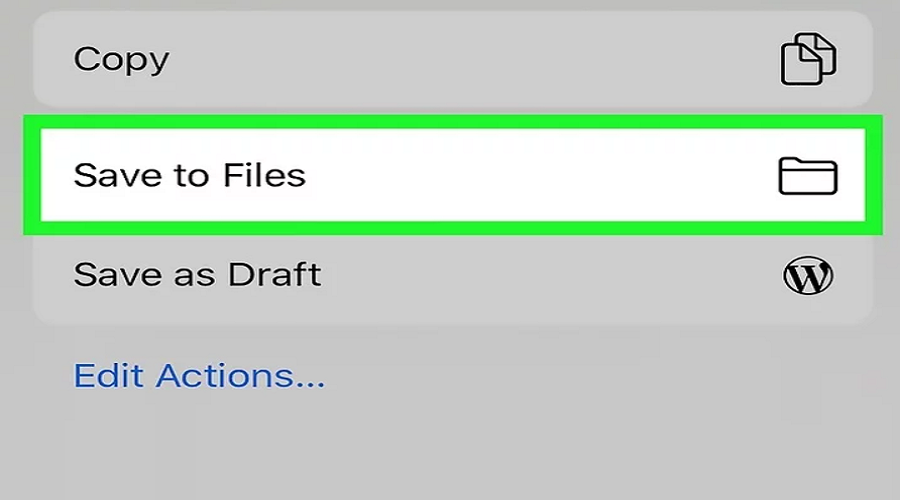
- Click “Save File To….” and after choosing a location and name for the file, the conversion to PDF will take place.
Source: wikiHow
📧
Subscribe to the SecNews Newsletter
