

Netflix gives you the option to skip movie intros. But it doesn’t work automatically, meaning you have to choose it for each episode. Luckily, there are several Google Chrome extensions that can take care of the “Skip intro” button.

Automatically skip intros
Once installed, this free browser extension automatically clicks the “Skip intro” button as soon as it appears in your web browser. All you have to do is visit the Google Chrome Web Store and download to your computer.
To do this, visit the “Auto Skip Intro” list and click the blue “Add to Chrome” button.
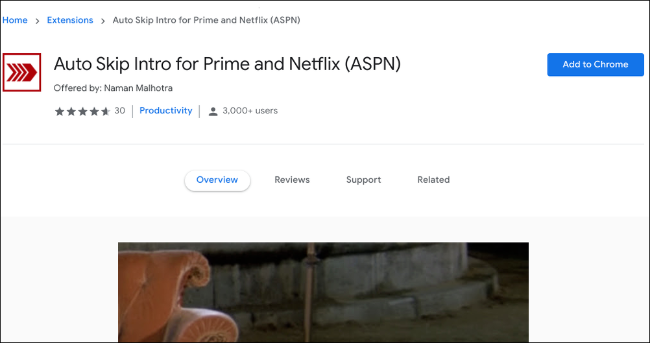
You don't need to manually enable the extension – it starts working as soon as the installation. If a Netflix movie is playing in a tab, be sure to reload it for this extension to work.
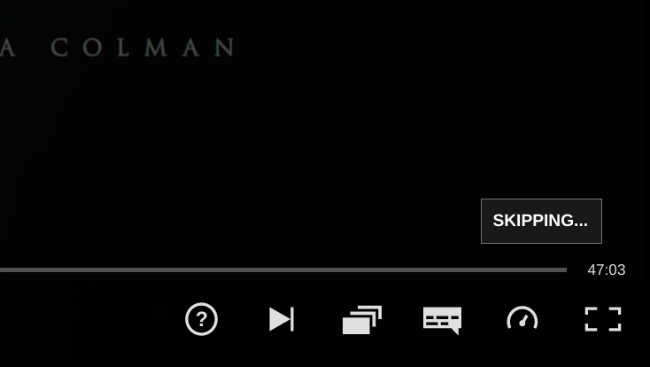
Additionally, “Auto Skip Intro” skips recaps of previous episodes that often play at the beginning of a new one. This feature is also enabled by default.
Auto Skip Intro does the job, but it doesn't let you customize the experience at all. For example, if there's a show you prefer to watch the intros for, your only option is to disable or delete the Auto Skip Intro extension.
Netflix Extended
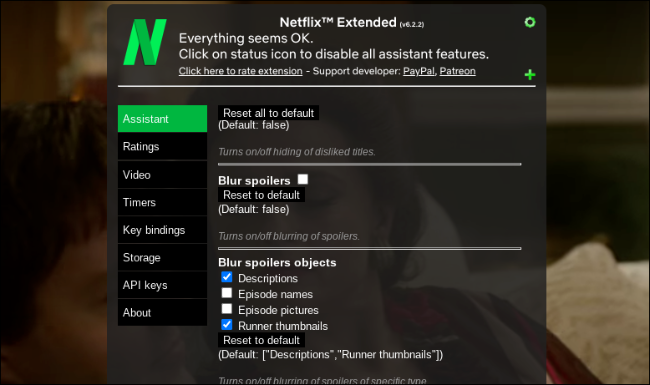
Netflix Extended is for those looking for more control. Like Auto Skip Intro, it eliminates the need to manually skip intros on Netflix. But along with that, it also comes equipped with more tools that let you customize many other elements of the Netflix web player.
Once you install it from the Chrome Web Store, Netflix Extended works automatically, skipping introductions and recaps without you having to do anything.
Additionally, it adds a green dot to the Netflix player in Chrome. Hover over it and click the tiny gear icon for more features and settings.
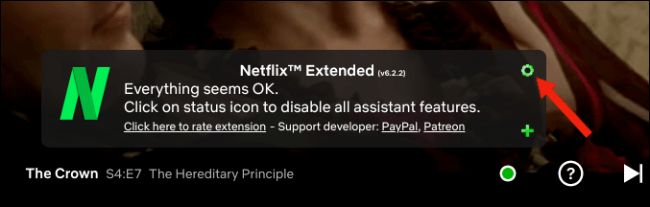
In the “Assistant” tab, you can choose whether to skip previews and imports.
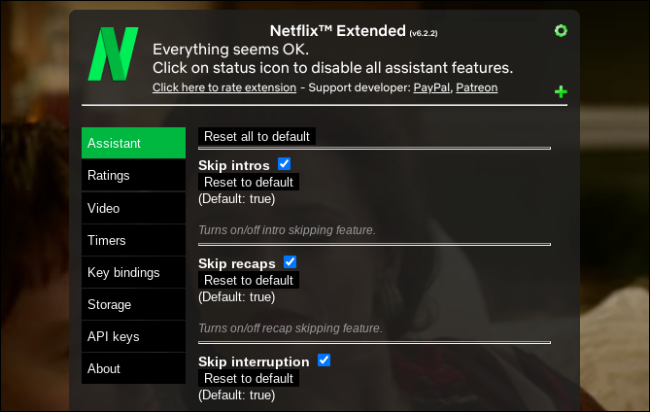
In the same section, you will find an option to censor elements and also, from the “Video” tab, you can adjust the playback speed.
Information source: howtogeek.com
