

The Google Discover Feed on your Android phone or tablet will help you find interesting news, sports scores, and other content without having to search for it. Discover is based on learning your interests to show you relevant information. We'll show you exactly how to personalize it.
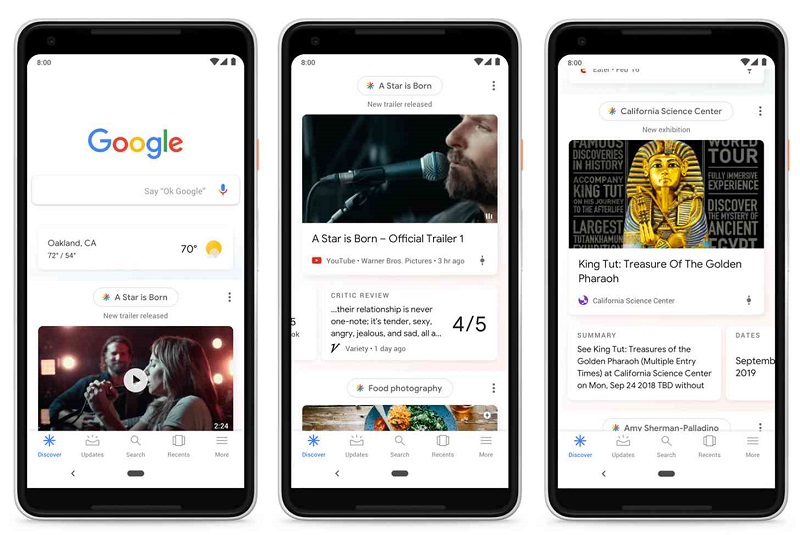
Where is the Google Discover Feed?
The Google Discover feed is simply a tab in the Google mobile app. Some Android launchers (notably the Pixel Launcher) include a dedicated pane on your left home screen for the Discover feed. You can also quickly visit the feed via the Google widget.
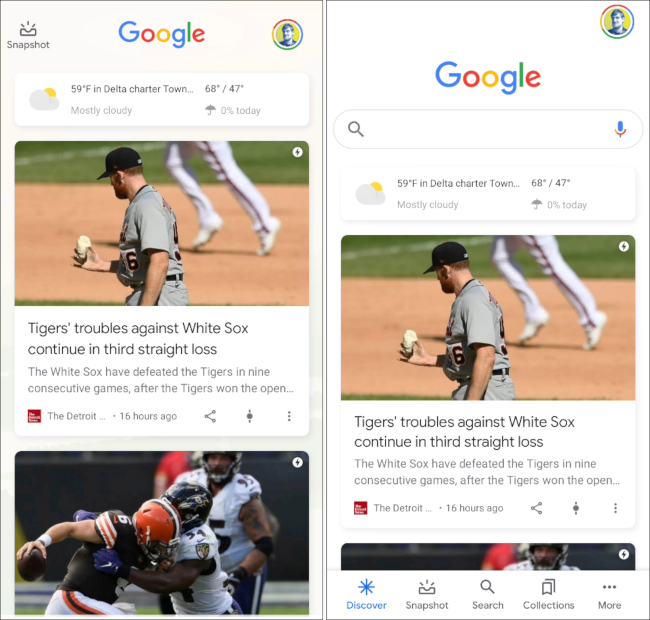
Personalize your interests
First, go to the “Google Discover” tab in the Google app on your Android device.

Discover shows the weather forecast for your location at the top of the screen. Below that, you'll see all the content Google thinks you'll be interested in. This content is based on what you explicitly tell Google and some assumptions based on activity .
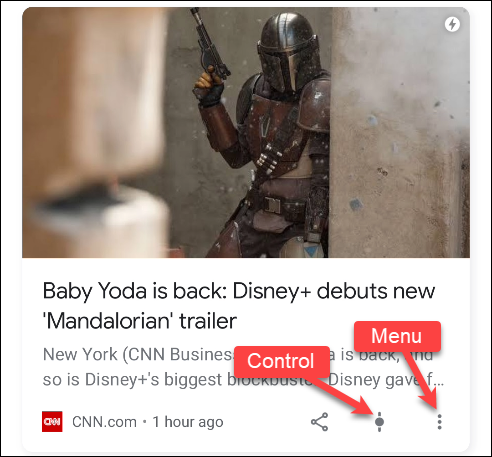
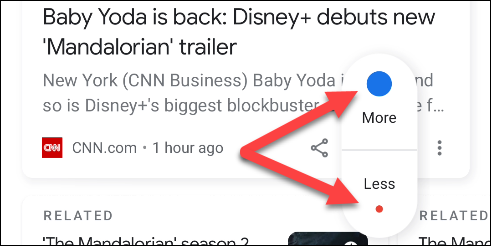
The first way you can personalize your feed is by interacting with the cards that appear. Each card has a “Control” icon and a three-dot menu icon in the bottom right corner.
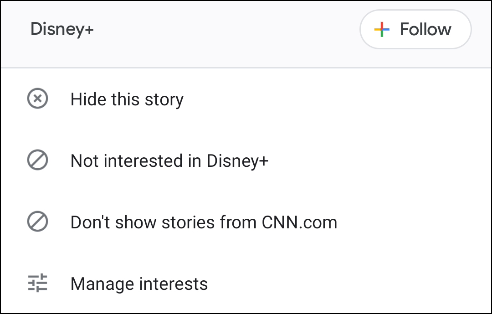
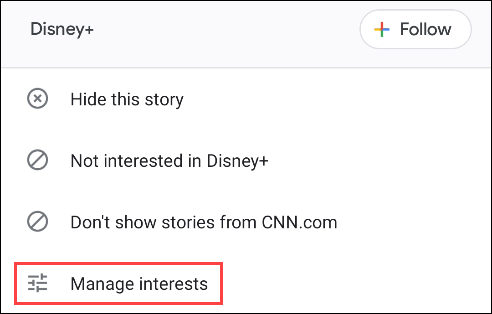
The three- dot will give you more information about the card. In this case, we can see the topic is “Disney+.” From here, you can “Follow” the topic, hide the story, say you’re “Not Interested,” block the source of the content (from the website it came from), or “Manage Interests.”
Tapping the “Control” icon will allow you to choose to see “More” or “Less” of the topic in your feed. Tap this icon again at any time to reset preference .
Keep scrolling and you’ll likely see a “Discover More” section. This is another way to personalize interests in your feed. Tap on one of the topics to expand it.
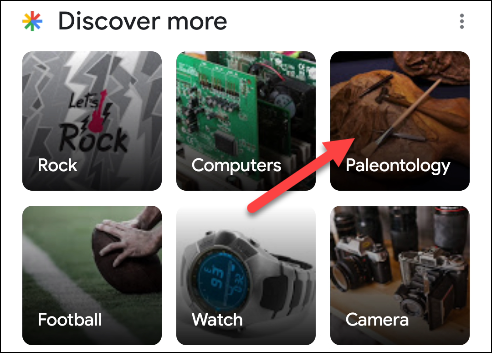
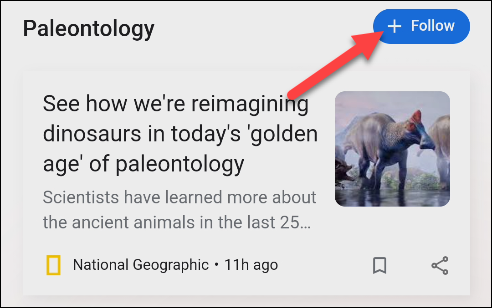
You'll get a preview of some of the stories you'll see in the relevant topic. Tap "Follow" to add the topic to your interests.
The other way you can manage your interests is at a more granular level. Tap the three-dot menu icon on a card and select “Manage Interests.”.
Then, select “Your Interests”.
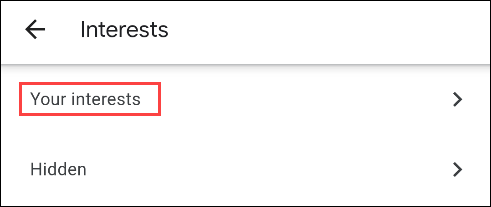
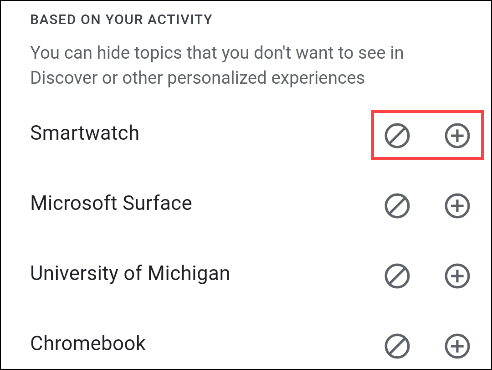
If you've previously followed any topics, you'll see them at the top of the page. Below, you'll see topics that Google has curated “Based On Your Activity.” These are topics that Google thinks you might be interested in.
Tap the “+” icon to follow the topic or tap the delete icon to hide it
It should be noted that you don't need to read the entire list. It's likely to be quite long and filled with some very random topics. Some of the topics will never appear in the Discover feed.
Information source: howtogeek.com
