

The Apple Watch, the “smart” watch introduced by Apple in 2014, is a device that has freed the hands of many iPhone users , as it allows them to access their iPhone data at any time , without having to have it on them all the time. Specifically, when the iPhone is turned off or out of range, the Apple Watch can use a Wi-Fi network to send and receive data. Also, if the watch has the relevant capability, you can connect it to a cellular network . Furthermore, if you configured an Apple Watch for a family member, that member can use the cellular or Wi-Fi network connection with their watch. The Apple Watch allows you to manage your notifications without ever having to touch your iPhone. However, many times notifications accumulate and take up space on your “smart” device , so all you want to do is delete them. How can you quickly delete all notifications on your Apple Watch?
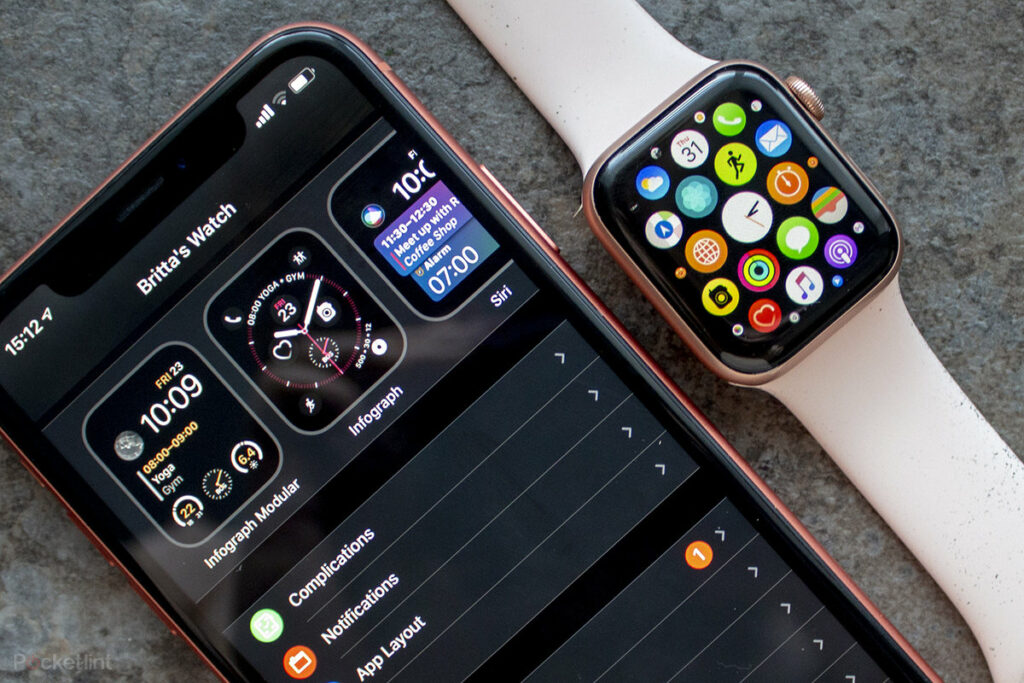
Starting with watchOS 7, Apple changed the way you clear all notifications. Previously, you had to long-press on Notification Center to bring up the Clear All. However, starting with watchOS 7, Apple has said goodbye to 3D Touch. This does change the process of clearing all the notifications that have accumulated on your device.
First, you need to look at the watch face on your Apple Watch and swipe down from the top of the screen to bring up Notification Center . If you're using an app , press and hold the top edge of the screen and then swipe down. A list of all your notifications will then appear on your device's screen . If you press and hold the screen, nothing will happen. Swipe down to reach the top of this screen. You can also use the Digital Crown . At the top of Notification Center , you'll find a new "Clear All" button . Tap on it to immediately clear all notifications and also close Notification Center .

After following these simple and quick steps and returning to the Notification Center, you will see the following written on your screen: “No notifications”.
