

Group chats in iMessage are great, until they start bombarding you with notifications and mentions. Even if you mute a group chat in Apple Messages, you'll still get notifications when they mention your name. Here's how to turn off iMessage mentions on iPhone and iPad.
Starting with iOS 14 and iPadOS 14, Apple made some changes to how iMessage group conversations work. While you can mute group conversations, the Messages app still sends notifications when someone mentions you.
From the Settings app, you can turn off notifications for all reports.
Open the “Settings” app on your iPhone or iPad , then go to the “Messages” section.
Scroll down to the “Mentions” section and tap the toggle next to “Notify Me.” Make sure the setting is turned off.
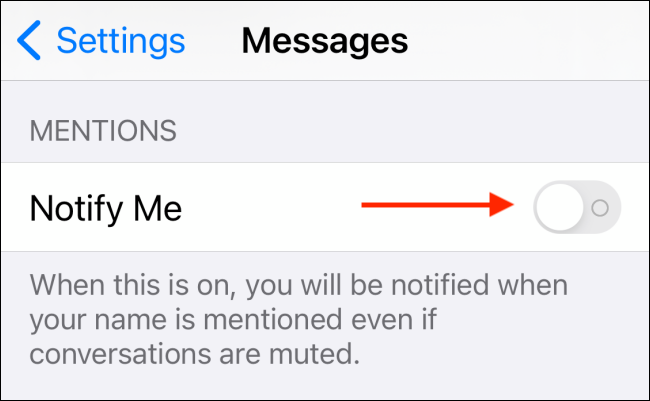
Now, you won't get a notification when someone mentions you in any group chat in iMessage.
To completely mute a group conversation in iMessage, you will need to use the “Messages” app.
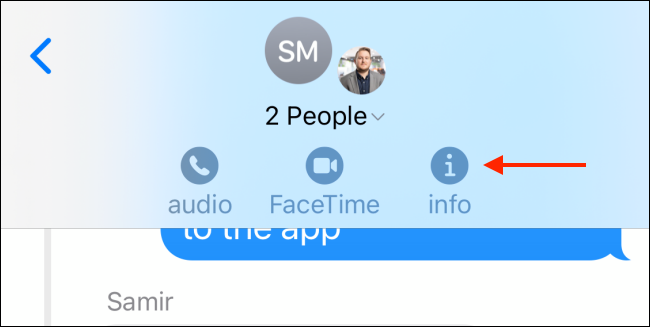
Open a group iMessage conversation and tap the “Arrow” icon at the top of the conversation.

Now, select the “Info” button.
From the chat settings menu, swipe down and tap the toggle button next to “Hide Alerts.”.
You have now completely muted a group iMessage conversation. You will not receive notifications from the group conversation, including reports.
Photo source: howtogeek.com
