

WoeUSB: I am a Linux user. However, sometimes I need to install Windows 10 or a Windows Server. How can I create a bootable USB with Windows in a Linux environment (Debian, Ubuntu or Arch) with GUI tools?

We have published different ways to create a Windows Bootable USB from time to time. One of the methods was without tools, using only the terminal and a Windows ISO image.
Below we will see how you can create a Windows Bootable USB using an application called woeusbgui.
You will need
A Linux system like Debian or Arch
A Windows ISO. The instructions below work with Windows 7/8/10 pro or home editions.
Install woeusb from source
Some GNU compiler packages
and of course a USB (usb hard drive or USB stick) with 4 Gb or more free space.
Warning: Incorrectly burning a bootable ISO to a device (USB or hard drive) can permanently damage partition information, file system, or data. Be careful with drive and disk names.
But let's see how you can create a Bootable Windows 10 USB on Linux with the woeusb application
The method is recommended for all new Linux users as it requires less typing in the CLI and is easy to use. WoeUSB is a simple Linux program to create a Windows 10 installer on a USB stick from a DVD or ISO.
WoeUSB is a simple tool that allows you to create your own Windows installer on a USB stick from an iso image or a real DVD. It is a fork of Congelli501's WinSSB. This package contains two programs:
woeusb: A command line utility that allows you to create your own bootable USB device from an existing Windows installation disc or a real DVD
and woeusbgui: A GUI wrapper of woeusb based on WxWidgets
Installing WoeUSB
open a terminal and issue the following git command. If you don't have git, install it)

git clone https://github.com/slacka/WoeUSB.git
After downloading the software from git, provide a version string with the following commands:
cd WoeUSB/
./setup-development-environment.bash
Let's install the WoeUSB build dependencies on Debian or Ubuntu Linux using an apt-get or apt command:
sudo apt-get install devscripts equivs gdebi-core mk-build-deps sudo gdebi woeusb-build-deps_*.deb dpkg-buildpackage -uc -b sudo gdebi ../woeusb*.deb
That was it… Let’s now create a Bootable Windows 10 USB from a Linux system
Simply type the following command to erase the USB and burn a bootable Windows USB via terminal:
sudo woeusb --device Windows.iso /dev/sdb
Not good with the terminal? Try the gui
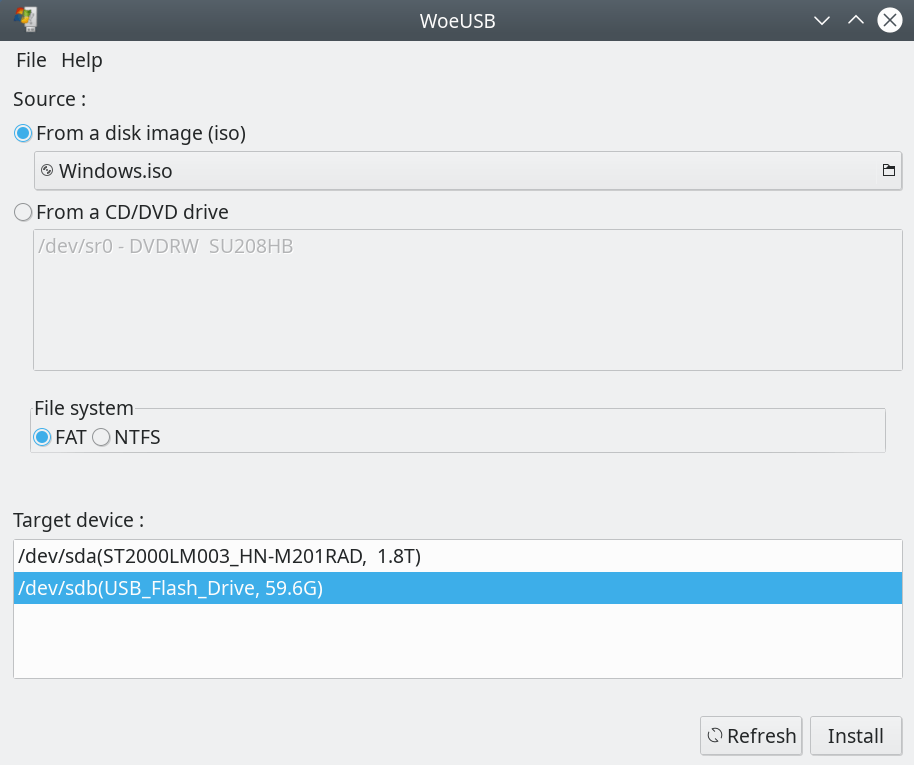
Run the application and you will see the window above. Select the ISO. If the application does not see your drives, select Files – Show All Drives. Then select the USB.
As for installation on Arch, the application is available in the AUR:

_____________
- Etcher for easy bootable USB on all platforms
- Bitdefender Rescue CD: bootable free for everyone
- Chrome OS installation on USB drive
