If you want to receive a notification in Windows 10 every time a scheduled task is executed, you can easily do so by following the steps in our article today.
Scheduled tasks in Windows 10 are created either by the operating system, by installed third-party programs, or by users. The tasks created by Windows 10 are related to running basic services, checking for updates, and periodically verifying/ensuring Windows 10 activation.
If you look at the list of scheduled tasks in the Task Scheduler app, you'll see that there are quite a few tasks that usually run silently. It's rare for a task to ever show you that it's run. It's only when it fails that you might see a notification, but even that's not a given. If you want to receive a notification every time a task completes, you'll have to manually set it up.
Since you have to add notifications for specific task completion manually, you can't do this for all tasks in one go. You'll have to do it individually for each task.
Create an alert
The alert that will appear will be via the command line. It will open a command prompt window and inform you about it. You can also set it to close itself after a few minutes.
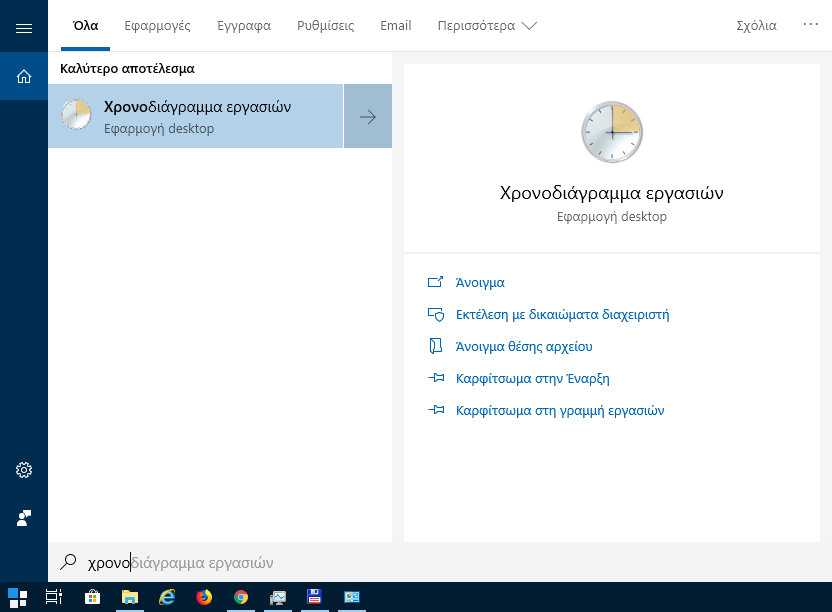
Step 1. Open the Task Scheduler. If you don't know how, search the start menu for the word "Scheduled tasks".
Step 2. Create a new task from which you want to receive a notification every time it runs or simply select one of the existing ones to set it to notify you.
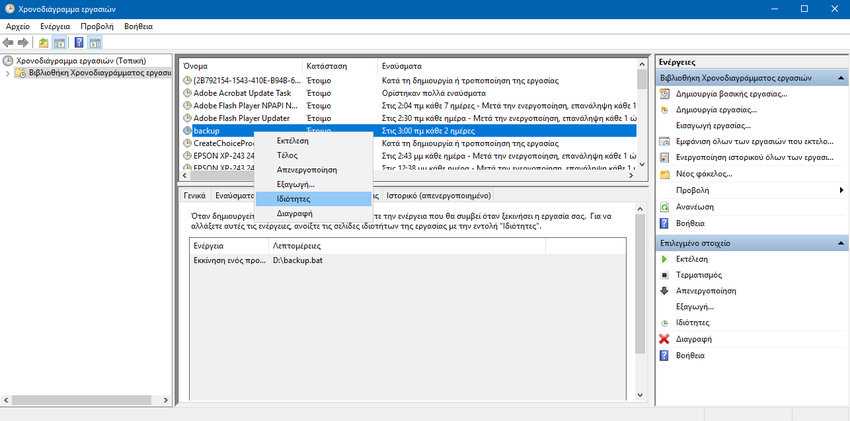
Step 3. Whichever one you chose, right-click on it and in the menu that appears, select “Properties”.
Step 4. A new Properties window will open. Go to the “Actions” tab and click the “Create” button at the bottom of the tab.
Step 5. A tab titled “New Action” will open. There, select “Start a program” in the “Action” drop-down menu. In the Program / Script box, type “cmd” (without the commas).
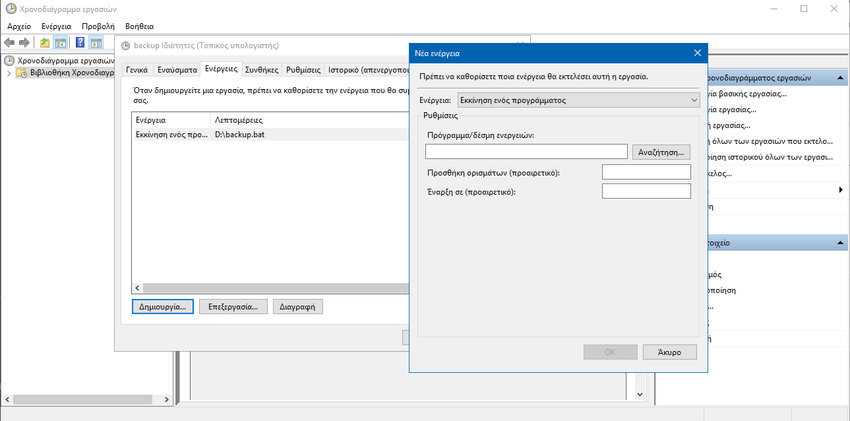
Step 6. In the Add Arguments box, write the following text.
/C TITLE [Alert Title] &ECHO.&ECHO.&ECHO [Alert Message] &ECHO.&ECHO.&TIMEOUT [alert duration]
From the above template text you will need to change the [Notification Title], [Notification Message] and [Notification Duration].
An example of correct wording of the text would be:
/C TITLE Action Notification &ECHO.&ECHO.&ECHO Backup completed &ECHO.&ECHO.&TIMEOUT 120
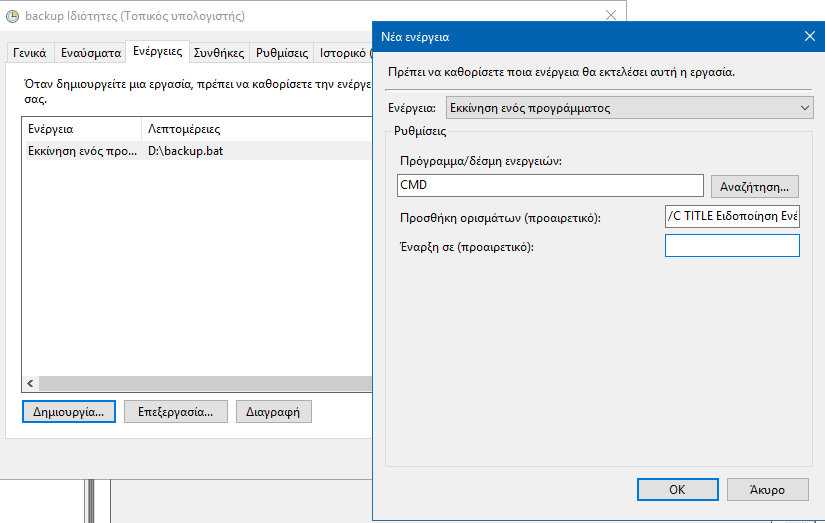
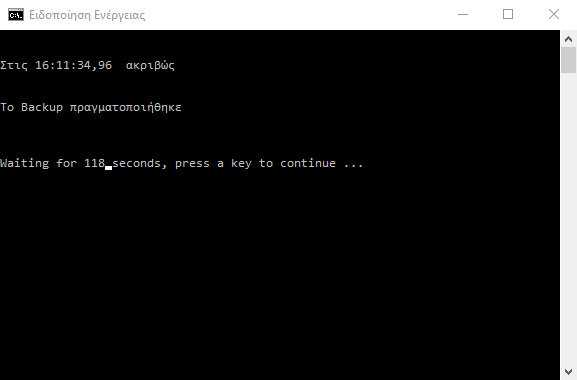
The fields you need to change are pretty self-explanatory. [Notification Title] and [Notification Message] are simple text without brackets or ellipses that you can put whatever words you want. They can be written in either Greek or English. The result is a Command Prompt window that will read the following:
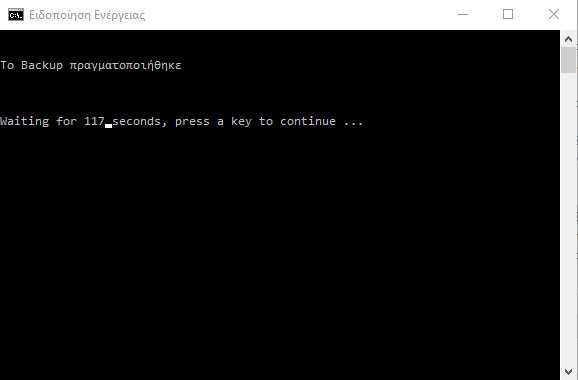
[notification duration] sets, in seconds, the amount of time the Command Prompt window will remain open before it automatically closes. You can also close it by pressing any key.
Step 7. Press the OK button to save your change.
If for some reason you don't want the window to close on its own and instead you just want to close it manually, then instead of /C write /K and completely omit &ECHO.&ECHO.&TIMEOUT [notification duration]. That is, like this:
/C TITLE Action Notification &ECHO.&ECHO.&ECHO Backup completed
You can also see the time it was performed by putting TIME in the arguments. That is, if you write:
cmd /C TITLE Action Notification &ECHO.&ECHO.&ECHO At %TIME% exactly &ECHO.&ECHO.&ECHO Backup completed &ECHO.&ECHO.&TIMEOUT 120
will show you: