

You've noticed that your Windows 10 system is taking longer to boot than it used to. The culprit could be some slow programs that start at boot time. Below we'll look at how you can check which programs start automatically and how to disable them.
Some applications don't ask for permission to be added to the startup list, while others may be present on your computer as bloatware. So, it's time to take control, or rather, control of your boot.
Locate and disable startup programs
Open the Windows Task Manager by pressing the three keys together: Ctrl+Shift+Esc. If you see the Expand details option at the bottom of the window. Click on it.
On the Startup tab, sort the programs from High to Low impact. You will see the programs that put the most pressure on your disk and CPU, which can cause your computer to take longer to load. Let's see how you can identify the programs that you want to disable from automatically loading when your system boots.
(Hopefully you know what all the programs are. If not, right-click and click Search online to learn more.)
To disable a program from loading at startup, right-click on it in the list and click Disable. You can reverse this at any time with another right-click and clicking Enable.
Hidden startup programs (at boot)
While Task Manager is the simplest way to view startup programs, it may not show them all. The best way to ensure you see all programs is a Microsoft utility called Autoruns for Windows.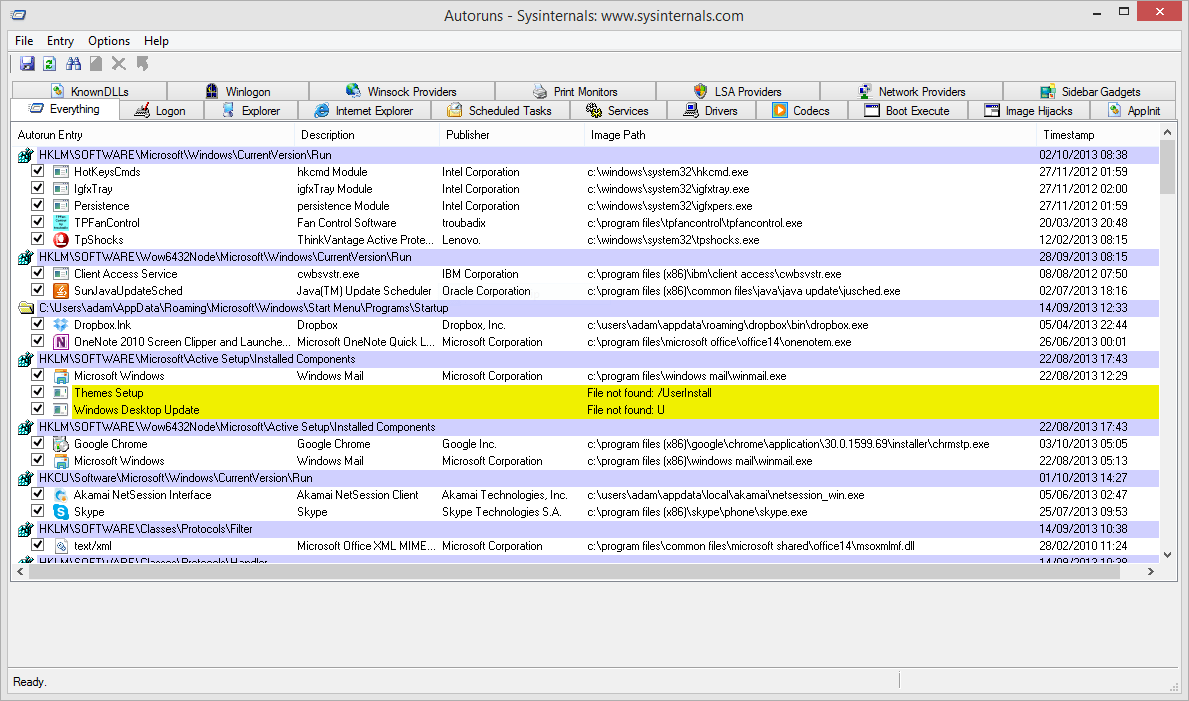
Download it from the link below, start the application and look at the Logon tab.
https://docs.microsoft.com/en-gb/sysinternals/downloads/autoruns
You can click on any program you see in the list to see more details at the bottom of the window. The information includes the file name and size.
To remove it from boot, simply untick the box. You may need to confirm the action by clicking Run as administrator.
Let's see which programs you can disable:
Games
If you use a game client like Steam, Origin, or Galaxy GOG, you might see them in the list of applications that start with your system. If you play constantly, you can leave them on, but if you use them occasionally, it's safe to disable them.
Chat apps
Chat apps like Skype and others show your friends when you're online and available to chat. The problem is, they have a huge footprint on your computer's boot time. You can disable them.
Adobe programs
Adobe Reader is bloated and unnecessary, but it is included in the list of applications that start at startup.
If you want to keep it, despite the fact that there are better alternatives, at least you can disable it.
You may also find Adobe ARM, which is used to automatically update Adobe programs. It's perhaps a little more useful, but it's still an unnecessary feature.
Cloud
You use OneDrive, Dropbox, or Google Drive. All of these apps start at startup so they can automatically sync your files. There's no doubt that this behavior is a huge advantage if you're constantly using the cloud.
But if you don't use it often, you don't need direct synchronization.
Apple apps
Apple loads too many applications on auto-start. If QuickTime is present, uninstall it completely. Apple doesn't support it and your browser does a much better job.
iTunes Helper and Apple Push may be on the list, especially if you've ever connected an iOS device to your computer. The former ensures that iTunes automatically launches when you connect an iOS device, and the latter is intended to help your system communicate with iCloud. Both can be disabled.
What to keep
Of course, antivirus software and usually anything that supports hardware or peripherals, like your graphics card or mouse.
For help on what not to disable, check out the Startup Programs Database published by bleepingcomputer.
