

How to easily scan a document with an Android phone and save it in PDF format using Google Drive.
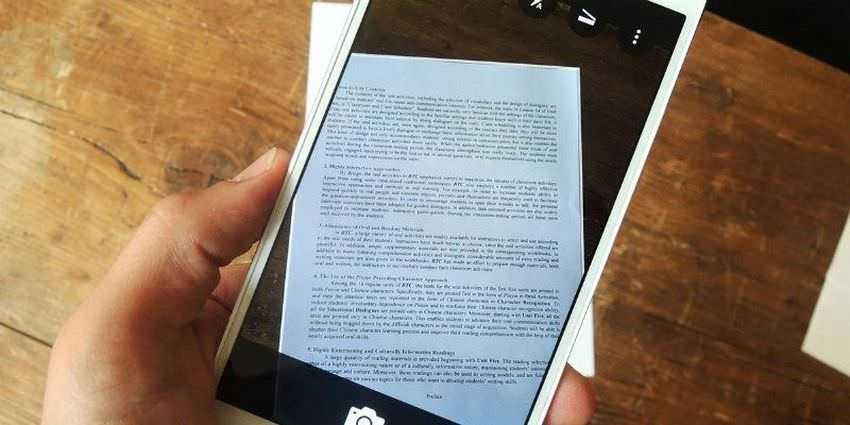
Smartphones have advanced image recognition software built into them, allowing you to use them to scan documents in high resolution. There are a number of Android apps that have the ability to scan your documents to PDF format, but they can either cost money or be burdened by ads. Luckily, you don't need to download any of them. All you need is your Android device and the Google Drive app. Let's see how.
Before you start scanning
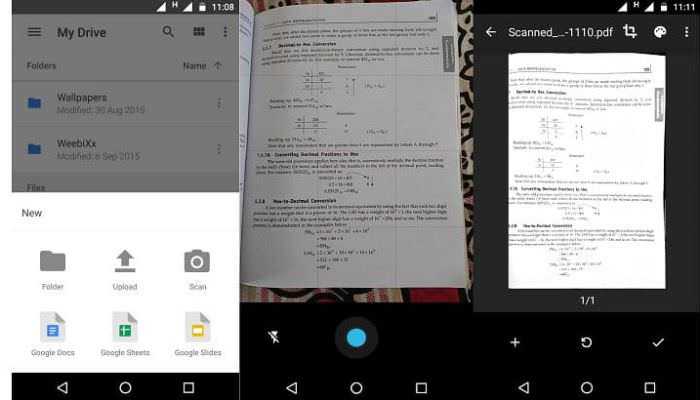
First, open the Google Drive app and set a folder where you want your scans to be saved. Once you have selected the folder of your choice, look at the bottom right of the screen. There you will see a round button with a “+” symbol. Pressing this button will open a dialog box. In this window you will see a camera icon with the word “Scan” underneath. Using it will automatically open the camera on your Android phone.
Scanning your document
Once the camera on your device is open, simply press the shutter button to scan the document you want. But before you do, here are some tips to get the best possible results from your scan.
First, place your document on a contrasting color surface. In other words, if you have a white document, try placing it on a dark background. This will make it easier for the scanner to find the edges of your document.
Second, try to position the camera directly above the document. This will result in cleaner edges and a better overall scan.
Finally, make sure you have plenty of light. Adequate lighting will minimize shadows and increase the quality of the scan.
Setting Up Your Scan
After you press the shutter button, the scanner will load a preview of your document. At this point, you can crop the document. Additionally, you can change the color (the default is black and white), as well as rotate the document if necessary.
If you want to scan multiple pages in the same document, tap the “+” (plus) symbol at the bottom left of the screen.
If you want to rescan your document then tap the button in the middle (with the counterclockwise arrow). If you are happy with the scan, tap the check mark in the bottom right corner of the screen. The scanned document will be saved and synced to Google Drive as a PDF file.
Advantages of Scanning with Google Drive
There are a few major advantages when using Google Drive for scanning. First, the scanned document is accessible from any device that has the Google Drive app installed, as well as from any web browser. Additionally, since the scan is synced to your drive, you automatically have a cloud-based backup every time you scan a document. Finally, all scans in Google Drive are searchable, meaning you can retrieve scans by searching for keywords that appear in your documents.
Add a scanning shortcut to your home screen
If you use scanning frequently, you can add a shortcut for the Google Drive scanning feature directly to your home screen. To create a shortcut, follow these steps:
- Go to your device's widgets.
- Locate the “Drive Scan” widget.
- Long-press the widget and drag it to a location on your home screen.
- When the widget is where you want it, let it settle.
- You can select an existing folder to save the documents or create a new one. The scan widget will display the name of the folder you selected.
