

Local Group Policy is a special tool that comes with some versions of Windows 10 and provides a graphical user interface for various tweaks (policies) available in the operating system. In this article, we will see how you can reset all policies to their original state in Windows 10.
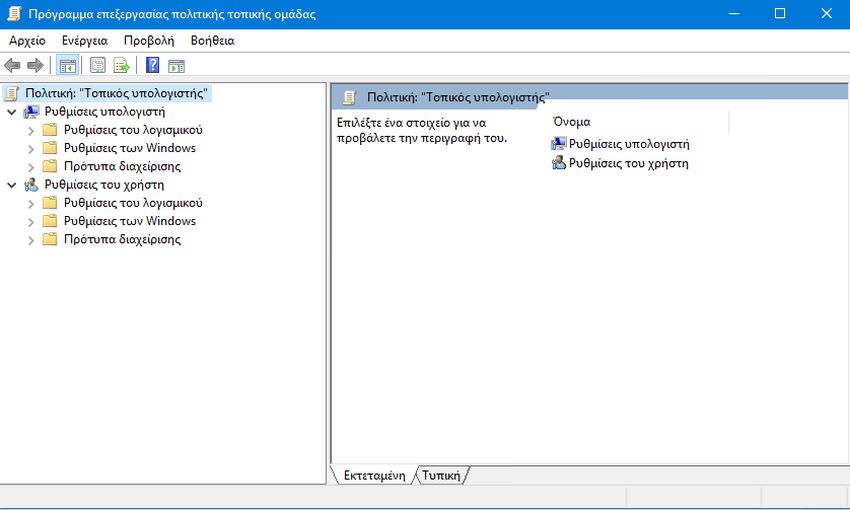
For those who have not yet visited the Local Group Policy editor console, they can do so by simultaneously pressing the Win + R keys and typing the phrase gpedit.msc in the run window that will appear and pressing the OK button.
Please note that the Home edition of Windows 10 does not include this useful tool. It is only available in Windows 10 Pro, Enterprise, and Education.
The reason for resetting the Local Group Policy settings may vary from user to user, but the most common is that you have tampered with a setting that has messed up the smooth operation of your computer and you don't remember what it was. If you have tampered with a lot of settings, resetting them one by one to their original state is a very tedious process. There is a way to reset them all quickly and easily. See below how you can do it:
1. Press the Win + X keys simultaneously and in the menu that appears, select “Command Prompt (Administrator)”
2. If asked if you want to allow this application to make changes to your device, say Yes.
3. In the command prompt window, type the following command:
rd /s /q "%windir%\System32\GroupPolicyUsers"
If you are worried about the “rs” command, yes, you are right, it will delete all the user’s policies. Don’t be afraid, press Enter and move on to the next one.
4. Now, type the following command:
rd /s /q "%windir%\System32\GroupPolicy"
and you got it right, press Enter and you will also delete the policies mentioned in the computer configuration and the local group. Do it, don't be afraid.
5. Now simply tell Windows 10 to re-download the Group Policy settings. This can be done with the following command:
gpupdate /force
See the image below with all the commands:

5. Restart Windows 10 and you're good to go.
