With the latest Microsoft policies, not many users decide to try something different. One of the first choices is the Linux environment and especially the Ubuntu distribution.
In previous articles we showed how we can install the operating system in Virtual-box (here)
And some basic installations and initial settings in the operating system (here)
Below we will demonstrate how we can do everything now in a Linux environment. File management, P2P, image editing, enjoying movies and music and keeping our online contact on social networks now, in desktop mode.
Sure, compatibility with Windows is still significantly lacking, but as time passes (I see it in practice) one can increasingly find more applications that replace those Windows ones for the Home user. Certainly, someone using a professional application will find it harder to find a comparable one on Linux. So let's clarify that we are addressing the average home user.
Browsers.
Ubuntu always comes packaged with Firefox, i.e., it is preinstalled and updates automatically together with the system. It is undoubtedly one of the most widely used browsers worldwide.
We can also install Chromium. It is an open source BSD‑licensed browser that is based on Google’s Chrome. We can easily install Chromium via the Ubuntu Software Center.
How can we install Google Chrome?
As always initially through some router, we go to Google's page and download the .deb file 32bit or 64bit depending on our operating system's architecture.
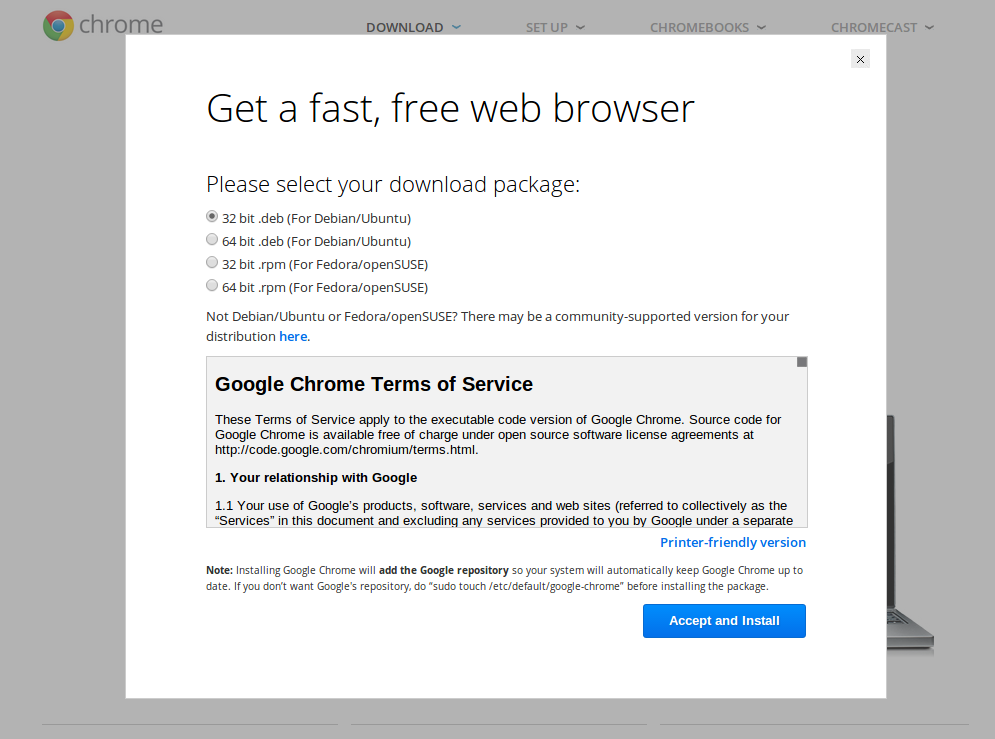
When the .deb file downloads to our computer
Just double-click on it and the Ubuntu Software Center will automatically open for us to install it automatically.
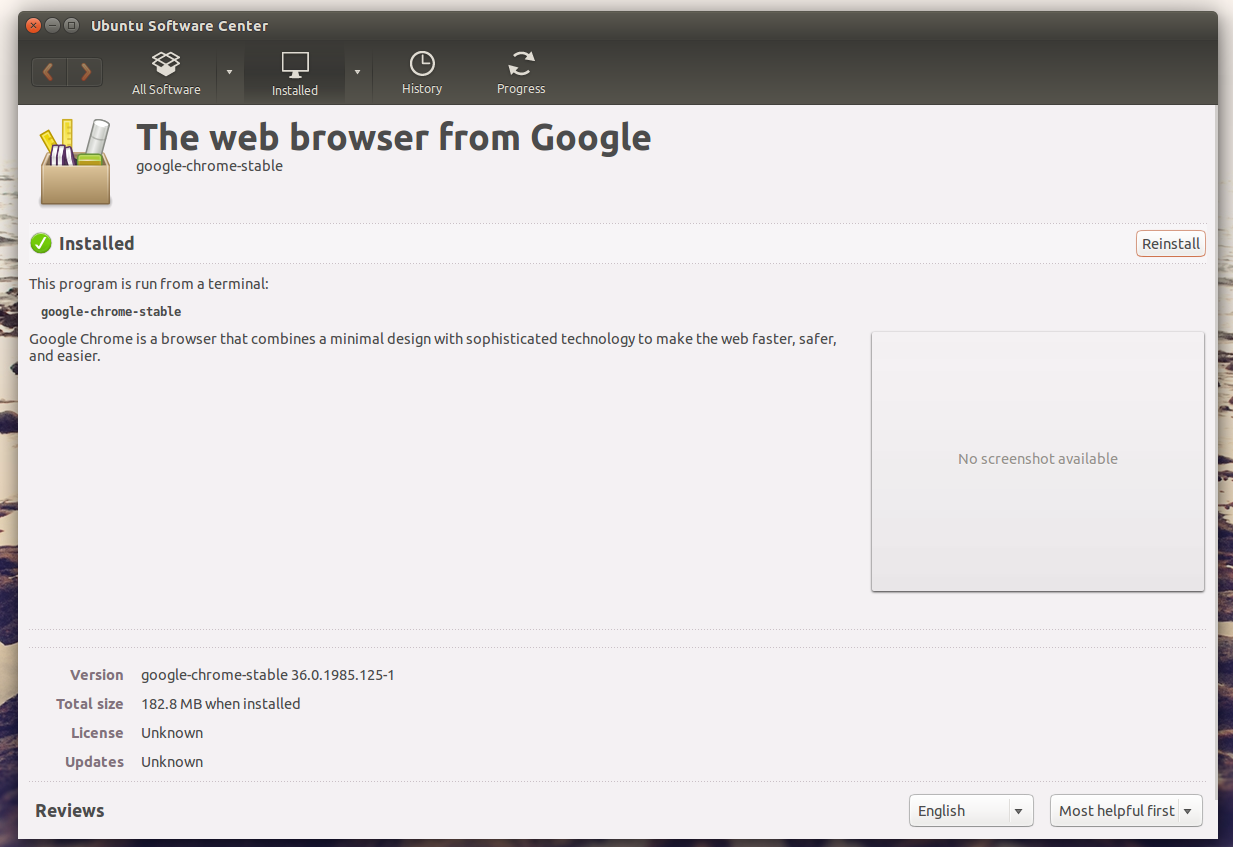
Όπως φαίνεται και στην εικόνα παραπάνω, ο Chrome θα τρέξει δίνοντας στο τερματικό την εντολή google-chrome-stable. Δεν χρειάζεται να τον ανοίγουμε συνέχεια έτσι, αρκεί μόνο μια φορά, όταν εμφανιστεί στο Unity απλά πατάμε δεξί κλικ και “καρφίτσωμα στο Launcher”.
Με μία λεπτομέρεια, η Google σταματά να στηρίζει την έκδοση Chrome 32bit σε περιβάλλον Linux (όπως έκανε και στο Mac X OS). Η έκδοση 64bit θα συνεχίσει να στηρίζεται κανονικά.
Εφαρμογές άμεσων μηνυμάτων.
Viber.
Viber is now available for Ubuntu & Fedora and can be easily installed by downloading the application from here:
The process is the same, we download the .deb file and install it normally via the Ubuntu Software Center. We will find the application among the system's applications or by typing “Viber” in Search.
To install Viber 32bit, see here.
Skype.
Also for Skype the exact same process.
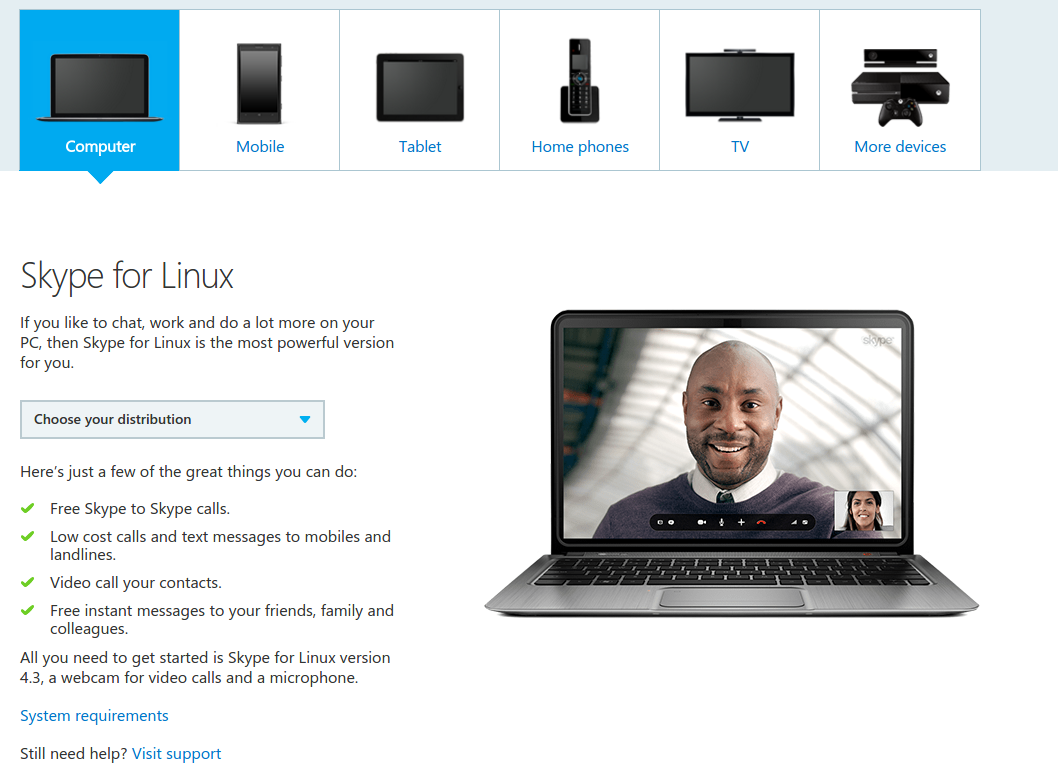
We choose a distribution according to our operating system. We install it normally.
Facebook Messenger.
Also the Desktop application for direct communication of Facebook is now available for Linux as well. Both for 32bit and for 64bit.
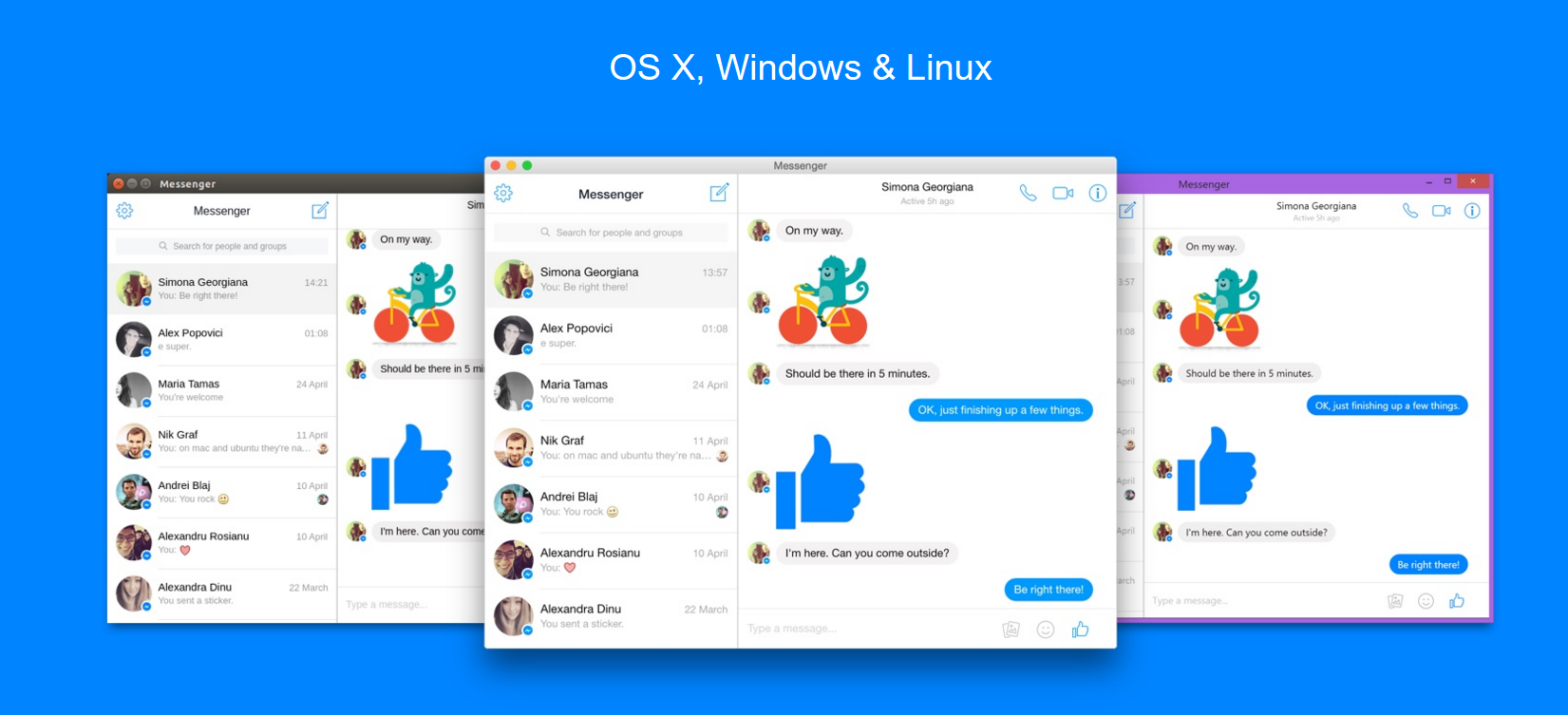
You will find them here.
Installation proceeds normally as the previous ones.
Movies, subtitles and music.
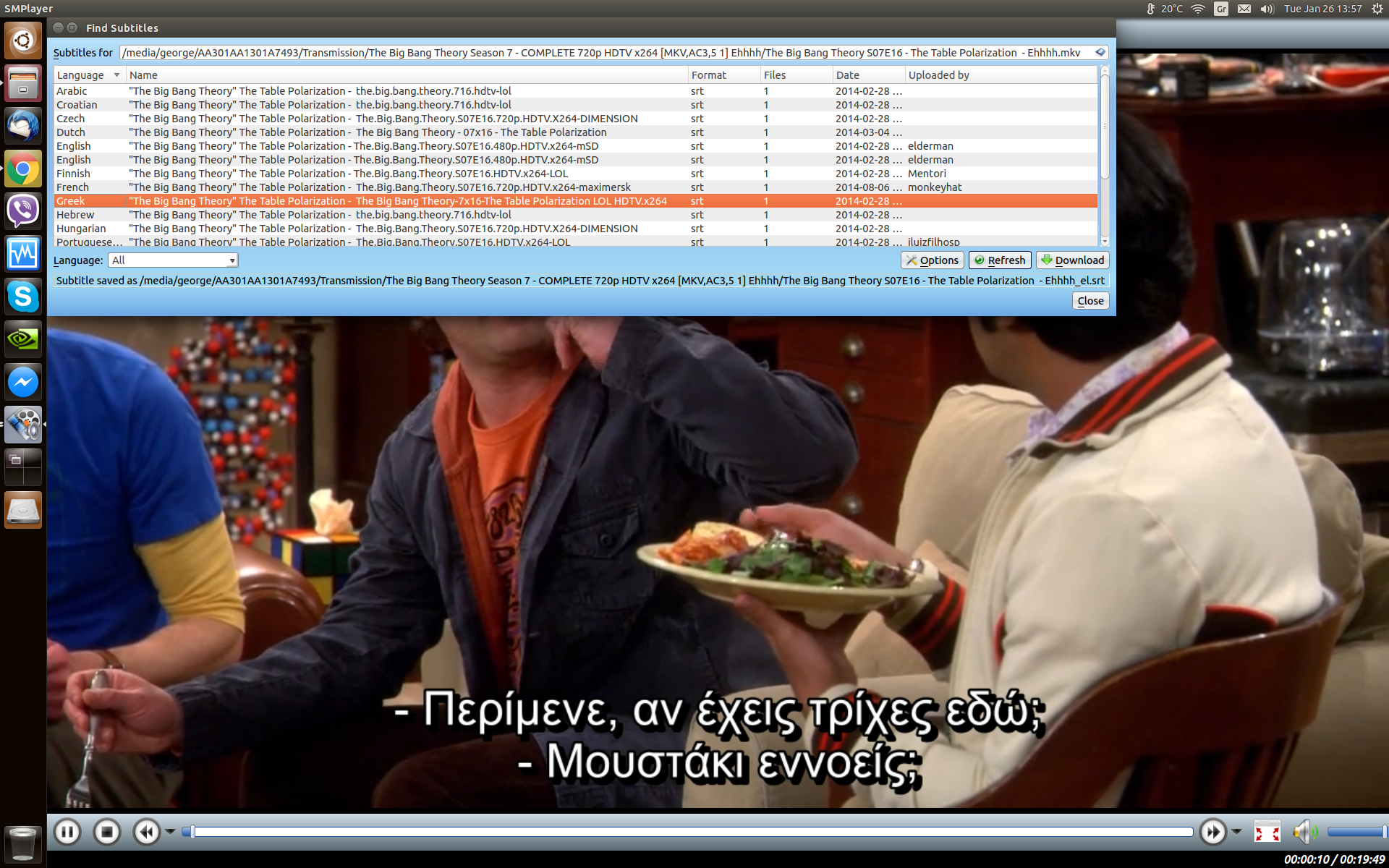
A little issue that Home users always had with movies is searching for subtitles. The answer in a Linux environment comes with SMPlayer (also available for Windows).
SMPlayer.
To install SMPlayer we open the terminal (CTRL+ALT+T) and type the following commands.
sudo add-apt-repository ppa:rvm/smplayer sudo apt-get update sudo apt-get install smplayer smplayer-themes smplayer-skins
Then, by right‑clicking any video file, we are given the option to open it with this program. Also, in the options we can automatically download subtitles for any language we want, provided they exist.
VLC.
VLC as we know it from Windows is a playback program, which also exists for Linux. It can be easily installed through the Ubuntu Software Center.
Audacious.
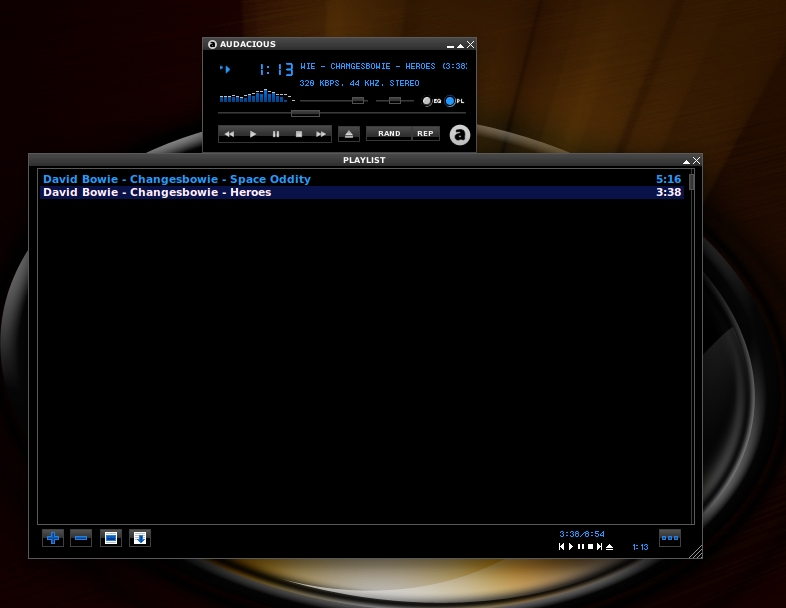
Audacious is a music file production program. It resembles the old Winamp.
To install it simply open the terminal and run the following:
sudo apt-get install audacious
Image editing.
Pinta.
Pinta is an image editing program similar to Windows Paint.
You can see details of the functions here.
Installation is easy by providing the following commands in the terminal
sudo add-apt-repository ppa:pinta-maintainers/pinta-stable sudo apt-get update sudo apt-get install pintaGimp.
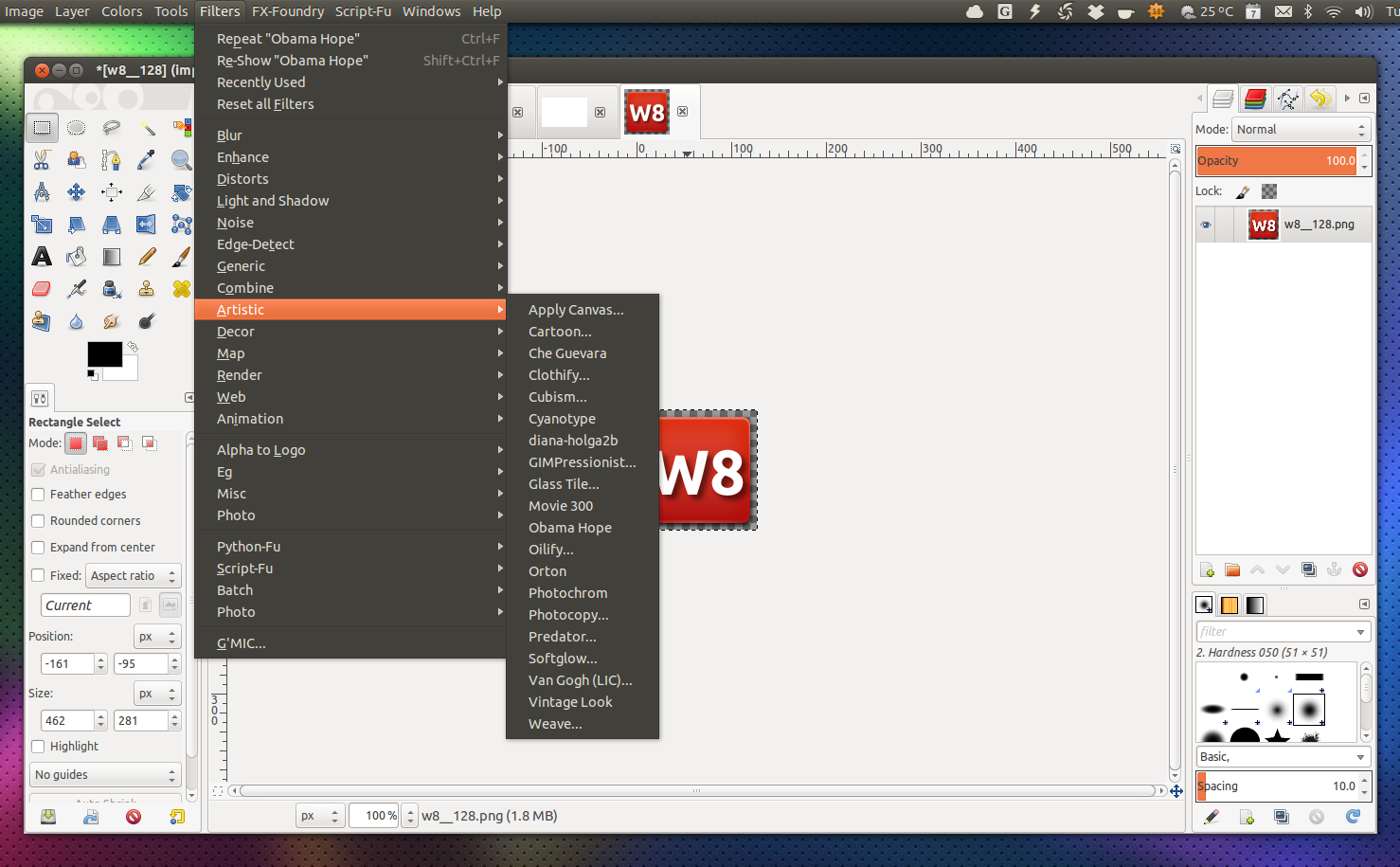
Gimp is an image editing program with more features than Pinta. You can see the features here in Greek. You can easily install it by issuing the following commands in the terminal.
sudo add-apt-repository ppa:otto-kesselgulasch/gimp sudo apt-get update sudo apt-get install gimp
Επεξεργασία κειμένου.
For text editing and spreadsheets, Libre Office comes preinstalled with Ubuntu. With Libre Office one can work with several office editing suites with capabilities often better than those of Microsoft Office.
As you’see the alternatives are now many and in no case will Windows be missing for us. Applications are now installed very easily, they are extremely stable, they evolve continuously and above all they are all free!
Also, for any problem you encounter or any question, you can contact the iGuRu online community here.
You can ask any problem you are facing or find answers.
***Registration required.📧Subscribe to the SecNews Newsletter