

Did you know that you can improve both your Internet browsing performance and your security by choosing alternative DNS? The good news is that it's free and will take about a minute of your time to make the switch to another provider.
What is a DNS resolver?
Domain Name Systems (DNS) are familiar to those involved with the Internet, but an average or novice user probably doesn't know or care what DNS is, or what it can do.
DNS connects domain names and IP addresses. If you own a server and want to allow connections to it, it's best to use a name. It's easy to remember, or rather easier than an IP address number. There are several online services that sell domain names. Once you buy a domain, you need to connect it to the IP address of your server, and then anyone interested can access it, your domain name, instead of having to type in the IP address.
A DNS resolver server allows a computer (or user) to look up a domain name (such as secnews.gr) and find the IP address of the server that hosts the website. Think of a DNS resolver server as a phone book for computers.
So when you type the domain name of a website into your web browser, behind the scenes, there is a DNS resolver server, which will point your computer to the correct IP address, analyzing the domain name into numbers. This is how your browser will discover the website you typed.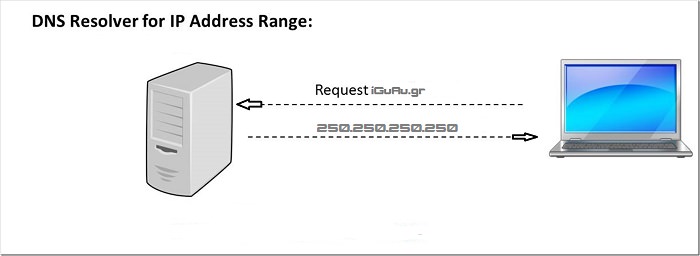
Where are your DNS Resolvers set?
Most home users use their Internet Service Provider (ISP) DNS resolvers. They are usually used automatically when you configure your router. You can find out which DNS resolver you are using by going to your router’s settings page, under the “WAN” tab. There, look for the “DNS Servers” section. There are usually two, a primary and a secondary. These DNS servers may or may not be hosted by your ISP.
You can also see the DNS server used on your computer by opening a command prompt window and typing the command “nslookup” and then pressing enter. You will see the “Default DNS Server” and the IP address.
Why would I want to use an alternative DNS Resolver than the one my ISP gives me?
Your ISP may have done a good job with their DNS Resolver servers, and they may be perfectly secure. But they may not be. Their servers may have endless resources and awesome hardware, giving you super fast response times. But they may not.
You may want to use an alternative solution for three main reasons:
1. Alternative DNS resolvers can give you very fast web browsing
Some alternative DNS providers claim to use public DNS servers, providing a faster browsing experience for end users with a noticeable reduction in DNS lookup latency. Of course, you need to have the relevant experience to notice this, but you probably know when a connection is slow. You can try it and if it seems slow to you, you can always go back to your old ISP by changing DNS whenever you want.
2. Alternative DNS Resolvers improve your browsing security
Some alternative DNS providers claim that their solutions improve security by filtering out malware, phishing, and fake or malicious sites, thereby reducing the risk of DNS cache poisoning.
3. Some Alternative DNS Resolvers Offer Automatic Content Filtering
Want to try adding filters for your kids so they can’t access pornographic sites or other “non-family friendly” websites? You can choose a DNS provider that filters content. Norton ConnectSafe DNS servers offer DNS resolution servers that filter out inappropriate content. This doesn’t mean your kids can’t just type in the IP address of an inappropriate website and access it. But then we’re not talking about kids, we’re talking about “hackers.”
How do you change your DNS Resolvers to an alternative DNS provider?
The best way to change DNS providers is from your router. This way you will change them from one place. Once you change the DNS Resolvers on your router, all applications on your network will use the new DNS servers automatically.
Check your router's manual for how and where to change the DNS records. There are usually two to three places to enter the DNS Server IP addresses.
Before making any changes, write down the current settings somewhere, in case your changes don't work.
Alternative DNS Providers worth using:
Google Public DNS:
8.8.8.8
8.8.4.4
Norton ConnectSafe DNS:
198.153.192.50 – (includes malware, phishing, and porn site blocking capabilities)
198.153.194.50 – (includes malware, phishing, and porn site blocking capabilities)
For a more extensive list of alternative DNS providers, see below.
Provider | Primary DNS Server | Secondary DNS Server |
|---|---|---|
| Level3 | 209.244.0.3 | 209.244.0.4 |
| 8.8.8.8 | 8.8.4.4 | |
| DNS.WATCH | 84.200.69.80 | 84.200.70.40 |
| Comodo Secure DNS | 8.26.56.26 | 8.20.247.20 |
| OpenDNS Home | 208.67.222.222 | 208.67.220.220 |
| DNS Advantage | 156.154.70.1 | 156.154.71.1 |
| Norton ConnectSafe | 199.85.126.10 | 199.85.127.10 |
| GreenTeamDNS | 81.218.119.11 | 209.88.198.133 |
| SafeDNS | 195.46.39.39 | 195.46.39.40 |
| OpenNIC | 216.87.84.211 | 208.115.243.35 |
| Public-Root | 199.5.157.131 | 208.71.35.137 |
| SmartViper | 208.76.50.50 | 208.76.51.51 |
| Dyn | 216.146.35.35 | 216.146.36.36 |
| FreeDNS | 37.235.1.174 | 37.235.1.177 |
| censurfridns.dk | 89.233.43.71 | 91.239.100.100 |
| Hurricane Electric | 74.82.42.42 | |
| puntCAT | 109.69.8.51 |
