

From time to time we read tips on how to remove the password from Windows 10, but some don't work on laptops and others don't work at all. So, today we're going to see how we can remove the password entirely, so that we never have to enter it again.
Of course, this is a risky technique – one that we definitely don’t recommend, as it will allow anyone access to your machine, so use it wisely. This article is only for people whose computers stay at home, in an environment with few, if any, strangers, and there is no need for it to be locked all the time. Finally, these instructions apply to Windows 10 Home systems.
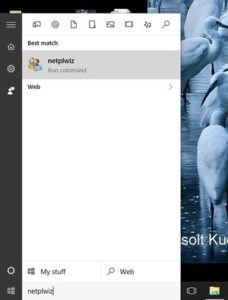
First of all, click on the Windows 10 Start menu and type Netplwiz. Select the program that appears with the same name.
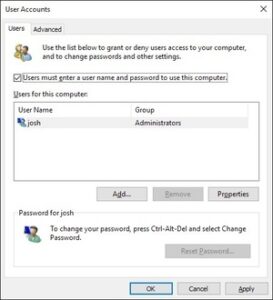
This window gives you access to Windows user and control over multiple passwords. Right at the top there is a checked box next to the option that says "Users must enter a username and password to use this computer." Uncheck it.
When you click Applyitwill ask for your current password. Enter it twice and you're done.
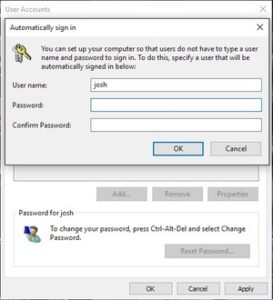
The next time you restart or wake up your PC, you will no longer need to type your password.
