

Adding bullet points helps you organize your lists and makes reading your documents easier. In Word, you can insert bullet points using a keyboard shortcut, a ribbon option, and an automatic option. We will show you how to use these options.
See also: How to clear the cache on a Samsung phone?

How to insert bullet points in Word using a keyboard shortcut
Word has a keyboard shortcut that allows you to start a new bullet list or add bullets to the existing text.
To use it, in the Word document, place the cursor at the point where you want to start a list. Alternatively, select an existing text segment if you want to convert it into a list.
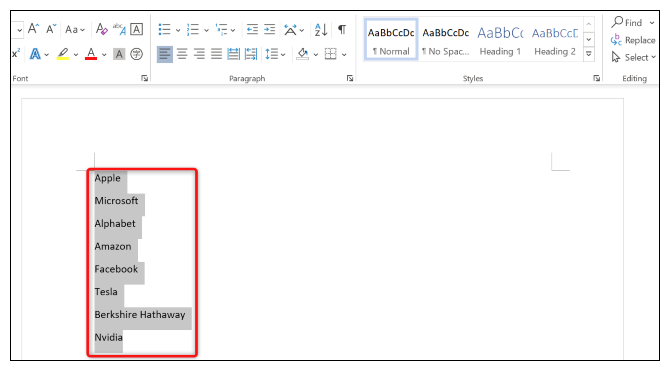
On your keyboard, press Ctrl+Shift+L ( Windows ) or Command+Shift+L ( Mac ). This will immediately start a bullet list in your document or format any highlighted text as bullet points.
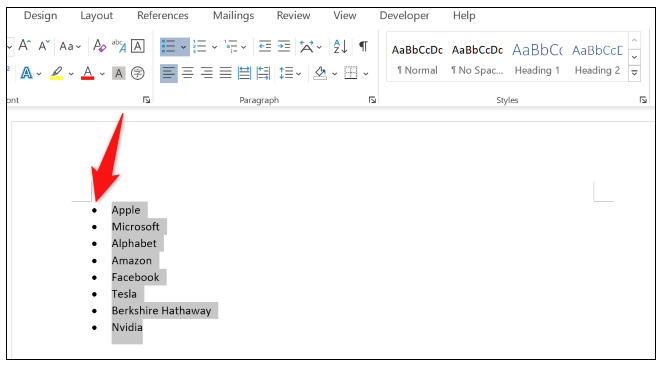
To add more items to list , place the cursor at the end of the last item in the list. Then press Enter and a new line will start.
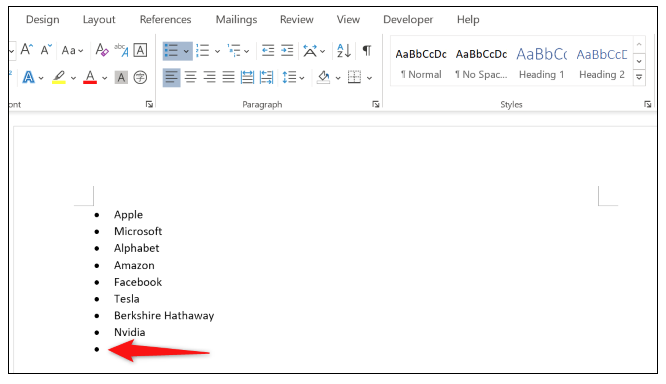
To terminate a bullet list, press Enter twice.
See also: What does the term "DM" mean and how did it start being used?
How to add bullet points using a ribbon option in Word
Another way to add bullet points to a Word document is by using an option in the ribbon. Here, you can select one of the many bullet icons as well as add your own symbol or image.
First, in your document, place the cursor at the point where you want to start the bullet list. Or select your existing text to convert it into a list.
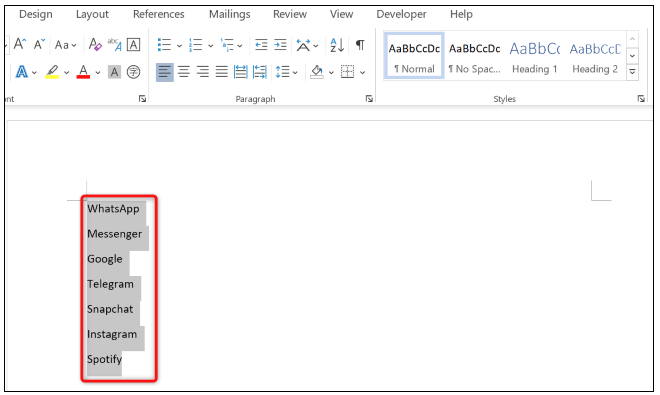
From the Word ribbon, select the “Home” tab. Then, look for the bullet button (three lines next to three dots). Click it to use the default bullet style or click the icon with the down arrow to see more options.
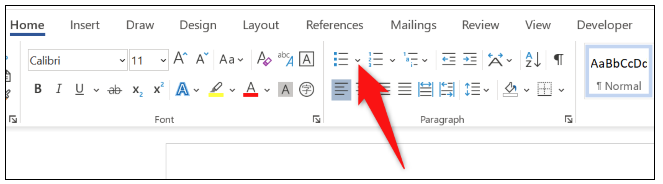
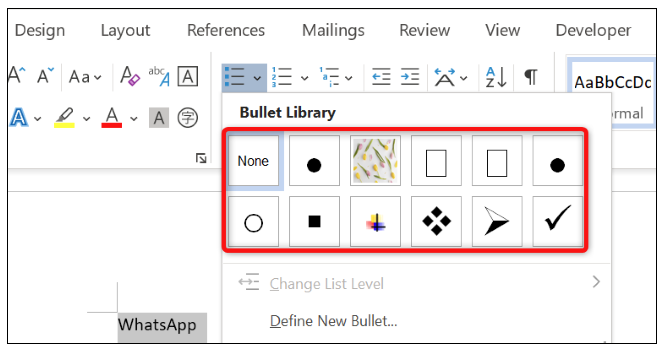
You will see many different bullet icons to add to your document. Choose the one you like and Word will add it for you.
See also: How to fix overheating on Playstation 5?
How to add a custom bullet in Word
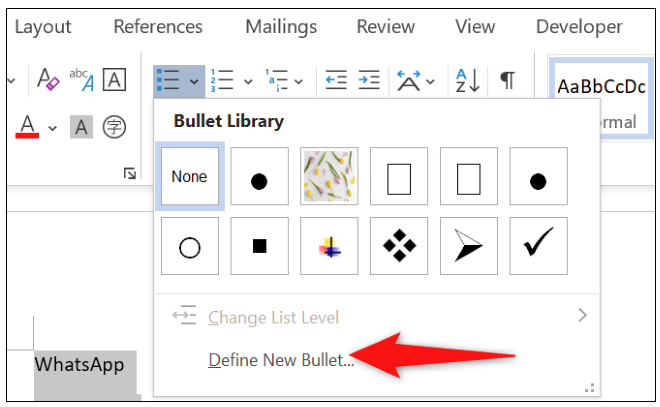
If you want to use a specific symbol or image as a bullet icon, then from the open bullet menu, select “Define New Bullet.”
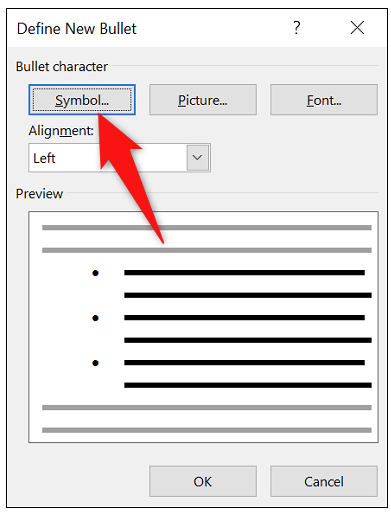
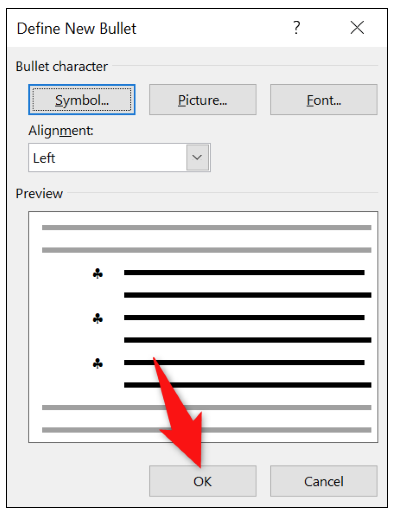
In the “Define New Bullet” dialog box, to use a symbol as a bullet icon, click the “Symbol” button. Then, select an icon on the following screen and click “OK”.
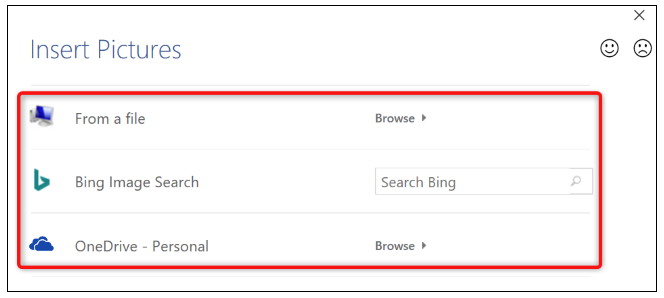
To use an image as a bullet icon, select the “Picture” button. Then, select the source of your image and the image itself.
Return to the “Define New Bullet” dialog, at the bottom, select “OK”.
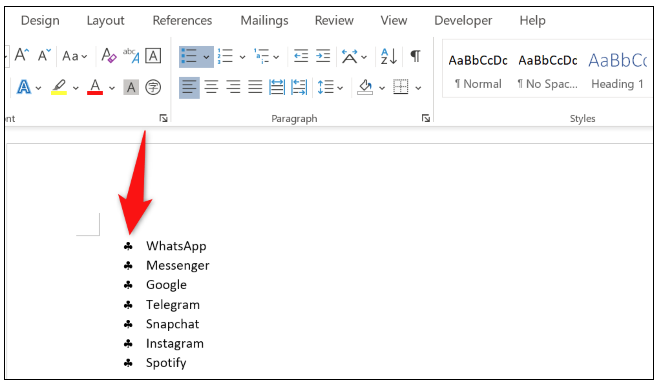
Now you can see the selected bullet icon in your document.
You are ready!
How to start a preformatted bullet list in Word
If you often need to create lists in your documents, Word offers a shortcut that automatically starts a new bullet list.
To use it, in the Word document, on an empty line type * (asterisk) and then press the space bar.
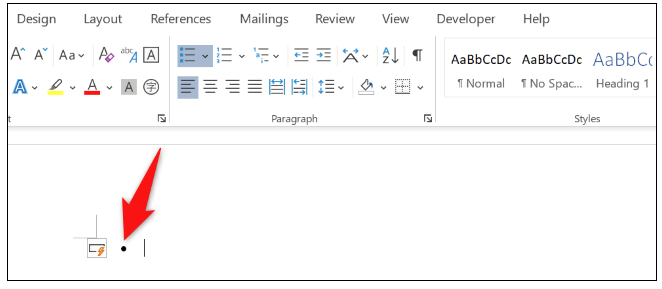
You will notice that Word has started a new bullet list. Now you can begin adding items to this list.
And this is the way you use Word's bullets to keep your lists organized in your documents.
Information source: howtogeek.com
