

Kindles can hold a lot of eBooks, but you may want to remove some. eBooks are stored in two places—on the eReader itself and in your Kindle library. We'll show you how to remove books from both places.
See also: How to hack a Windows 10 computer?
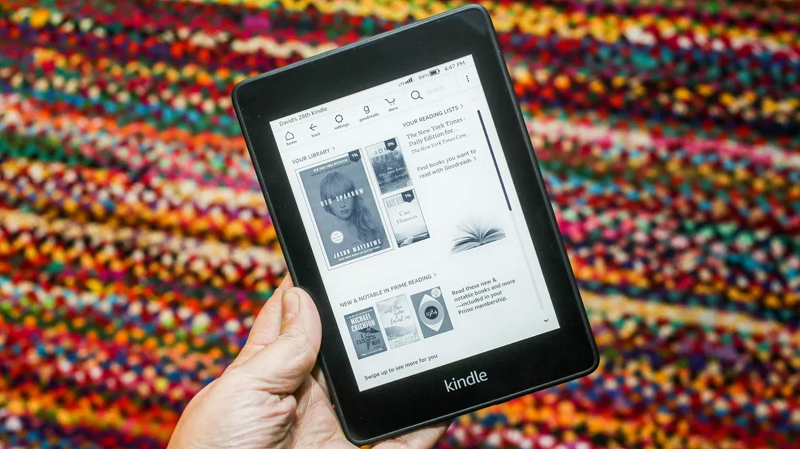
When you buy an eBook from Amazon, rent one from your local library, or send one to your Kindle, it’s added to your “Kindle Library.” This is essentially cloud storage for your eBooks. When you open the book on your Paperwhite, the eBook file is downloaded to your device ’s storage .
See also: How to find, edit, and delete your Amazon Feedback
How to remove an eBook from a Kindle
First, we'll remove the actual eBook file from your Kindle. Note that this does not remove the book from your Kindle library. On your Kindle home screen, tap the three-dot menu icon in the top-right corner.
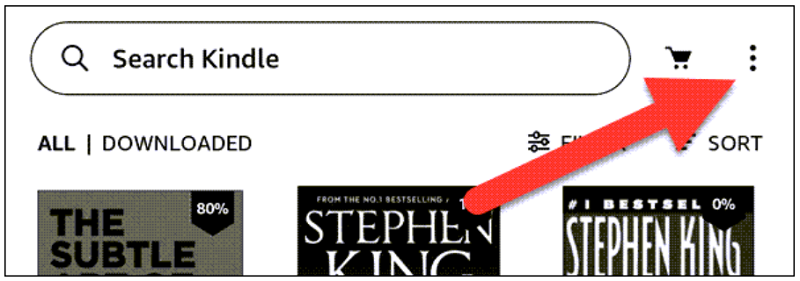
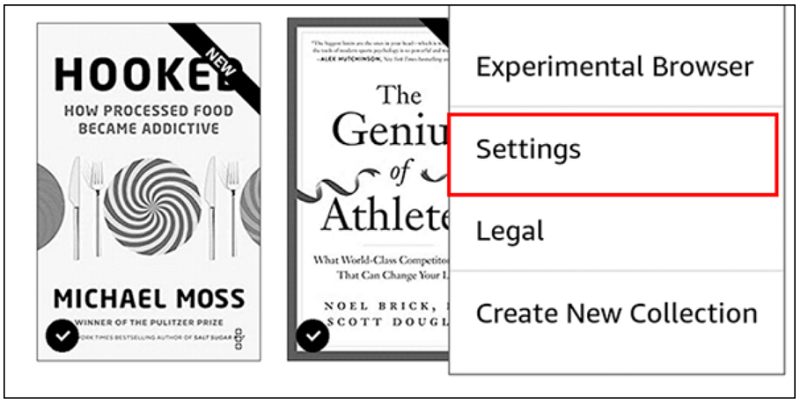
Select “Settings” from the menu.
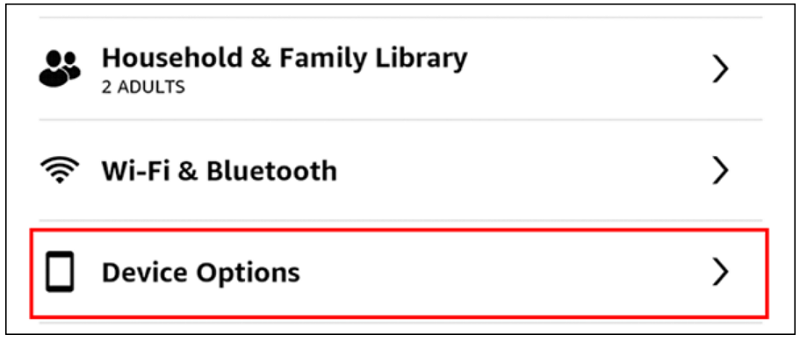
Then, go to “Device Options.”
Now go to “Advanced Options.”
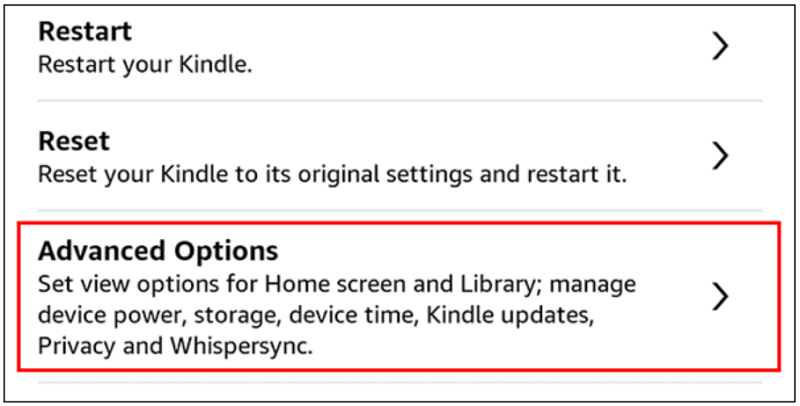
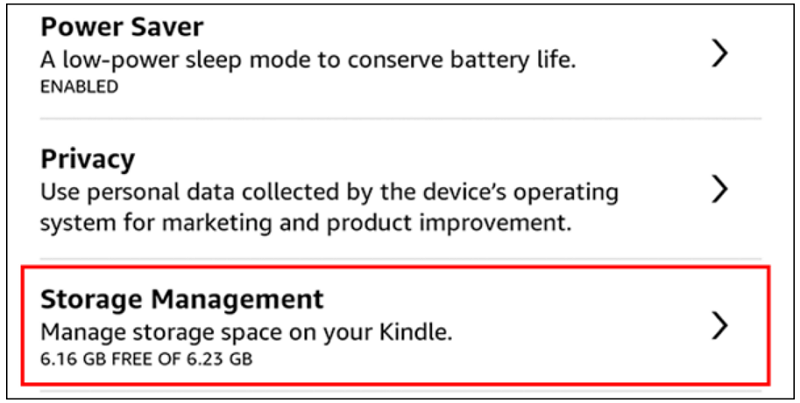
Select “Storage Management.”
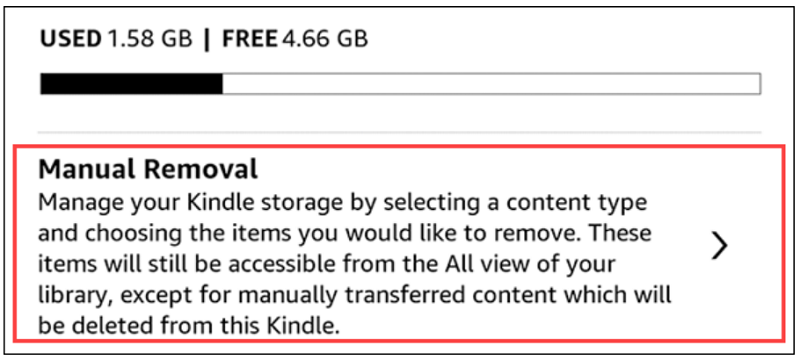
Now the method we want is “Manual Removal.”
Select the “Books” category.
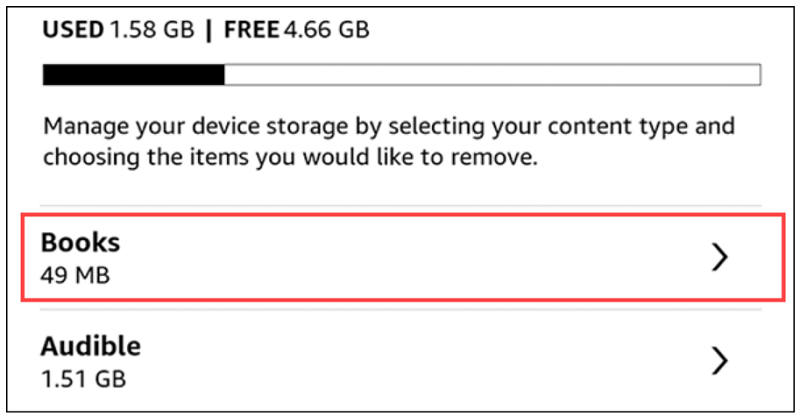
Select the books you no longer need and click “Remove.”
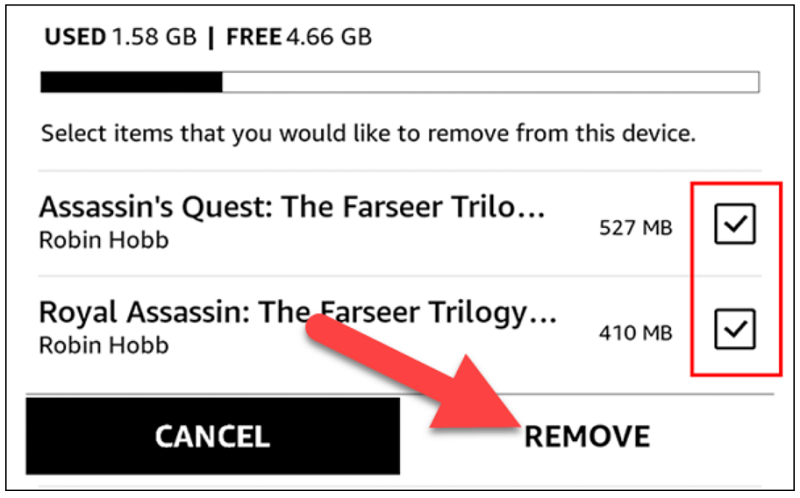
And you're done! The books will no longer take up storage space on your Kindle Reader. They will still be in your Kindle library.
How to remove eBook from Kindle library
Removing an eBook from your Kindle will remove the file from your device's storage, but the book will still be in your Kindle library for easy future downloads. You can also remove the book from your Library, which will disconnect it from account .
See also: TikTok: How to use the popular app on a Chromebook?
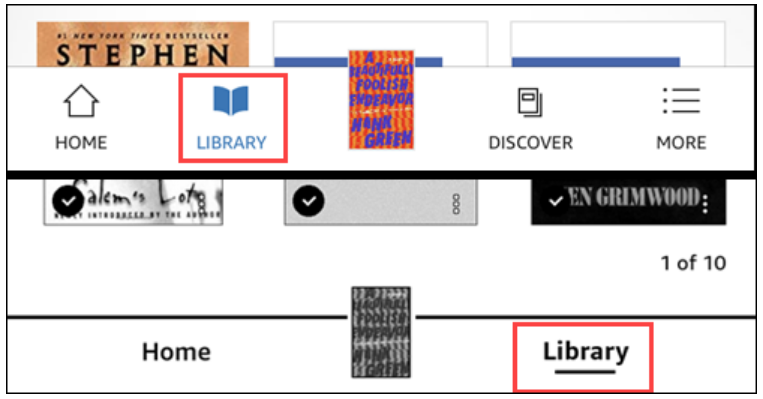
Removing eBooks from your library can be done from the Kindle app for iPhone, iPad , or Android , and from the eReader itself. First, open the app or go to the Kindle home screen and select the “Library” tab.
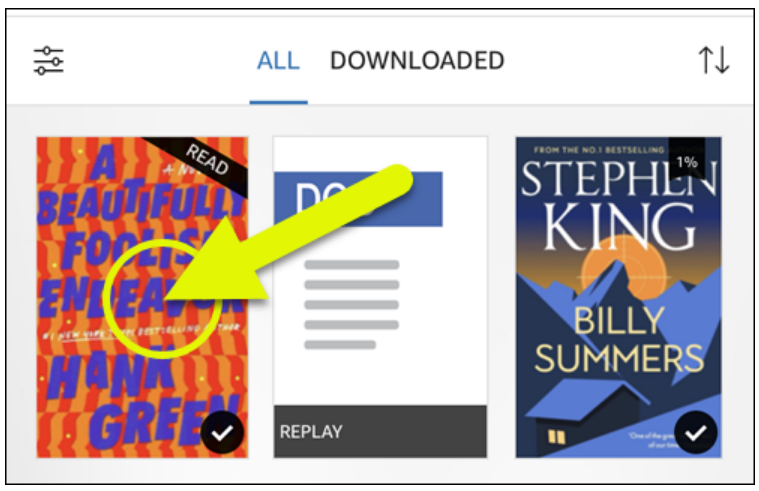
Find the book you want to remove and press and hold until a menu appears.
Select “Remove from Library” or “Permanently Delete” from the menu.
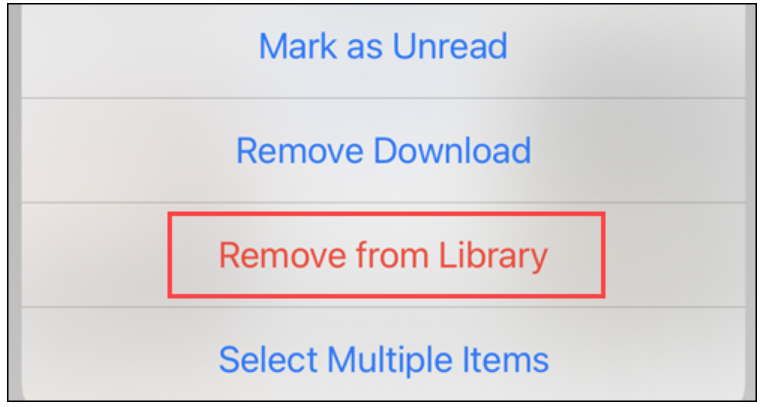
Confirm that you want to remove the book and you're done! The eBook will no longer appear in your Kindle library. If you want the book again, you'll need to repurchase it or send it back to your library. These are good tips for organizing your books.
Information source: howtogeek.com
