

Microsoft released Microsoft Edge 91 yesterday and since then, users have been reporting constant nag screens, errors, and issues when using the new version of the web browser.
Microsoft Edge 91 is a milestone for the browser as it introduces many new features, including Price History, Cash Back & Rebates, Kids Mode, a new Pride theme, and personalized news.
See also: Microsoft Edge: The ability to share tabs between your devices is coming

See also: Microsoft Edge Canary gets new Sharing Hub feature
Microsoft Edge version 91 is plagued with bugs
However, after upgrading to Microsoft Edge 91, users have reported many issues.
The most annoying issue users are facing is a new Microsoft Edge nag screen that constantly appears on startup, asking users if they want to "use recommended browser settings.".
For some users, if they close the dialog box or specify not to update browser settings, the nag screen continues to appear when the browser is restarted.
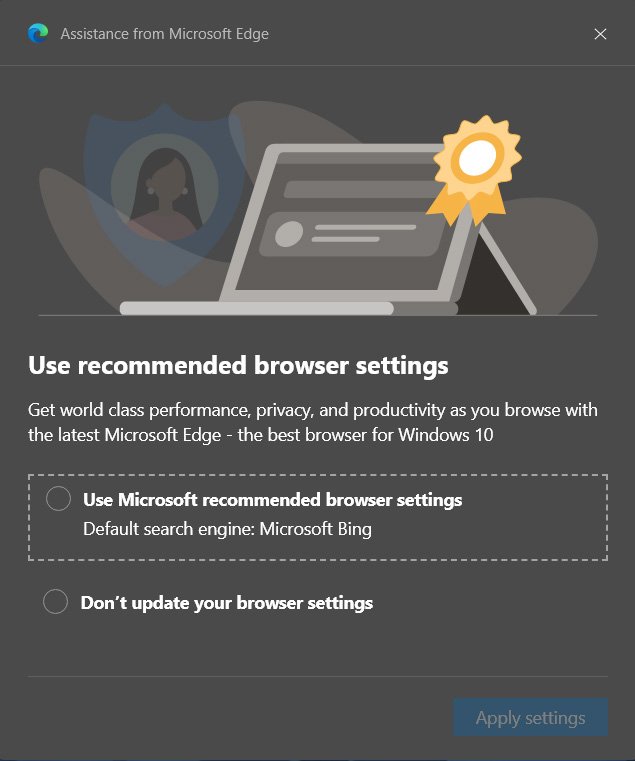
In BleepingComputer's testing, this happened when Bing was not set as the default search engine, but of course we're not sure that's the reason.
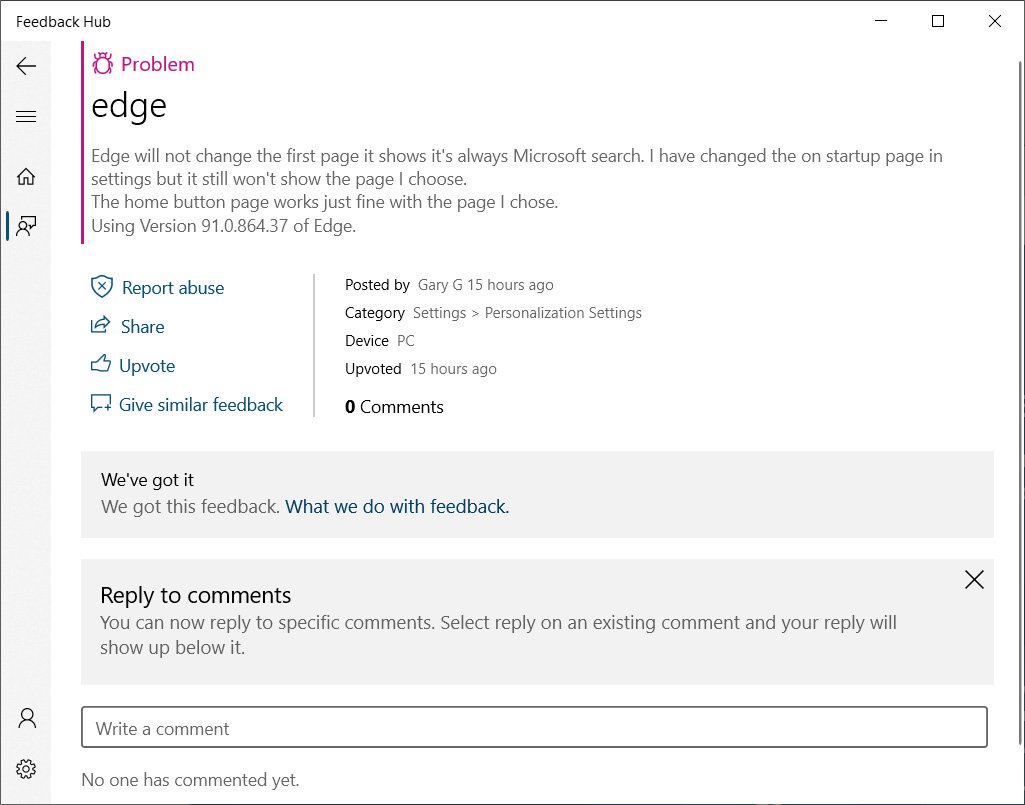
Microsoft Edge users have also reported on the Wilder Security forums, Microsoft Edge Insider forums, and Feedback Hubthat Edge no longer displays the configured start page and opens the "New Tab" page.
See also: Microsoft Edge: How to disable online shopping coupons
BleepingComputer was able to “reproduce” this bug after changing the startup page to BleepingComputer.com, and the New Tab page continued to open when they restarted the browser.
Finally, other users are reporting some other issues, such as the + symbol is missing to open a new tab or they can't use the middle mouse button to open items in the Favorites folder.

Some users reported that most of these problems disappear after resetting Microsoft Edge to default settings.
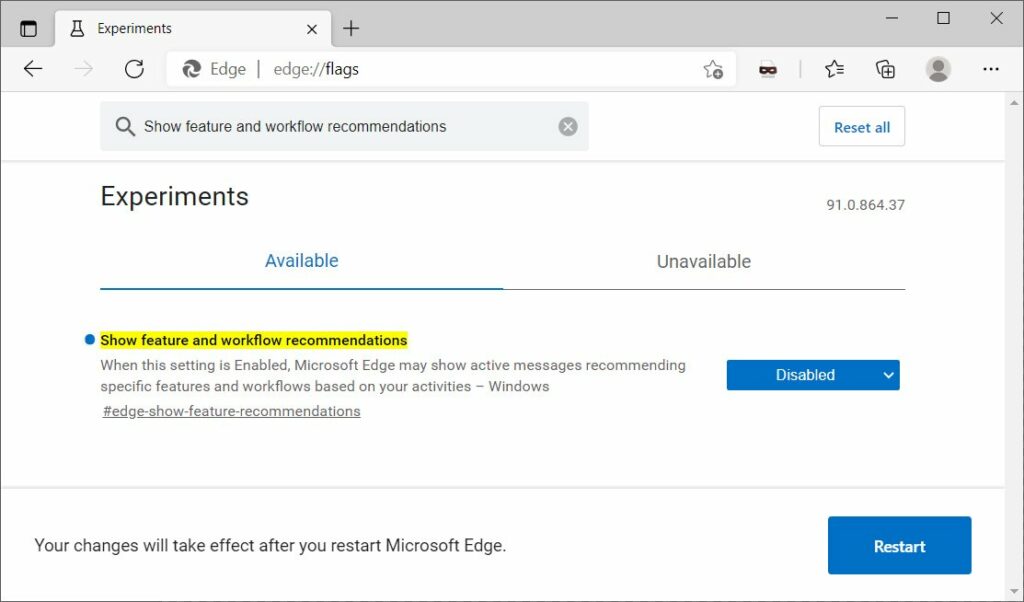
But it seems you can disable the Microsoft Edge nag screen by disabling the “Show feature and workflow recommendations” flag in the browser.
To disable the Microsoft Edge recommended settings screen, follow these steps:
1.Open Microsoft Edge.
2.Type edge://flags in your browser and press enter on your keyboard.
3. Search for “Show feature and workflow recommendations” and disable it, as shown below.
4.Restart the browser when prompted.
Once Microsoft Edge has restarted, you will no longer see the “Use recommended browser settings” nag screen.
Information source: bleepingcomputer.com
