

If you already have your professional experience on your LinkedIn profile , it's easy to automatically create a resume on the site . But how do you do that?
How to Create a Resume from Your LinkedIn Profile
All LinkedIn profiles include a button to download your profile as a PDF. This PDF is basically your resume, containing all the experiences you have listed on LinkedIn. This includes your education, work experience, and anything else you have on your profile.
Read also: LinkedIn: Hackers hide malware in fake job offers!

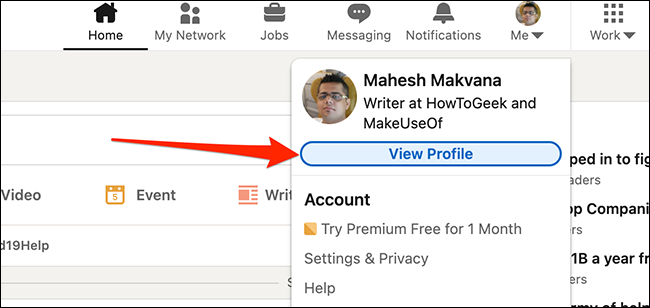
To download this quick resume, first open LinkedIn in a web browser on your computer. When LinkedIn opens, click on your profile icon at the top of the site and select “View Profile”.
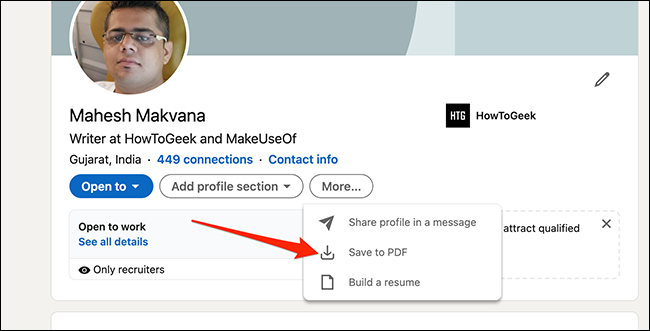
On your profile page, just below your profile picture, click “More” and select “Save to PDF”.
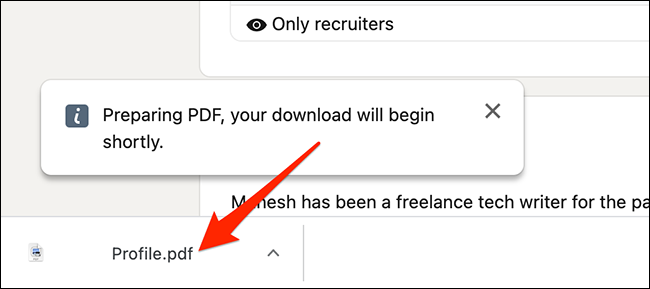
In a few minutes, your browser will start downloading your resume PDF from LinkedIn.
However, you may not want to send your resume exactly as it is to potential employers. In that case, take a look at the section below.
Create a custom resume from your LinkedIn profile
The resume you downloaded includes all the information you have on your LinkedIn profile. If you want to add, edit, or delete certain sections of your resume, use LinkedIn's resume builder. This allows you to choose which sections you want to include or delete from your resume. When you're happy with the result, you can download your resume as a PDF to your computer.
See also: LinkedIn: Data of 500 million users sold on hacking forum!
To start creating your custom resume, open LinkedIn in your web browser. In LinkedIn, click your profile icon in the top right corner and select “View Profile”.
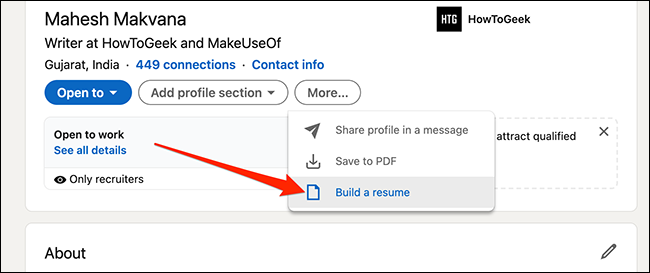
On your profile page, in the section at the top, select “More,” then click “Create Resume.” This will open LinkedIn’s resume builder in your browser.
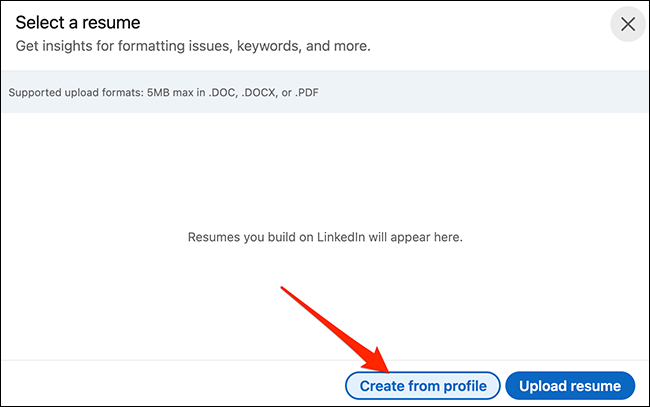
In the “Choose Resume” pop-up that appears, click the “Create from Profile” button at the bottom.
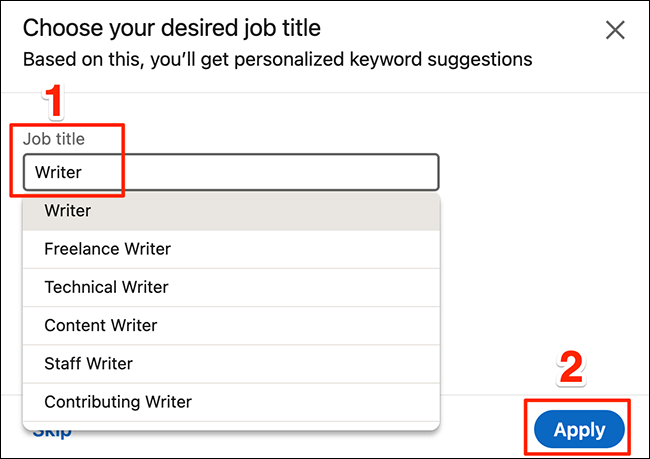
In the box below that says “Select your desired job title,” click the “Job Title” , then enter your current job title. Then, select a title from the suggested options and click “Apply” at the bottom.
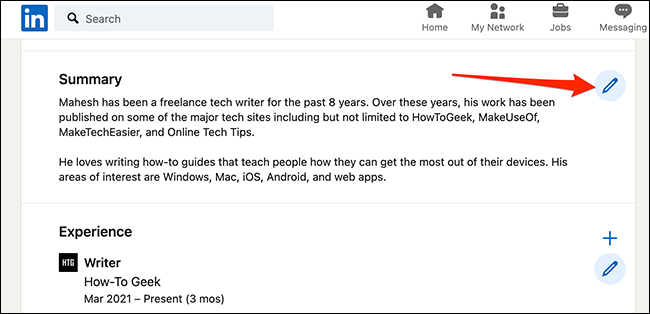
You are now on the LinkedIn resume builder screen. Here, you can add or delete any information you want from your resume. To add or remove a section from your resume, click the pencil icon next to a section on the page.
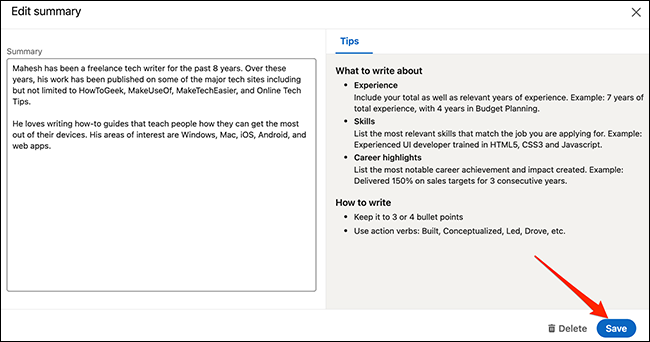
The site will open a box with the selected section in it. Here, you can modify the contents of your section and click “Save” at the bottom of the box to save your changes. Alternatively, you can click “Delete” to remove this section from your resume completely.
When you're finished editing your resume, click "Preview" at the top of the LinkedIn site to preview your resume.
Suggestion: LinkedIn: How do you record and display the pronunciation of your name?
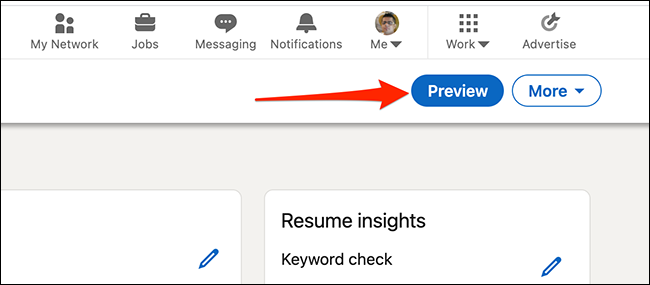
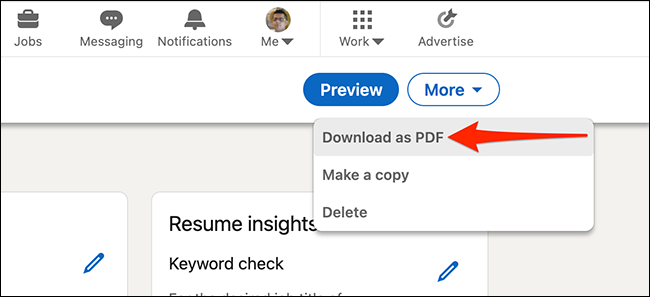
If you're happy with the result, click “More” at the top of the LinkedIn site, then select “Download as PDF.” This will download your resume as a PDF to your computer.
In addition to downloading your own resume, you can also download the resumes of other LinkedIn members. You don't have to be connected to a member to download their resume, but there is a limit of 200 downloads for other people's resumes. You can download your own resume as many times as you like.
To download someone's profile, first open their LinkedIn profile. On the profile page, just below the cover photo (the large image at the top of the page), click "More ," then select "Save as PDF . "
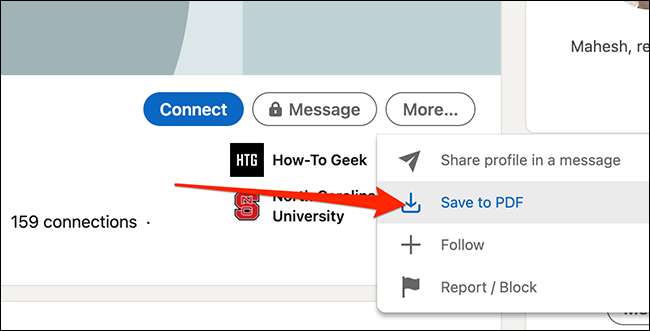
Your browser will immediately begin downloading the LinkedIn member's resume you selected in PDF.
Information source: howtogeek.com
