

The Preview app on Mac doesn't make it easy to add an image to a PDF file, but there's a clever workaround you can use with Preview itself, and we'll show you how to do it.

Note: You don't need this to add a Signature Image
Before we get started, it's worth noting that if you want to add your signature to a PDF, you don't have to use the method outlined below. Preview has a built-in option to add a signature, and you should use that to sign PDFs on your Mac.
See also: How to allow pop-ups in Safari on Mac
How to add an image to a PDF with Preview
By default, you can't paste an image into a PDF file in Preview. But we found an unconventional way to get around this limitation. Fortunately, it's quick and easy to do.
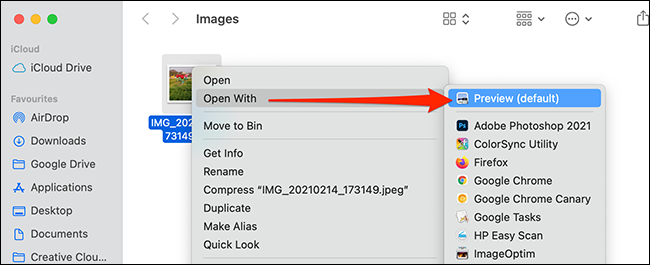
In Finder, open the folder containing the image you want to add to your PDF. Right-click the image and select Open With > Preview from the menu.
When Preview opens, press Command + A on your keyboard to select the entire image.
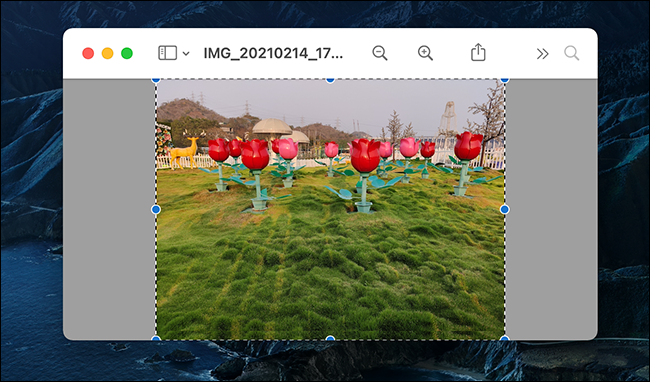
Then press Command + C to copy the image. Now: This may seem strange, but it works. Press Command + V to paste the image, and the new copy of your image will cover the original image.
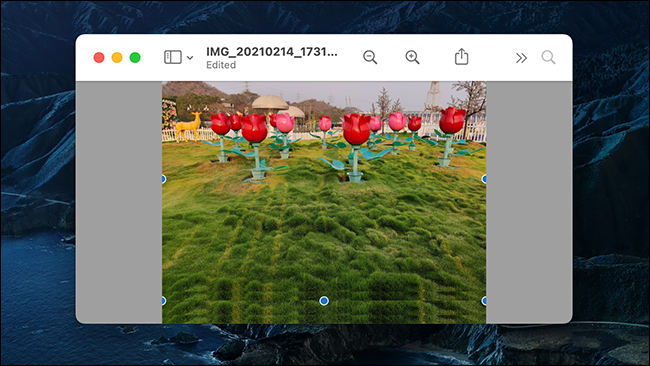
Although both images look the same, the one you just pasted has now become an object that can be pasted into a PDF if we copy it again.
Copy this “object image” by pressing Command + C. The “object version” of your image is now on your Mac’s clipboard. It’s okay to close the preview that shows the original image file.
See also: Adobe Audition app is optimized for M1 Macs
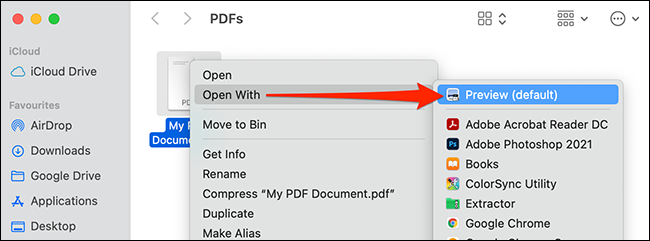
Then, locate the PDF you want to paste the image into in the Finder. Right-click the PDF and select Open With > Preview from the menu.
In the Preview window, navigate to the PDF page you want to add your image to. Press Command + V to paste your copied image.
See also: How to automatically enlarge small fonts in Safari on Mac
Now, use the handles around the pasted image to reposition and resize it in the PDF document.
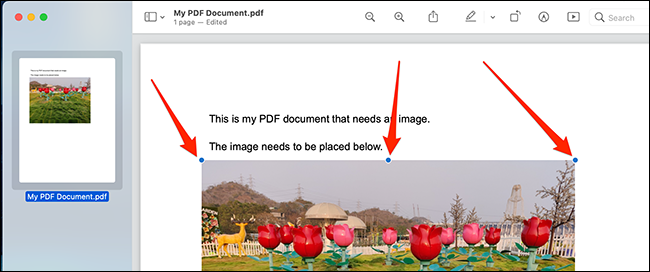
Since Preview automatically saves your changes, you don't need to manually save your edited PDF . Simply close the document and your changes will be saved. If you need to add more images, simply open them in Preview and repeat the process mentioned above.
Preview can be used for many other file manipulation tasks (such as photo editing). You can use this versatile application for many more tasks than just viewing files.
Information source: howtogeek.com
