

There are literally thousands of pre-made playlists of music and podcasts from Spotify and community users. If you want to create your own playlists, you can further personalize them by updating them with the cover art you like. We'll show you how.
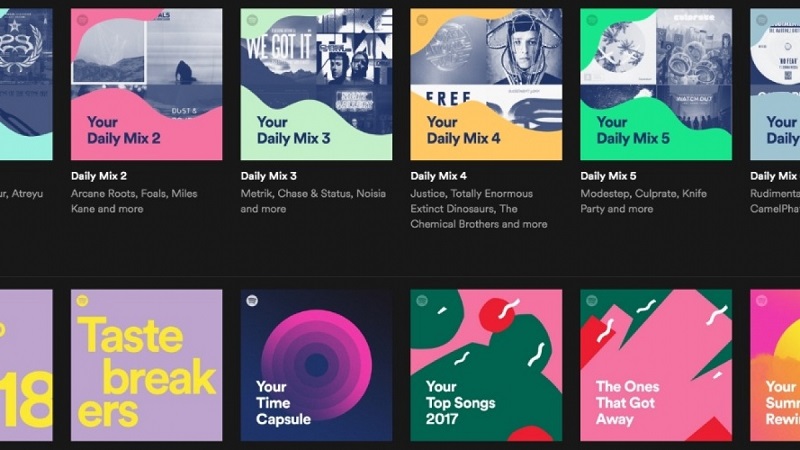
Changing playlist covers can be done using the Spotify desktop and mobile apps. This includes Windows 10, Mac, iPhone, iPad, Android, and the web player. Spotify Premium is not required for this feature.
Add custom covers to Spotify Playlists on desktop
First, open the Spotify app on your Windows computer, Mac, or the web. Select one of your personal playlists from the sidebar.

Then, hover over the playlist cover and click the pencil icon

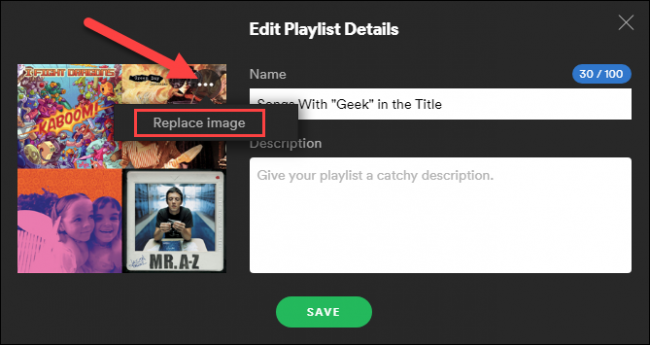
This will open a menu to edit the playlist details. Click the three- dot in the corner of the cover and select “Replace Image.”
A file explorer window (Finder on Mac) will open and you can select an image from your computer.
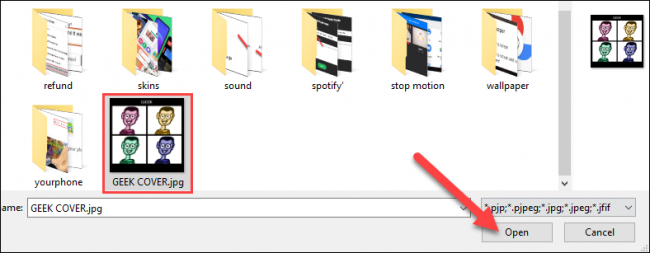
Note: Playlist covers must be jpeg files and have a maximum file size of 4MB.
Finally, select “Save” to complete the process.
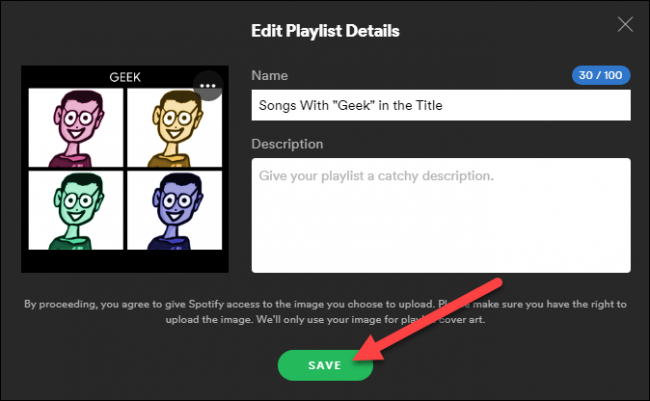
You're done! Your custom cover will appear on all your devices with the Spotify app installed and will be visible to those you've shared the playlist with.
Add custom covers to Spotify playlists on mobile devices
First, open the Spotify app on your iPhone, iPad, or Android device. Select one of your personal playlists from the “Library” tab.

Then, tap the three-dot menu icon to display the playlist settings. The location of this icon will vary depending on the platform.

Select “Edit” or “Edit Playlist”.

Below the playlist cover, tap “Change Image.”.
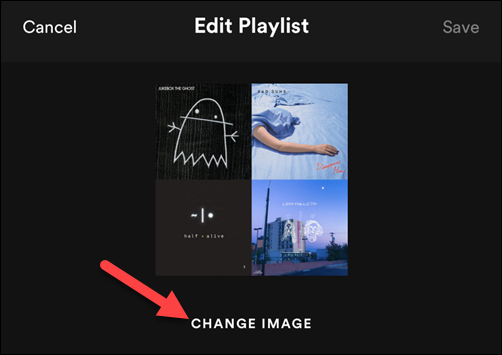
You will have the option to select an image from gallery or take a new photo.
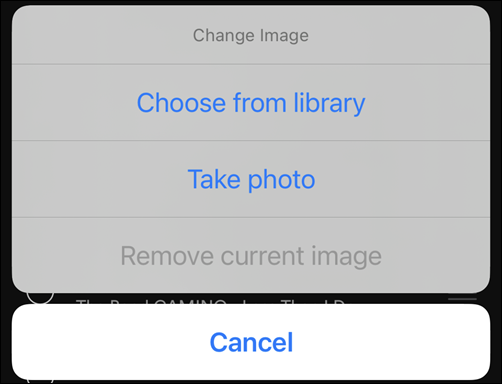
After you select an image, Spotify will allow you to crop it to a square. Tap “Choose” when you’re done.

Click “Save” to complete changes .
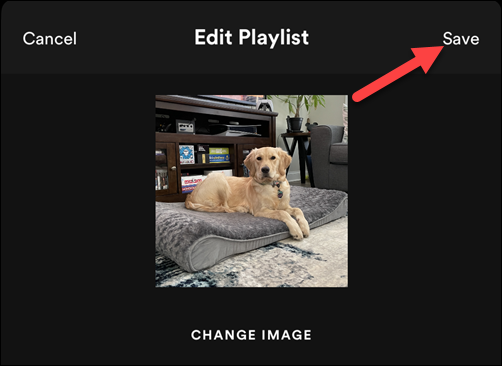
You're all set! Now you can easily customize your playlists and make them feel a little more personal.
Information source: howtogeek.com
