


Did you know that Gmail lets you forward multiple emails together as attachments, instead of forwarding one email at a time? You don't even have to save the emails to your computer. Gmail has a built-in option to do this.
However, this feature is not available in the app Gmail mobile and mobile browsers.
How to forward emails as attachments to other Gmail?
First, open browser on your Windows 10 or Mac computer and log in to your Gmail account. Then, find the emails you want to send as attachments and select them by clicking the box to the left of their name (specifically next to the asterisk). You can select as many emails as you want.
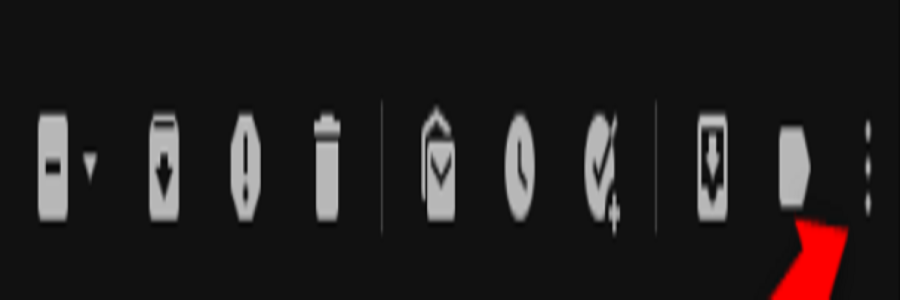
When you select emails, a bar of icons will appear at the top of your screen, showing what you can do with the selected emails. Click the “More” icon, which appears as three vertical dots (the last icon in the bar).
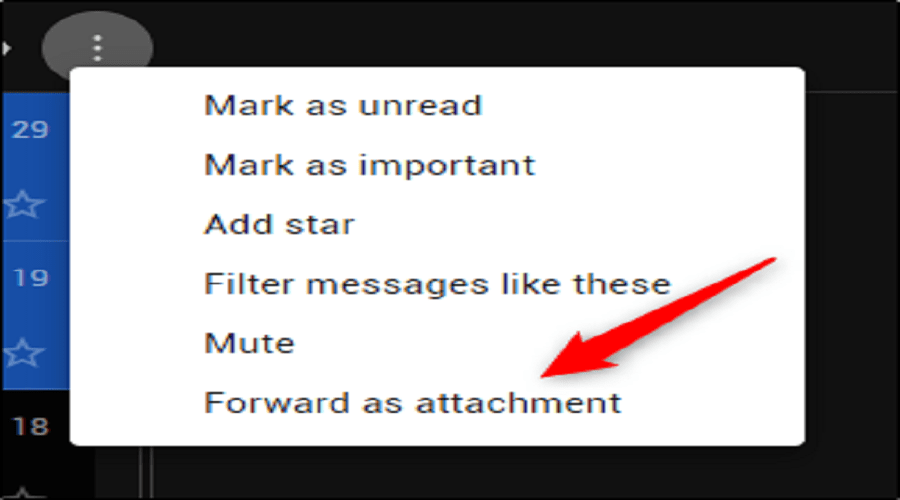
Once you click on this icon, a menu will appear. Click on the “Forward as attachment” option.
Immediately, a “New Message” window will open containing the selected email messages, attached as files EML
Complete sending your email by adding a recipient, giving the email a subject, and typing some text (if desired).
When you are ready, click the “Send” button.
This way you can send multiple emails at once as attachments.
Gmail: How to reply to emails and attach other emails;
Instead of composing a completely new email, you can reply directly to a message and attach other emails.
First, open the email you want to reply to by right-clicking on the email and clicking “Reply” (you will still see the home page with your emails).
A window will open with a text box where you can type your response. Type your response, then drag and drop the email you want to send as an attachment from the home page of emails into the body of your response.
The email will now be attached as an EML file. You can attach as many emails as you want to your reply by repeating the drag and drop method.
When you have your answer ready, click “Send”.
Source: Howtogeek
